My Tasks
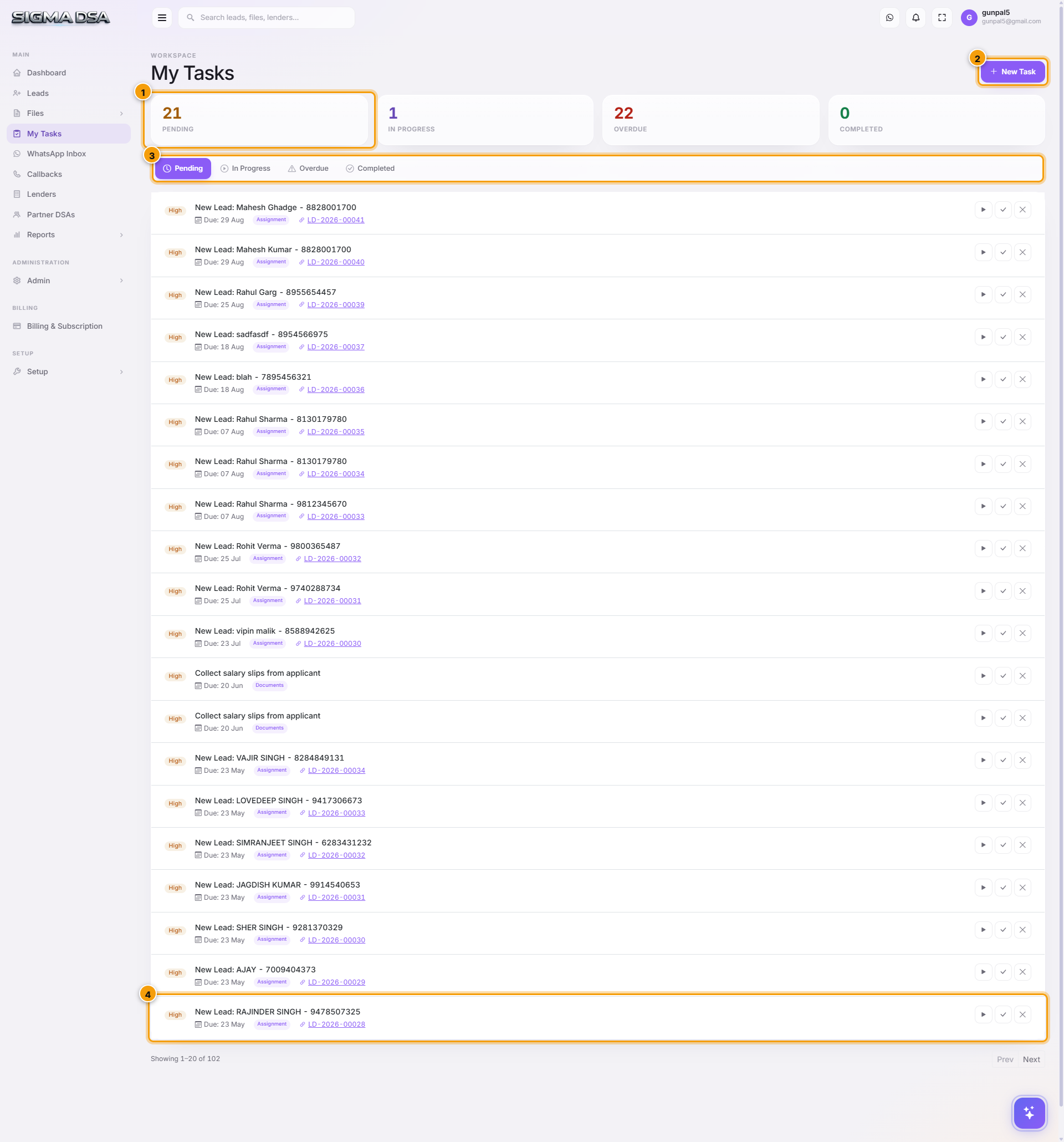
The My Tasks board in SigmaDSA — auto-generated tasks for new lead assignments, callbacks, document chases, and bank follow-ups. Each task has a status, due date, priority, and one-click "Done".
The My Tasks board is the operator's central work queue — every pending action the system or your teammates expect from you, in one place. New leads to call, callbacks to make, documents to chase, bank queries to respond to — all land here with a due date, priority, and one-click Done.
What's on the page
- Status counters — at-a-glance totals for Pending, In Progress, Overdue, Completed. Click any counter to filter the list.
- New Task button — manually create an ad-hoc task. Most tasks are auto-generated, so this is the exception not the rule.
- Tab strip — switches between Pending, In Progress, Overdue, Completed. The active tab determines what shows in the list.
- Task list — one row per task. Each row shows priority badge, title, due date, category, the linked record ID (lead/file/etc.), and a Done button.
Task anatomy
Each task row has these fields:
| Field | What it means |
|---|---|
| Priority badge | High / Medium / Low. Drives sort order within a tab. |
| Title | What you need to do (e.g., "New Lead: Anand – 7007601257"). |
| Due date | When the task should be done by. Past = overdue. |
| Category | Task type — Assignment, Callback, Document Chase, Query Response, Custom. |
| Linked record | The lead/file/callback the task is about (e.g., LD-2026-00021). Click to open. |
| Done button | One-click complete. Moves the task to Completed with a timestamp. |
Auto-generated task types
SigmaDSA generates tasks automatically as work flows through the system:
| Trigger | Task created | Priority | Due |
|---|---|---|---|
| New lead assigned to you | Assignment — New Lead: {name} – {phone} | High | Same day |
| Callback scheduled | Callback — Call back {customer} | Medium | At callback time |
| Document missing on file | Document Chase | Medium | 48 hours |
| Bank raises a query | Query Response | High | 24 hours |
| Sanction expires in 7 days | Sanction Expiry | High | Sanction validity date |
| Follow-up date hits | Follow-up | Medium | Follow-up date |
How tasks tie into the rest of SigmaDSA
- The Dashboard widget My Tasks shows the top 5 unread tasks at a glance.
- Each task's linked record (lead, file, callback) is one click away — open it, complete the action, return to the board.
- Tasks marked Done land on the linked record's Activity tab as an audit entry.
- Reassigning a lead/file fires off a new Assignment task to the new owner.
Common flows
- Start of day → open My Tasks → filter to Pending + sort by priority → work top-down.
- Overdue cleanup → switch to the Overdue tab → either complete or reschedule each (open the task → set a new due date).
- Hand off → open a task → Reassign to a teammate → it disappears from your queue and shows on theirs.
- Ad-hoc reminder → click New Task → fill title, due date, optionally link a lead/file → save. The new task lands on your board (or the assignee's if you set one).
Next steps
Export files to Excel
Export the SigmaDSA Files list to Excel — current filter, current columns, current sort. Use for management reports, bank submissions in bulk, lender reconciliations, or external CRM imports.
Create a new task
Step-by-step guide to creating a new task in SigmaDSA — title, description, due date, priority, category, and optional link to a lead or file.