Callbacks
The Callbacks board in SigmaDSA — scheduled customer call-backs, filtered by status (Pending, Overdue, Rescheduled, Completed) and loan type. Mark Complete, Reschedule, or Mark Missed inline.
The Callbacks board is your team's scheduled call-back queue — every customer call you owe, with date/time, assigned user, and one-click resolution. Counters at the top show the volume in each status, loan-type tabs split the queue by product, and per-row actions let you complete, reschedule, or mark missed without opening the record.
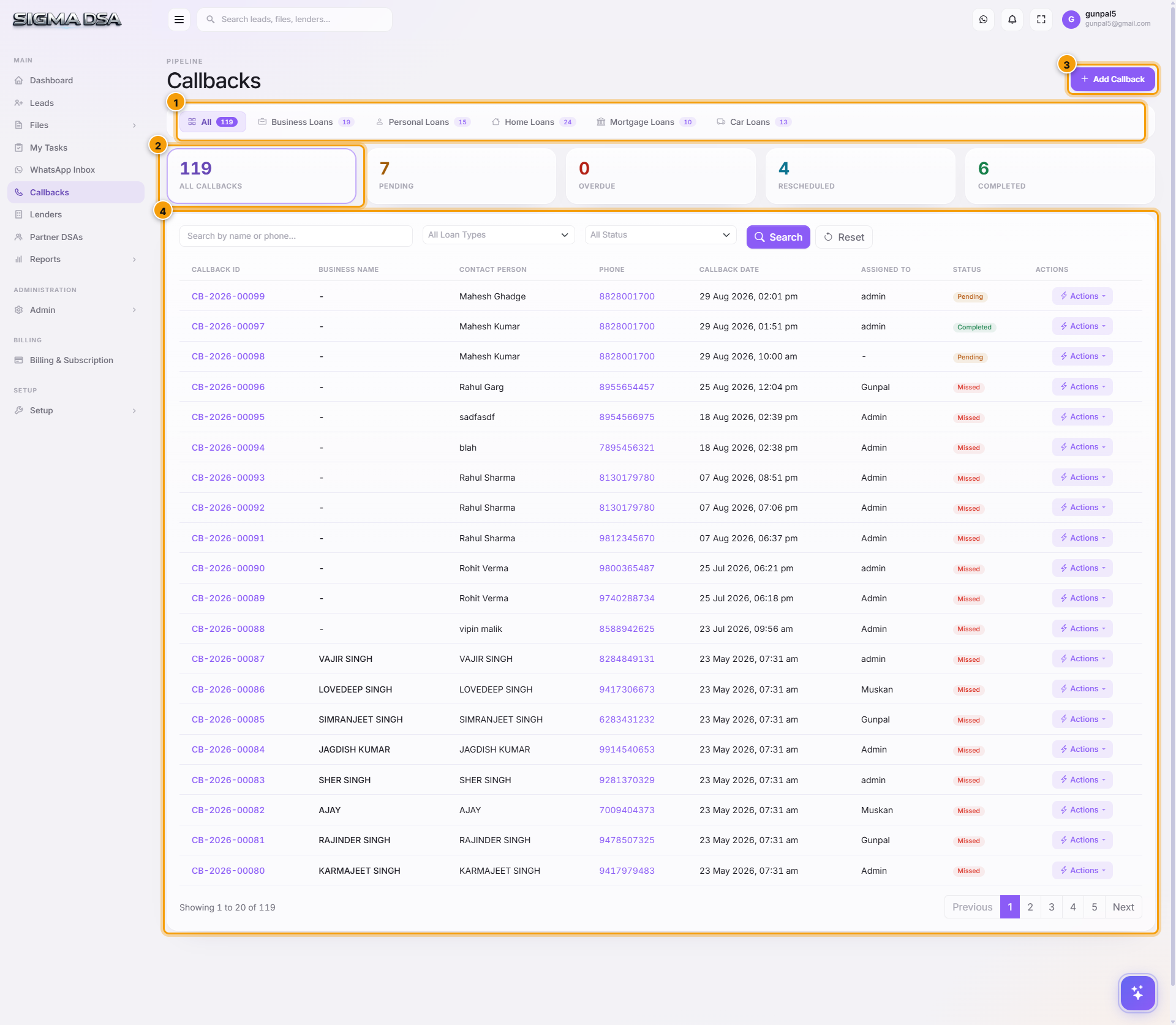
What's on the page
- Add Callback button — manually create a callback for any lead or file.
- Loan-type tab strip — All / Business Loans / Personal Loans / Home Loans / Mortgage Loans / Car Loans. Filters the list by product.
- Status counters — All Callbacks / Pending / Overdue / Rescheduled / Completed. Click any to filter.
- Filter row — Loan Type dropdown, Status dropdown, plus Search + Reset. Use to narrow by lender, assigned user, etc.
- Callback table — one row per callback with the columns below.
Table columns
| Column | What it shows |
|---|---|
| Callback ID | System-generated identifier CB-YYYY-NNNNN. |
| Business Name | For business loans — the firm's name. |
| Contact Person | The person to call back. |
| Phone | Click-to-call. |
| Callback Date | Scheduled date + time. |
| Assigned To | The user expected to make the call. |
| Status | Pending / In Progress / Completed / Missed / Rescheduled / Cancelled. |
| Actions | Mark Complete, Reschedule, Mark Missed (inline). |
How callbacks get created
| Trigger | What happens |
|---|---|
| Quick Add lead with a callback date | A callback row is created at the chosen time. |
| Lead Detail → set callback date | Same — auto-created. |
| File Detail → "Add Callback" via Actions | Created at the chosen time. |
| Add Callback button on this page | Fully manual — pick the lead/file, set date, save. |
| Reschedule an existing callback | Original marked Rescheduled, new row created. |
Inline row actions
| Action | When to use |
|---|---|
| Mark Complete | You made the call and reached the customer — captures the outcome. |
| Reschedule | Customer asked to call back later, or you couldn't make the call. Pick a new date/time + reason. |
| Mark Missed | Customer didn't pick up / line busy / wrong number. |
Common flows
- Start of shift → filter to Pending + your name → sort by Callback Date → call top-down.
- Bulk reschedule at end of day — anything not done becomes overdue; either reschedule each or let them flow into the Overdue bucket overnight.
- Conversion — when a callback turns into a quote, the linked lead's stage updates; the callback gets Mark Complete with outcome notes.
Permissions
Callbacks inherit access from the linked lead/file. If you can see the lead, you can see (and act on) its callbacks. Tenant admins can override per-role under Admin → Roles.
Next steps
Create a new task
Step-by-step guide to creating a new task in SigmaDSA — title, description, due date, priority, category, and optional link to a lead or file.
Add a callback
Step-by-step guide to scheduling a new callback in SigmaDSA — pick the linked lead or file, set date/time, capture customer details, priority, and remarks.