Add a callback
Step-by-step guide to scheduling a new callback in SigmaDSA — pick the linked lead or file, set date/time, capture customer details, priority, and remarks.
Callbacks in SigmaDSA represent scheduled customer call-backs — every call you owe with a date/time. You'll create most callbacks automatically when working a lead or file, but you can also create one directly from the Callbacks board.
How to add a callback
Open the Callbacks board and click Add Callback
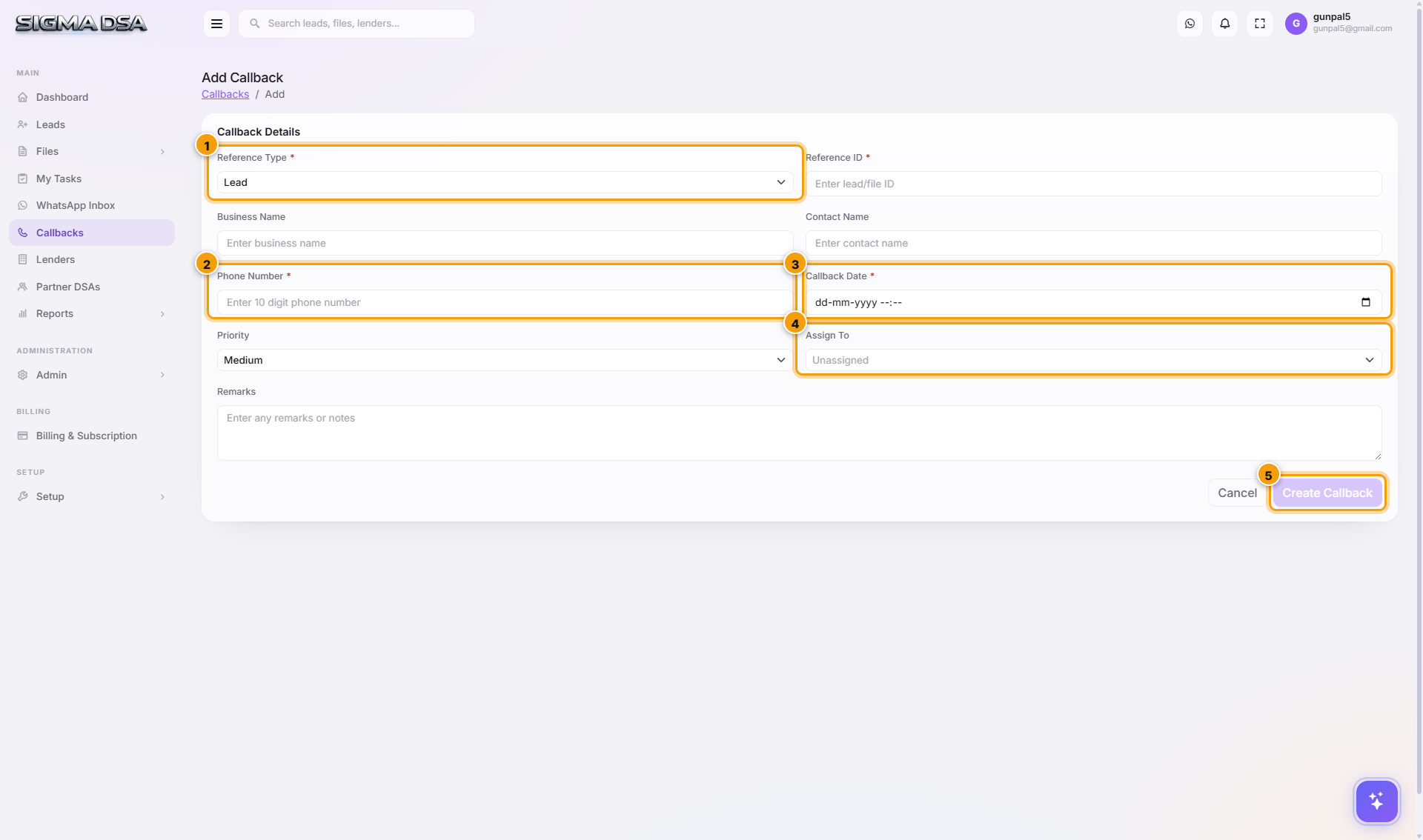
From the left sidebar, click Callbacks, then Add Callback at the top-right. A full-page form opens at /callbacks/create.
Pick the reference
| Reference Type | What to pick |
|---|---|
| Lead | An existing lead. The callback gets tied to the lead's pipeline. |
| LoanFile | An existing file. The callback gets tied to the file's workflow. |
The Reference ID picker filters by what you choose above — type to search by lead/file number, applicant name, or mobile.
Business Name + Contact Name
Auto-fills from the picked lead/file. Override if the person you're calling is different from the primary applicant (e.g., calling the CA instead of the proprietor).
Phone Number + Callback Date
- Phone Number — auto-fills from the lead/file's contact. Editable if you have a different number to use.
- Callback Date — date + time. The system schedules a corresponding Callback task on the assignee's My Tasks for this exact time.
Priority
Low / Medium / High / Urgent. Drives sort order on the Callbacks board's Pending tab.
Remarks
Free-text. Useful for "customer asked to call after 5pm" or "discuss revised offer". Carries into the Callback task description.
Click Create Callback
The callback lands on the Callbacks board's Pending tab and a matching task lands on the assignee's My Tasks. When the callback time arrives, both surfaces show it as due.
After saving
- The Callback row shows in the table with status Pending.
- A Callback task auto-creates on the assignee's My Tasks board.
- The linked lead/file's Activity tab logs the callback creation.
Common patterns
- Customer asked to call back at a specific time → set Callback Date to that exact time → priority Medium → done.
- Hot lead, urgent call → priority Urgent → assign to yourself even if normally team owner has it.
- Bulk callbacks for end-of-day quote follow-ups → create one per lead with Callback Date = tomorrow morning.
Next steps
Callbacks
The Callbacks board in SigmaDSA — scheduled customer call-backs, filtered by status (Pending, Overdue, Rescheduled, Completed) and loan type. Mark Complete, Reschedule, or Mark Missed inline.
WhatsApp Inbox
The WhatsApp Inbox in SigmaDSA — read every conversation your AI Employee is having with customers, take over a chat when a human is needed, and start a new conversation with an approved template.