Tour of the Leads dashboard
Walkthrough of the SigmaDSA Leads list — category tabs, filters, table columns, row actions, and the inline status pill.
The Leads section is where every prospective borrower lives until they're converted to a loan file. This page tour explains each region of the Leads list — what it does, who uses it, and how it ties into the rest of the app.
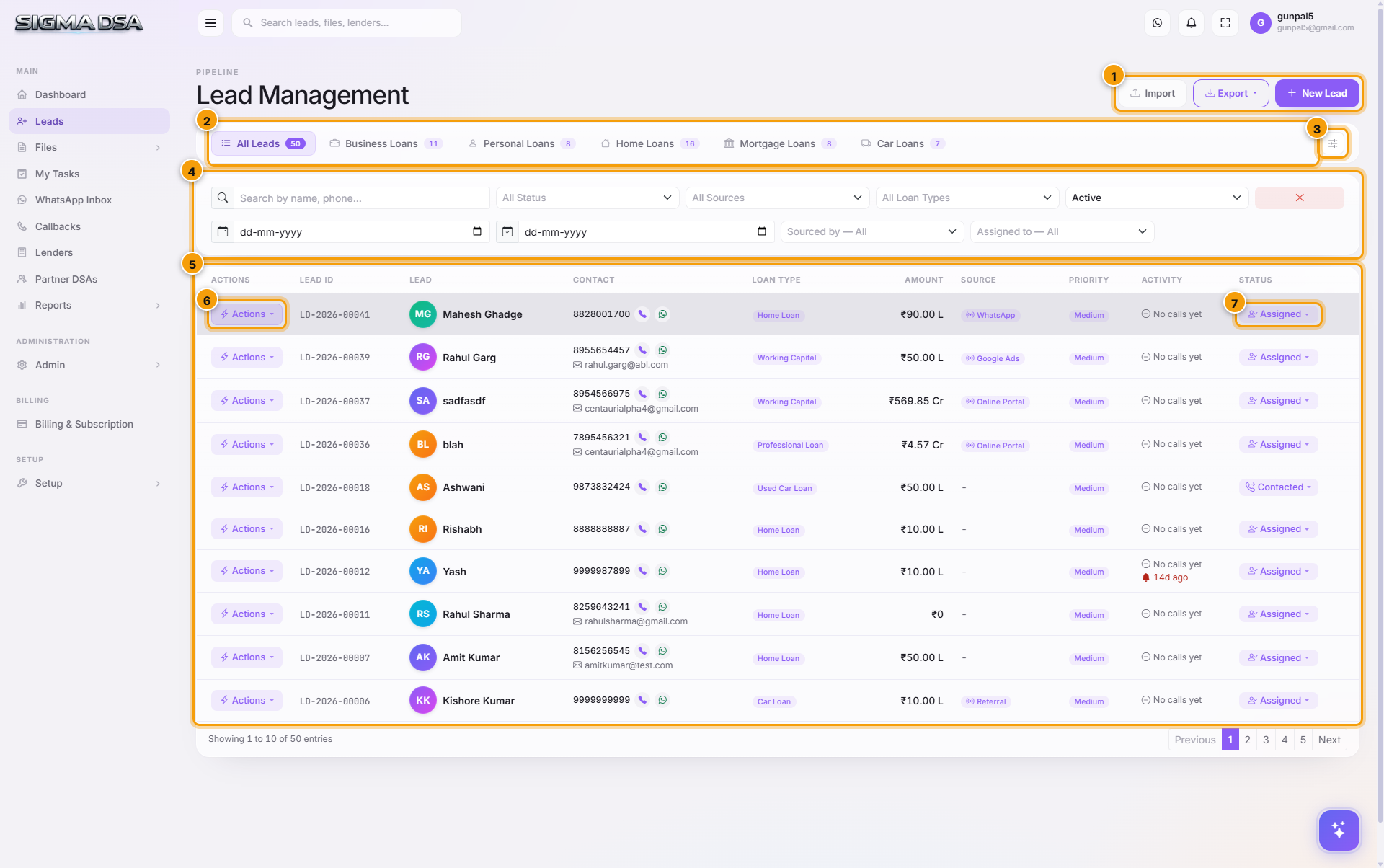
Page header + actions
The top bar shows the page title (Lead Management) and four primary action buttons:
| Button | What it does |
|---|---|
| Import | Opens the Import Leads modal to bulk-upload an Excel or CSV file. Columns auto-map by name; duplicates by phone are skipped. See Import leads from Excel. |
| Export | Downloads the current filtered Leads list as Leads_YYYY-MM-DD.xlsx. Every filter and the current tab are honored. See Export leads to Excel. |
| Auto-Assign All | Distributes every unassigned lead across active team members using workload-aware rules — the rep with the smallest open pipeline gets the next one. Manager-only. |
| + New Lead | Opens the Quick Add Lead modal (6 fields). After saving, the full edit page opens so you can fill in employment, income, address, etc. See Add your first lead. |
Visibility is permission-gated — non-admins typically see only + New Lead.
Category tabs
One tab per loan category — All Leads, Business Loans, Car Loans, Home Loans, Mortgage Loans, Personal Loans. The badge on each tab shows the live count of leads in that category, computed from the same scope as the table. Clicking a tab filters the list and remembers your choice when you come back.
Customize Tabs button
The small gear icon to the right of the tab row opens the Customize Tabs panel. Reorder tabs, hide categories you don't deal in, pin specific loan types as their own tabs, and pick the columns each tab shows. See Customize the Leads dashboard for the full walkthrough.
Filters card
Search by name or phone, plus multi-select filters for Status, Lead Source, Loan Type, the Active / Converted toggle, and a date range. Managers (users with the ViewAll permission) also get Sourced By and Assigned To dropdowns on a second row. The × button resets every filter at once.
Lead table
The list itself. Columns are tab-specific — the All Leads view defaults to Actions, Lead ID, Lead (name + avatar + city + category), Contact, Loan Type, Amount, Priority, Activity, and Status. Loan-type-specific tabs (Home Loan, Car Loan, etc.) show additional columns relevant to that product.
Actions menu (per row)
The Actions button on every row opens a dropdown with every operation you can take on that lead — no need to open the lead detail page first. Items are grouped by what they do:
Navigation
| Item | What it does |
|---|---|
| View Details | Opens the lead detail page — read-only summary with activity timeline, quick actions, assignment, and remarks. |
| Edit Lead | Opens the full edit page so you can fill or update employment, income, address, existing EMIs, and lead settings. |
Contact the applicant
| Item | What it does |
|---|---|
| Call | tel: link that dials the lead's primary phone from your computer / mobile. |
Opens https://wa.me/91… in a new tab so you can start a chat in WhatsApp Web (or the mobile app). |
Quick status changes (hidden once the lead is Converted)
| Item | What it does |
|---|---|
| Mark Contacted | Stamps the lead with status Contacted and logs the activity. Use after the first successful conversation. |
| Mark Interested | Moves status to Interested — the lead is qualified and worth pushing toward conversion. |
| Schedule Callback | Opens the Schedule Callback modal — pick a follow-up date/time and optional notes. Creates an entry on the Callbacks queue and on the dashboard's Today's Follow-Ups card. |
| Mark Not Reachable | Status → Not Reachable. Tries again automatically per your tenant's retry schedule. |
| Mark Not Interested | Opens a modal asking for a reason, then sets status → Not Interested. The reason is preserved on the lead. |
| Lost | Terminal status — applicant chose another provider or backed out. |
Convert + reassign
| Item | What it does |
|---|---|
| Convert to File | Promotes the lead into a tracked loan file. Modal lets you adjust loan type, amount, priority, and source before saving. See Convert a lead to a loan file. |
| Assign | Hand the lead to a specific team member. See Assign a lead to a team member. |
| Auto-Assign | Lets SigmaDSA pick the team member with the smallest pipeline. Only shown for New (unassigned) leads. |
Destructive
| Item | What it does |
|---|---|
| Delete | Permanently removes the lead from the database (along with its activity timeline). Confirmation required. Use sparingly — Mark Lost / Not Interested is usually the right move instead. |
Inline status pill
The status pill in the last column is itself a dropdown — click it to quickly change a lead's status (Contacted, Interested, Qualified, Not Reachable, Lost) without opening the row. Already-converted leads are locked.
Next steps
- Customize the Leads dashboard — pick which tabs and columns each user sees
- Add your first lead
- Import leads from Excel
- Convert a qualified lead into a loan file