Customize the Leads dashboard
Reorder loan-category tabs, pin specific loan types, and pick which table columns appear per tab — saved per user.
You decide which loan-category tabs show up on the Leads page, in what order, and what columns each tab displays. Layouts are saved per user, so every team member can tailor the view to how they work.
Customize which tabs appear
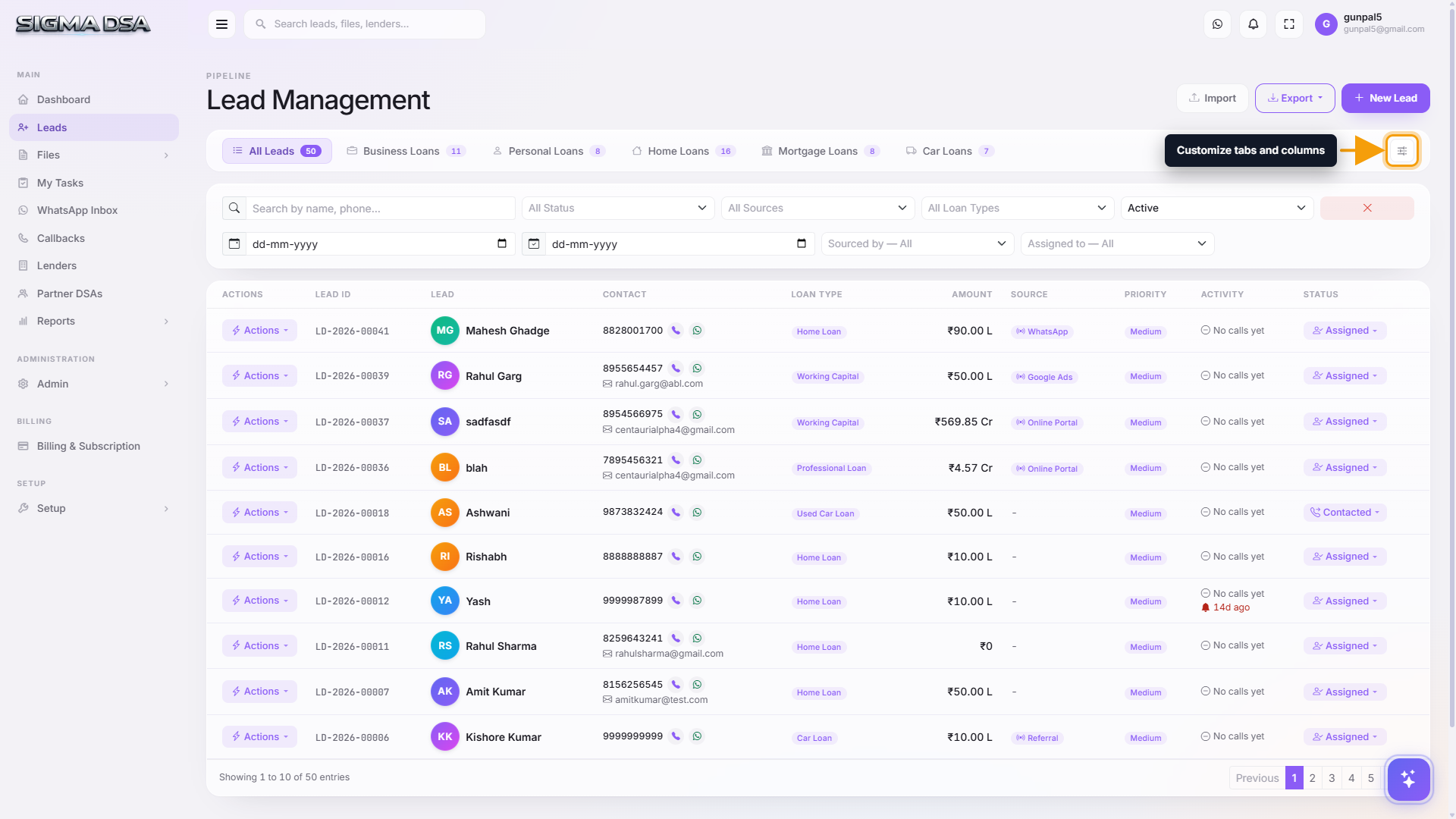
Open the customizer
On the Leads page, click the gear icon (a small "sliders" button) to the right of the category tab row. The Customize Tabs panel slides in from the right.
Reorder, hide, and pin
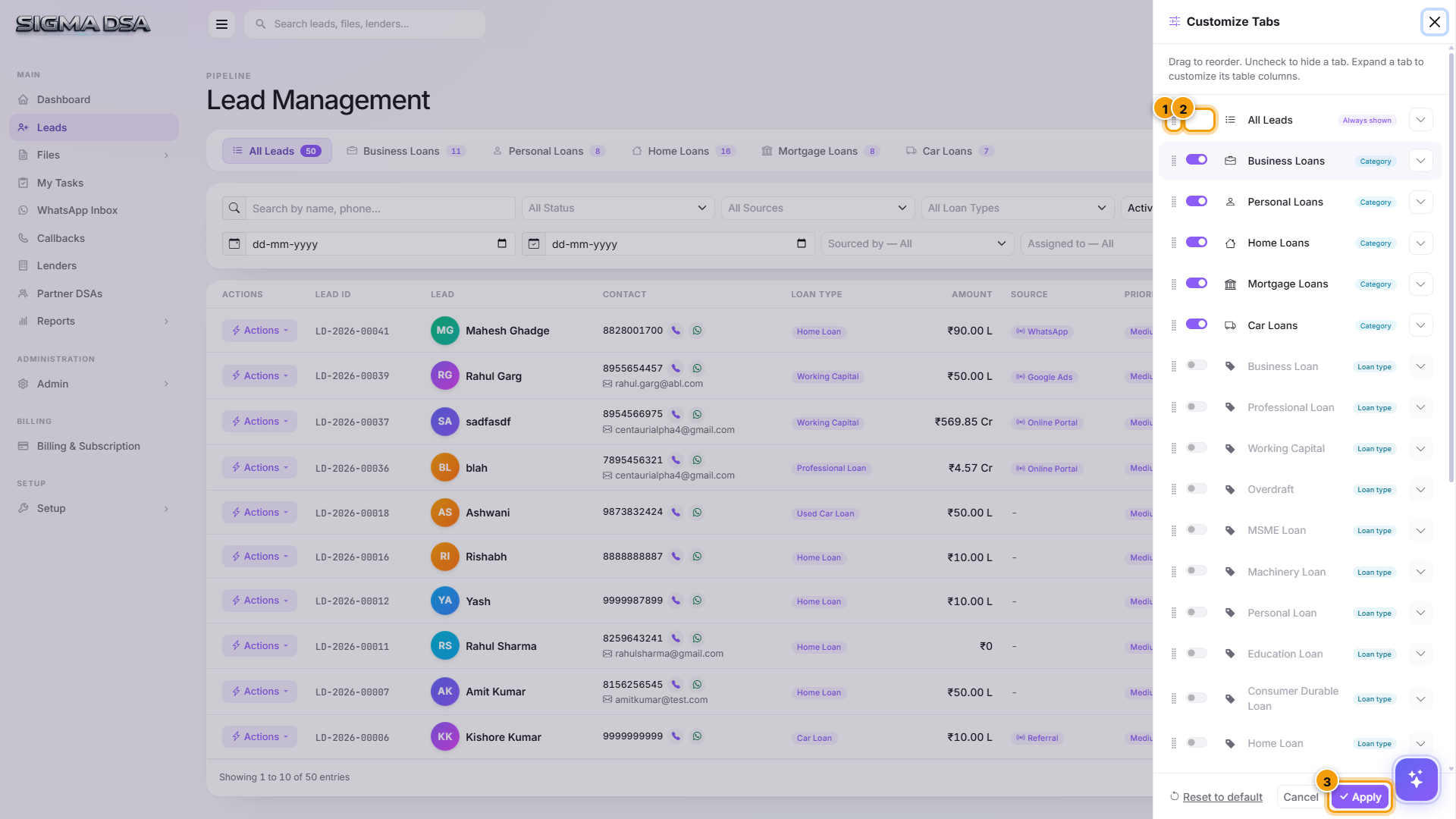
The panel lists every tab the system knows about — built-in categories and any loan types you've pinned previously. Each row has a drag handle (grip dots on the left), a visibility switch, the tab name, and a small label (Category or Loan type) so you know what kind of tab it is. All Leads is always shown and pinned to position 1.
- Drag rows up or down to change the tab order.
- Toggle the switch off to hide a tab without losing its column settings.
- Pin a specific loan type (e.g., Used Car Loan, LAP Residential) by toggling on a "Loan type" row — that loan type becomes its own tab between the category tabs.
Reset or Apply
Reset to default restores the system-suggested layout (All Leads + every category that has loan types). Apply saves your layout and immediately refreshes the tab bar. The layout is stored per user.
Customize which columns appear per tab
Each tab has its own column set. A car-loan rep can show Vehicle, RC and Year on the Car Loan tab while the home-loan team shows Property Type and Property Value on theirs — all on the same Leads page.
Expand a tab
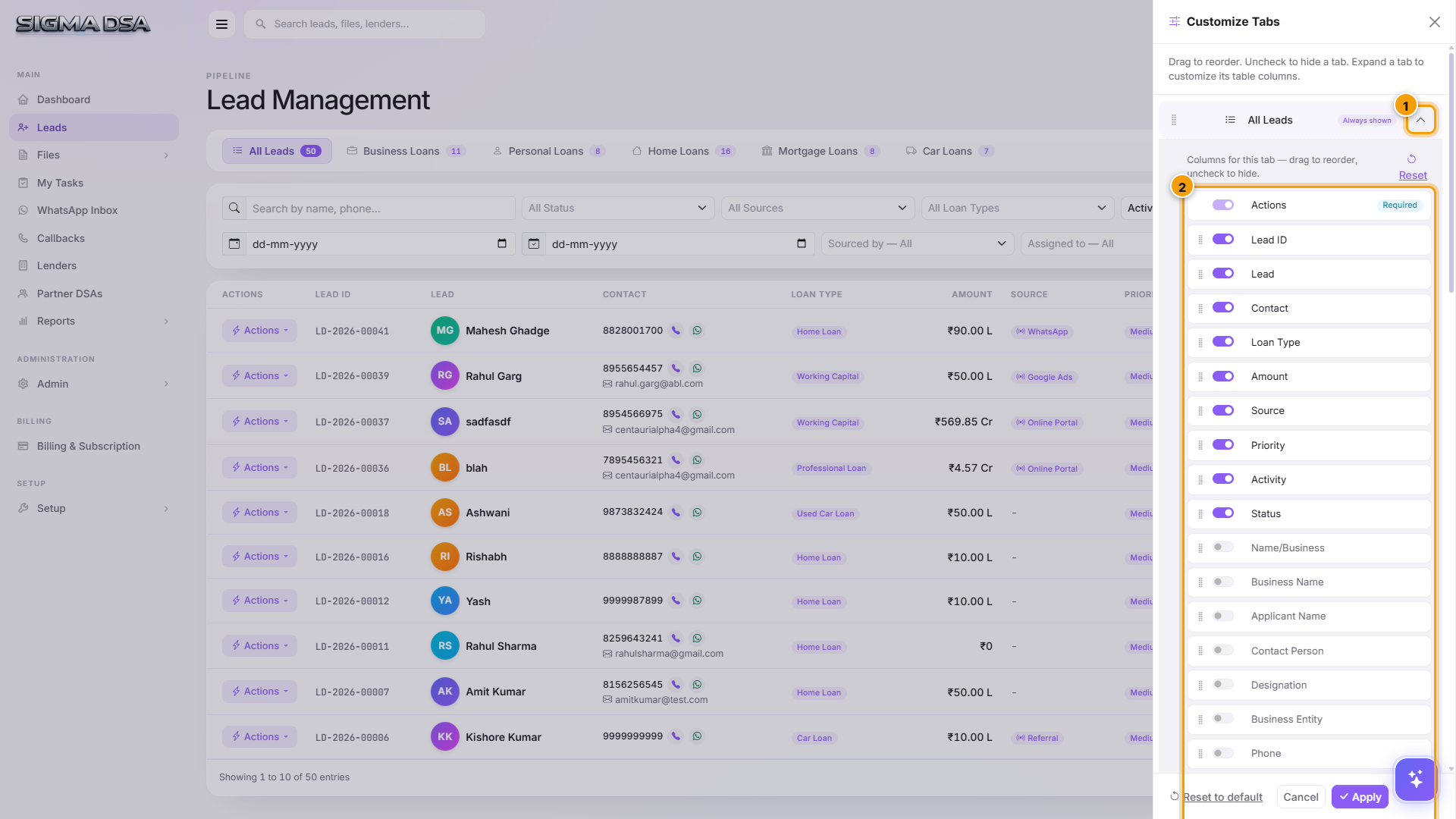
Inside the Customize Tabs panel, click the chevron button (˅) on the right side of any tab row. The tab expands inline to show every column that tab can display.
Pick the columns
Each column has its own visibility switch and drag handle:
- Toggle a column off to hide it from this tab's table.
- Drag columns up or down to change their left-to-right order on the table.
- Columns are tab-specific — turning Vehicle off on All Leads doesn't affect the Car Loan tab.
Apply
Click Apply at the bottom of the panel to save and re-render the table. Your column layout is stored per user and per tab — you can keep a dense "ops" view on All Leads and a focused subset on each category tab.
Tips
- One layout per browser session needed? Hidden tabs and columns stay hidden until you re-enable them — no need to set the layout again every login.
- New loan types appear automatically. When an admin adds a new loan type in Setup, the corresponding category tab updates its counts instantly; the loan type itself is available to pin from the customizer right away.
- Managers and reps can have different views. A manager wanting to see commissions and sourced-by columns won't disrupt the salesperson's tighter "calls + status" view.
Next steps
Tour of the Leads dashboard
Walkthrough of the SigmaDSA Leads list — category tabs, filters, table columns, row actions, and the inline status pill.
Add your first lead
Two-stage workflow for adding a lead in SigmaDSA — a six-field Quick Add modal followed by the full edit page for employment, income, address, and existing obligations.