Convert a lead to a loan file
Promote a qualified lead into a full loan file in SigmaDSA — pre-fill loan type and amount, then track documentation, bank logins, sanctions, and disbursal.
A lead is a prospect — someone you're still talking to. A file is the formal loan application — it has documents, bank logins, sanction terms, and a full workflow from documentation through disbursal. Once the applicant agrees to apply, you convert the lead to a file so SigmaDSA can start tracking everything that follows.
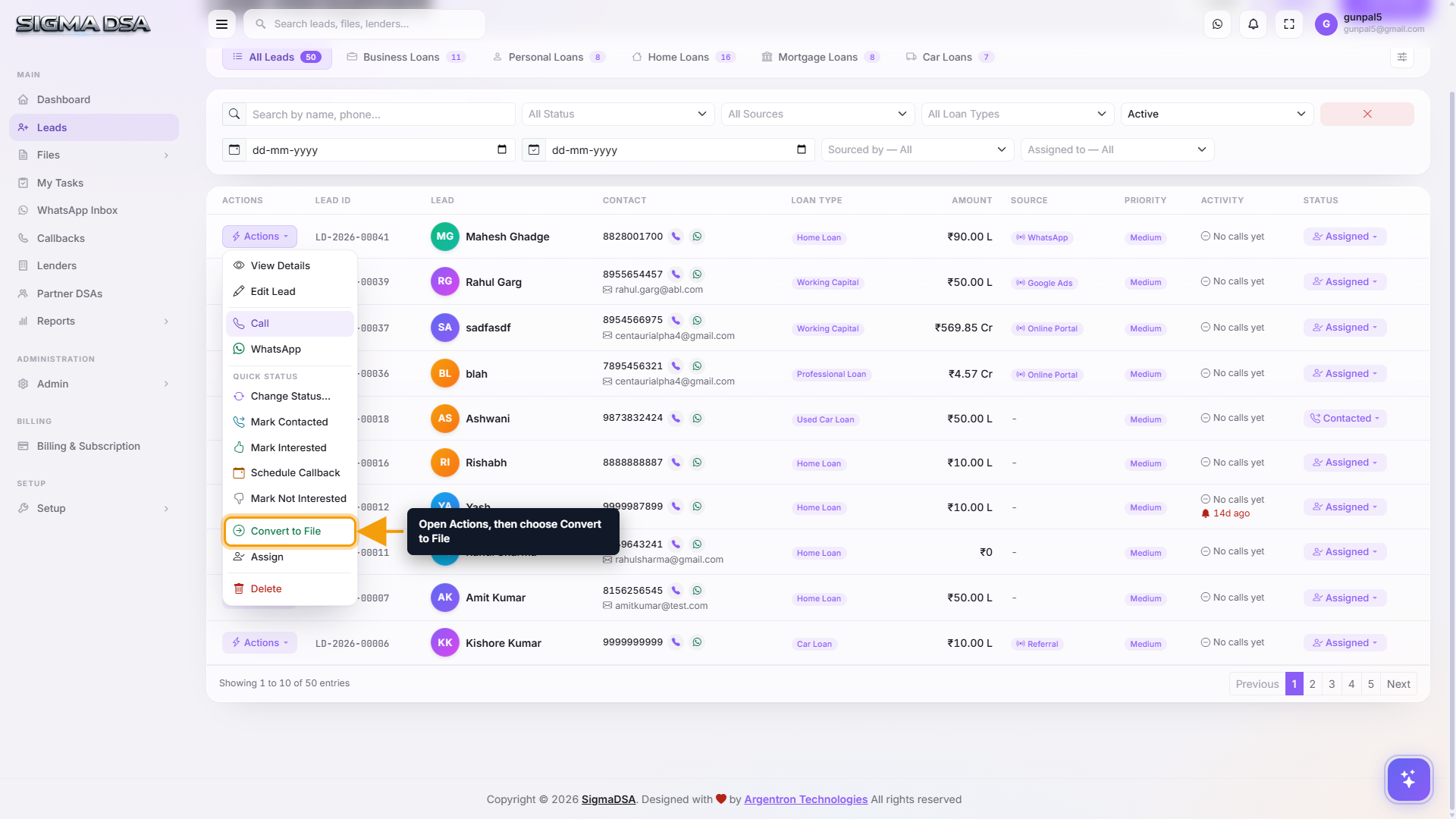
Open the Actions menu and pick "Convert to File"
On the Leads list, click the Actions button on the qualified lead's row. In the dropdown, click Convert to File.
Already-converted leads have the option greyed out — they're locked. Status-related options (like Mark Contacted) are also gated based on the current status.
Review the pre-filled modal and click Convert to File
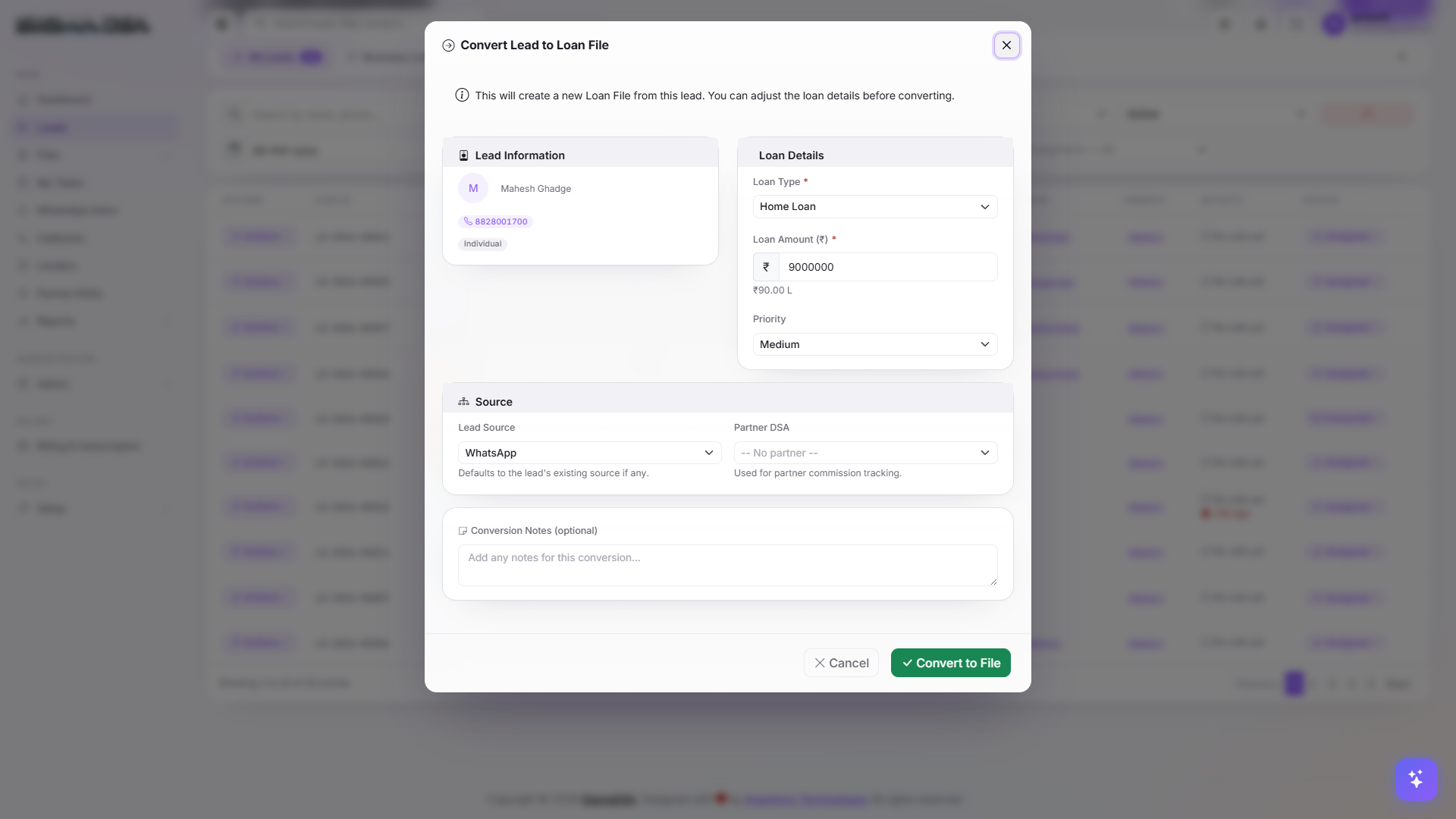
The Convert Lead to Loan File modal opens. Six fields are pre-filled from the lead — adjust them if anything has changed since the lead was first captured:
- Loan Type — locked from the lead but editable (e.g. switch from Home Loan to LAP Residential if the conversation has evolved).
- Loan Amount (₹) — the requested amount; can be revised at conversion.
- Priority — Low, Medium, High, or Urgent (drives sorting on the files list).
- Lead Source — pre-filled from the lead.
- Partner DSA — if the lead came through a connector.
- Conversion Notes (optional) — anything specific to record about the conversion itself (e.g., "agreed to apply after Tuesday's call").
Click Convert to File at the bottom-right of the modal.
Land on the new file detail page
SigmaDSA does five things in one step:
- Creates a new loan file with a unique
LF-YYYY-NNNNNnumber. - Marks the original lead Converted and links it to the new file.
- Copies every relevant field from the lead onto the file (see below).
- Adds a Lead converted to file entry on both the lead's and the file's activity timeline.
- Redirects you to the file detail page so you can immediately upload documents, add bank logins, and start the lender process.
What gets carried over
When a lead is converted, SigmaDSA copies these fields onto the new file:
- Applicant identity — name, phone, email, city, business name, business entity, designation.
- Loan basics — loan type, requested amount, priority, lead source.
- Income & employment — employment type, monthly salary, annual turnover (if filled on the lead).
- Property / vehicle details — property type, property value, car type (loan-type-specific fields).
- Sourcing — Sourced By user, Partner DSA / connector.
- Lead notes — all remarks become the first comment on the new file's timeline.
Fields you fill on the file later (documents, co-applicants, bank logins, sanction terms) are file-only and never travel back to the lead.
What happens to the original lead
- Status changes to Converted and the row gets a green pill on the Leads list.
- The Actions menu on that row hides destructive options (Convert to File, status changes, Delete) — the lead is now locked.
- A link to the new file appears on the lead detail page's status header so you can jump between the two.
- Reports counting Lead-to-File conversion rate automatically include this lead.
Common follow-up actions on the new file
Once you're on the file, the typical next steps are:
- Upload KYC + income documents — Documentation tab on the file.
- Run Bank Statement Analysis — the AI Employee extracts inflows/EMIs/FOIR automatically once a statement PDF is uploaded.
- Add bank logins — submit the same applicant to one or more lenders. See Submit a file to multiple banks at once under the Files section.
- Add co-applicants — joint home loans, business loans with directors as co-applicants.
Tips
- Convert early, refine on the file. If the applicant has agreed to proceed but you don't have all their documents yet, convert anyway — the file is the right place to gather paperwork, not the lead.
- Use Conversion Notes for handoffs. If the sales rep who captured the lead is different from the operations person who'll process the file, drop a one-line note in the modal so context isn't lost.
- Don't convert speculative leads. A converted lead can't be reverted. If you're still not sure the applicant is serious, keep them as a lead and use Schedule Callback to follow up.
Next steps
Export leads to Excel
Download the current filtered Leads list as an .xlsx file — every filter, search, date range, and tab is honored.
Tour of the Files dashboard
Walkthrough of the SigmaDSA Files list — category tabs, bank-logins column, stage pill, row actions, and how files move through Documentation → Sanction → Disbursal.