Assign a lead to a team member
Two ways to assign or reassign a lead in SigmaDSA — from the Actions menu on the Leads list, and from the Assignment card on the lead detail page.
Every lead in SigmaDSA has a single owner — the team member responsible for following up. You'll assign a new lead either implicitly (auto-assignment when it's created) or explicitly when you decide who should handle it. The same goes for reassignment: when someone goes on leave, joins a new team, or the wrong person picked it up by mistake.
There are two ways to assign or reassign a lead:
1. From the Leads list — Actions menu
Use this when you're working through a batch of leads and want to hand each one to a different person without opening every lead.
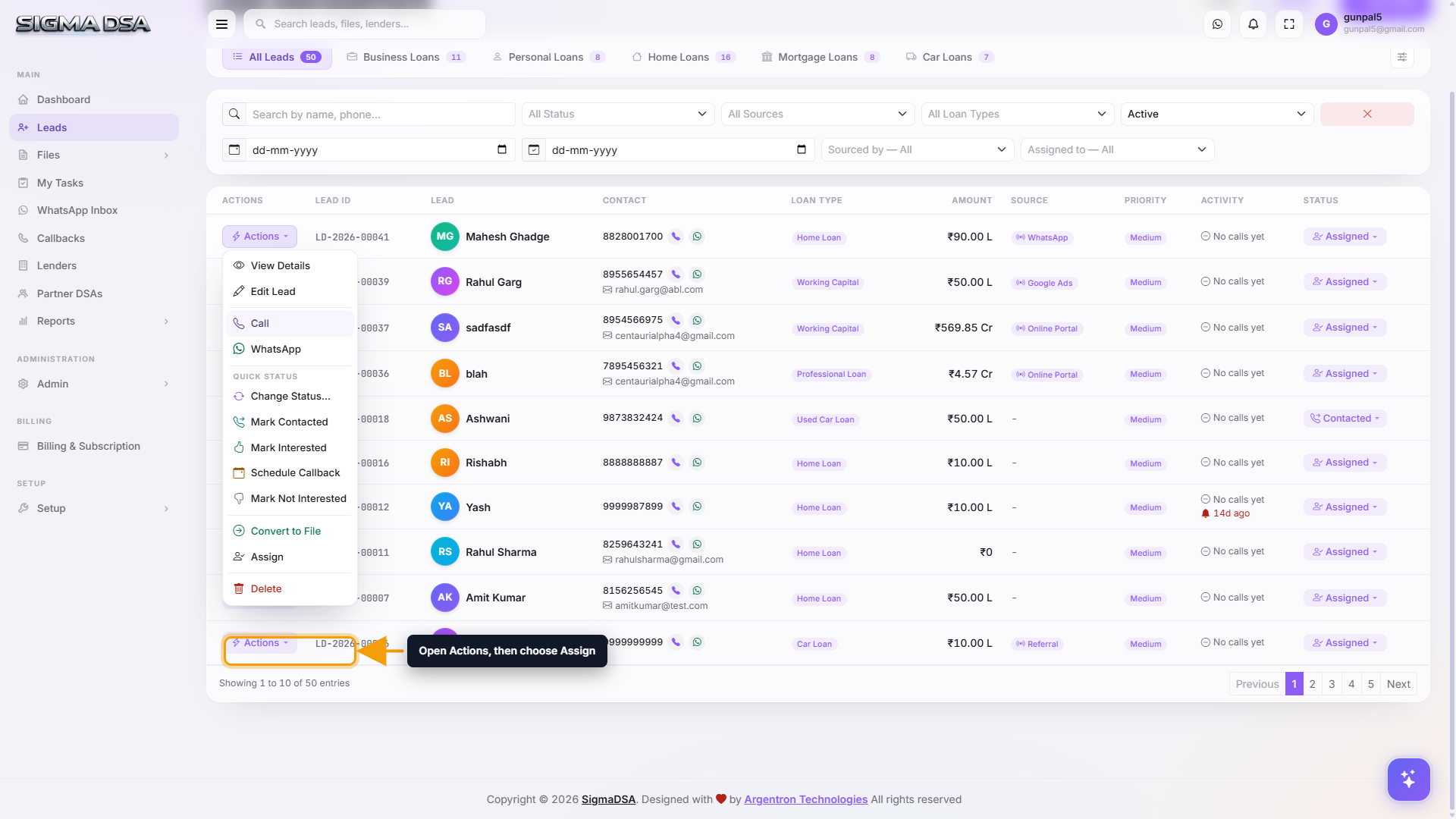
Open the Actions menu
On the Leads list, click the Actions button on the row of the lead you want to assign. The dropdown shows every action available for that lead, including Assign (and Auto-Assign for unassigned leads).
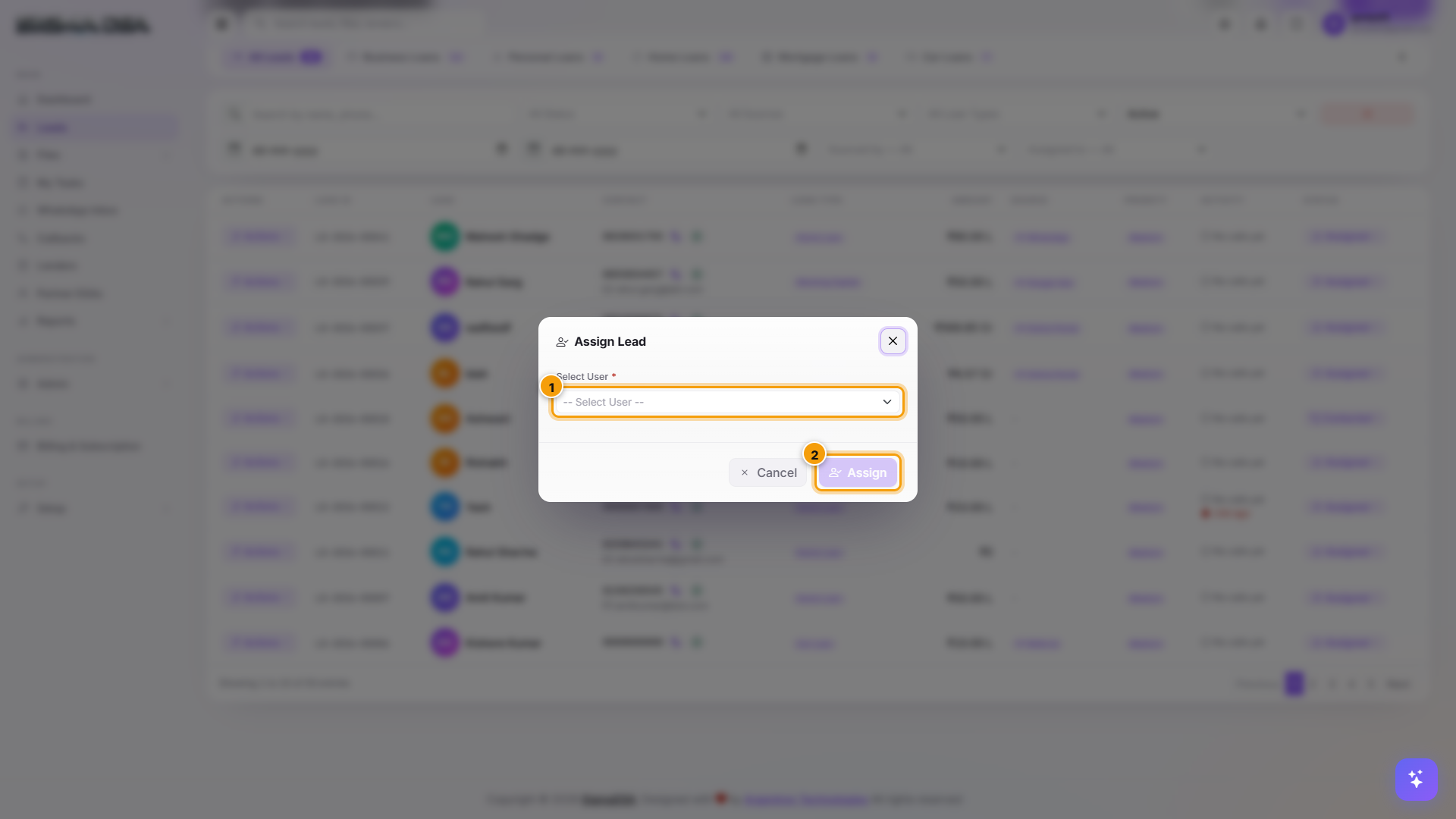
Pick the team member and Save
A modal titled Assign Lead appears with a single dropdown — every active user in your tenant who has the Leads permission. Pick the team member you want to give the lead to and click Assign.
2. From the lead detail page — Assignment card
Use this when you're already looking at a specific lead (just made a call, just read through the activity timeline) and decide to hand it to someone else. No need to bounce back to the Leads list.
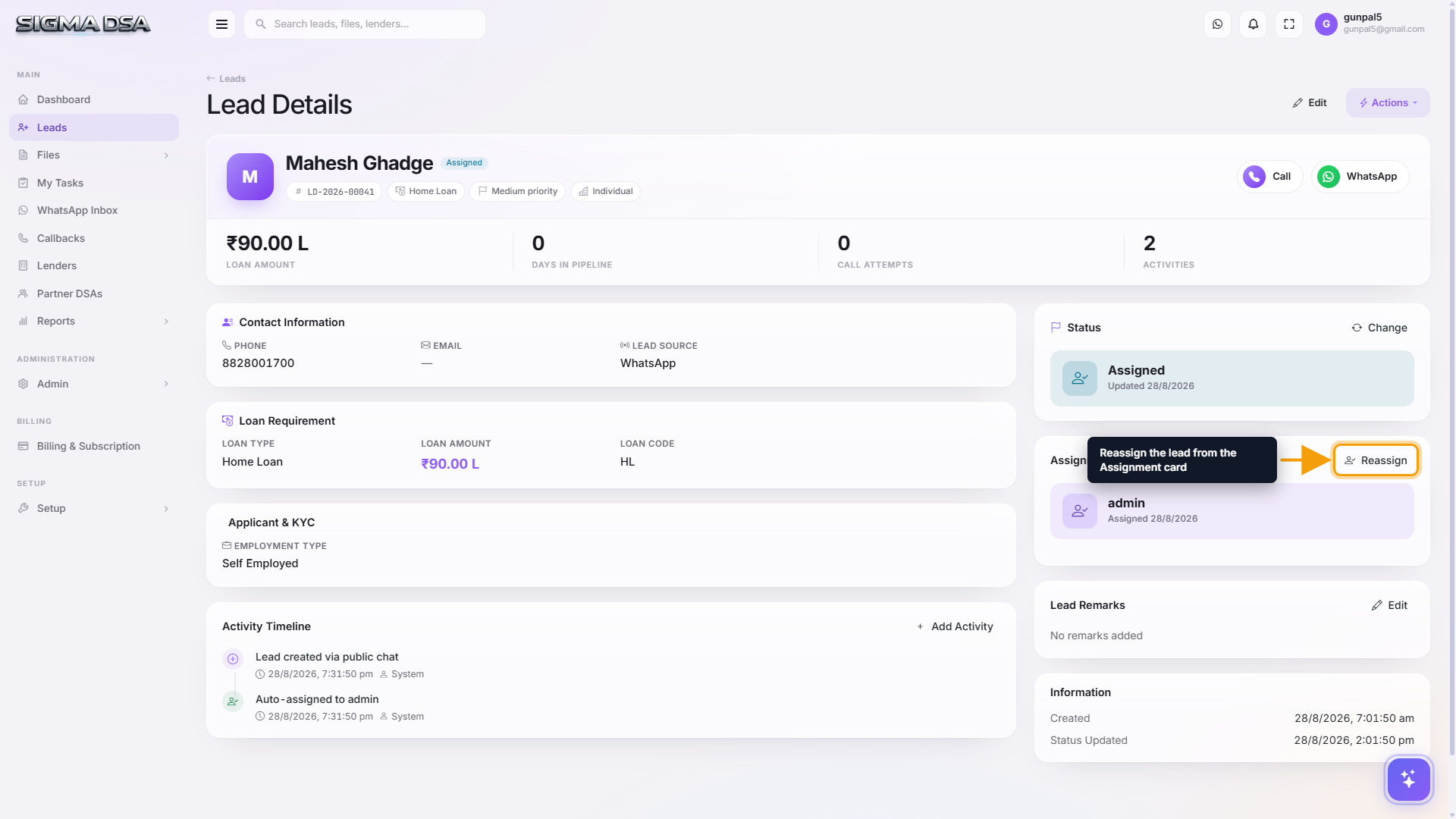
Open the lead and find the Assignment card
Click the lead's row in the Leads list to open the lead detail page. On the right side, find the Assignment card — it shows who currently owns the lead. Click Reassign in the card's top-right corner.
Pick the new team member and Save
The same Assign Lead modal opens. Pick the new owner from the dropdown and click Assign. The Assignment card updates immediately, and a new entry appears on the Activity Timeline below recording who reassigned and when.
What happens after assignment
- The lead's status changes to Assigned if it was previously New.
- The new owner receives a notification (in-app + email if they have email alerts on).
- A task appears on the new owner's My Tasks board prompting them to make first contact.
- The reassignment is logged on the lead's Activity Timeline — visible to anyone with ViewAll permission.
- The previous owner loses the lead from their personal view unless they have ViewAll.
Bulk assignment — Auto-Assign All
For load-balancing across the team (e.g. after onboarding a new salesperson), use the Auto-Assign All button in the Leads list top bar. SigmaDSA distributes every unassigned lead across active team members using workload-aware rules — the team member with the smallest open pipeline gets the next one.
Per-row Auto-Assign (available on New leads via the Actions menu) does the same thing for a single lead.