Import leads from Excel
Bulk-upload leads from any Excel or CSV file with auto-mapping for the standard SigmaDSA columns.
If you have an existing pipeline in Excel, SigmaDSA can import the whole thing in under a minute.
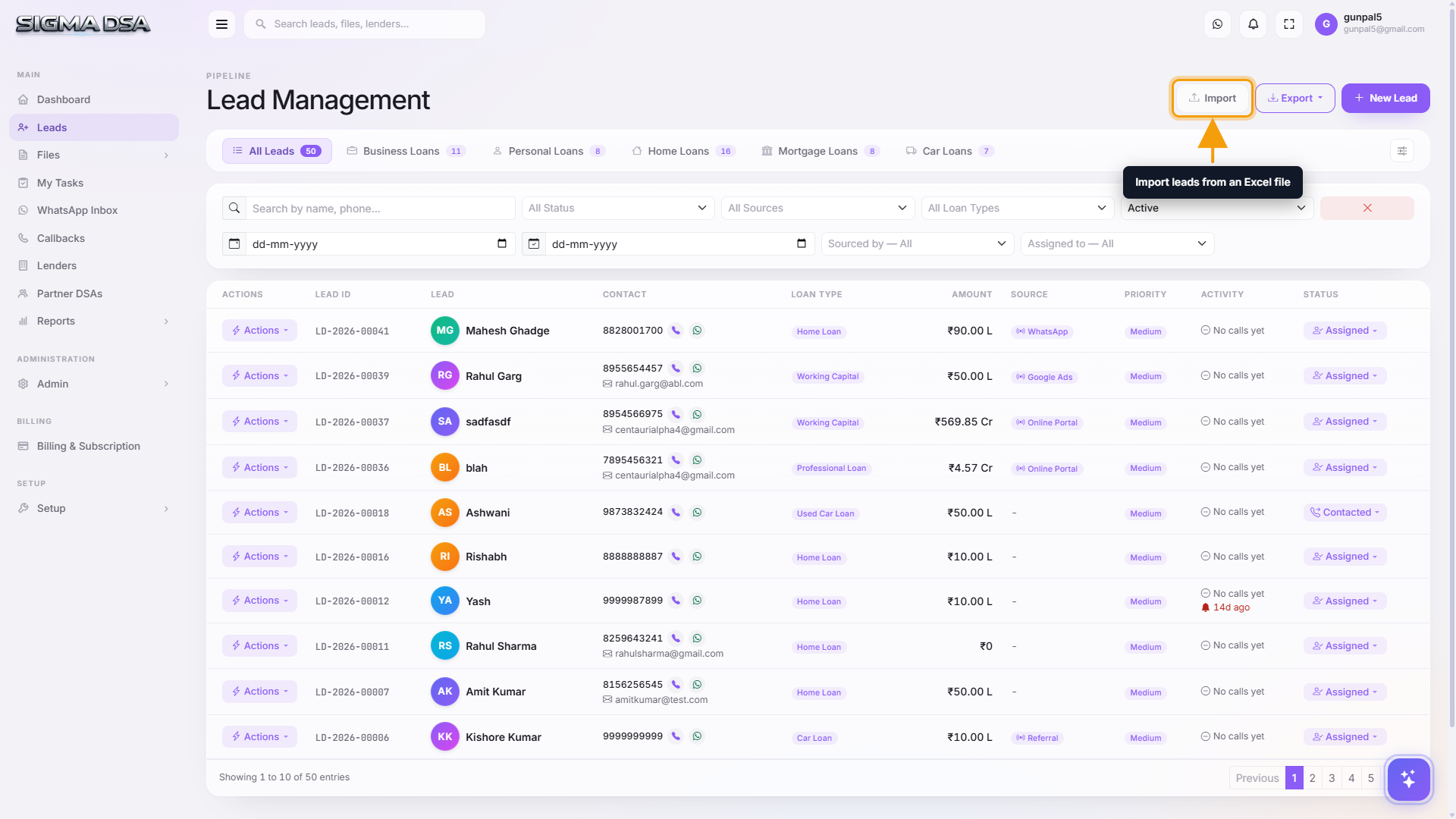
Open Leads and click "Import"
From the left sidebar, click Leads. In the top-right of the Leads list, click the green Import button to open the Import Leads modal.
(Optional) Download the template
Click Download Import Template inside the modal to grab a pre-formatted .xlsx showing the exact column names SigmaDSA auto-maps. You can skip this step if your existing file already uses matching headers.
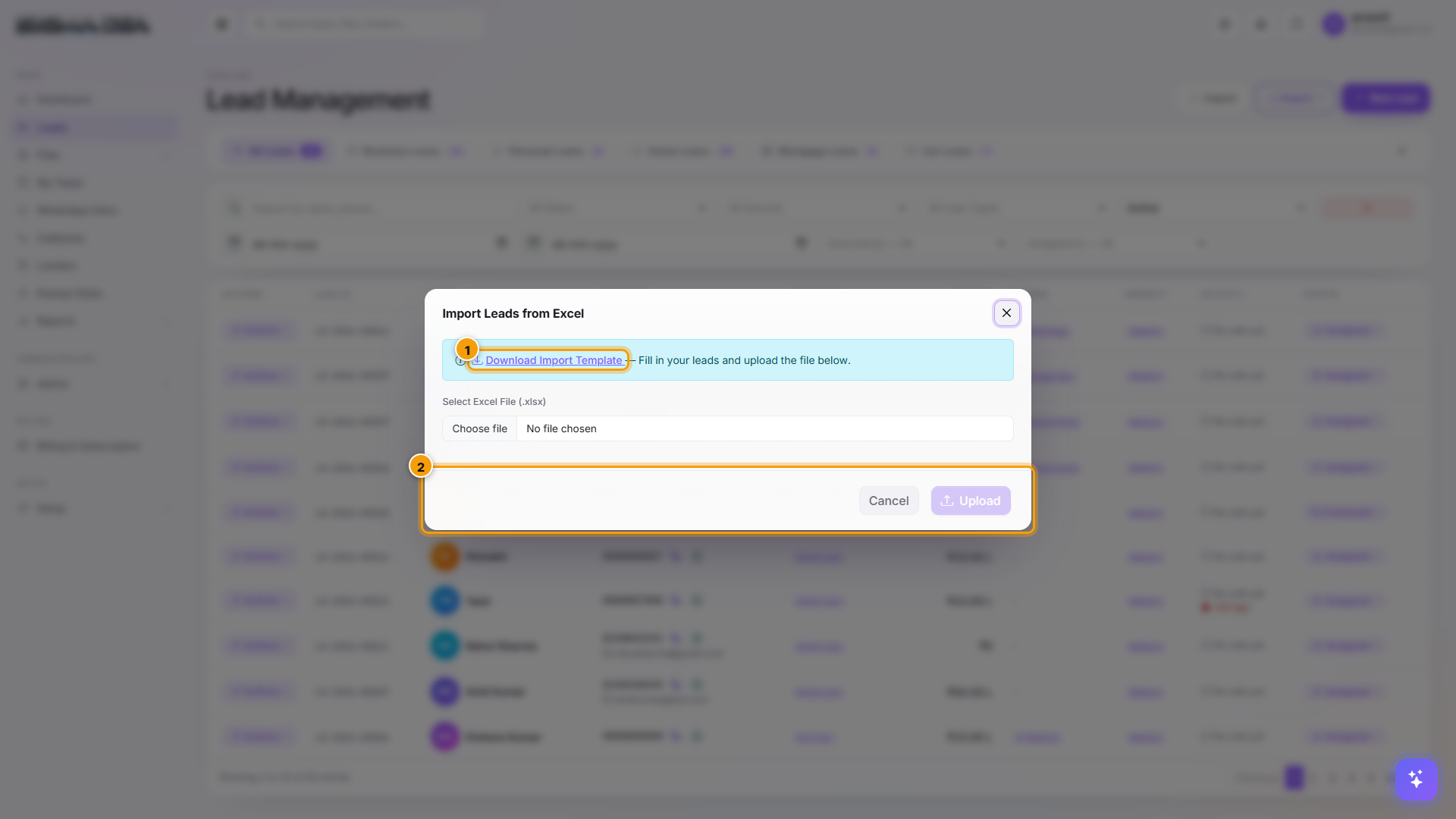
Upload your file and confirm
Drag your .xlsx or .csv file into the upload area (or click Choose File to browse). SigmaDSA shows a preview of the first 10 rows with auto-mapped columns. Review the mapping, then click Import.
Duplicates by phone number are skipped automatically, and a progress bar shows how many leads have been processed. Imported leads appear at the top of the Leads list with status New.
Supported columns
Name, Business Name, Phone, Secondary Phone, Email, City, Loan Type, Loan Amount, Employment Type, Monthly Salary, Annual Turnover, Property Type, Lead Source, Priority, Remarks.
Phone is the only required field — everything else is optional and can be filled in later.
Tips
- Phone format: plain 10-digit Indian numbers work best (e.g.,
9876543210). Leading+91or0is stripped automatically. - Loan type names must match an active loan type in your Lender / Loan Type setup. Misspellings will fail validation; the import preview flags them in red.
- Re-importing the same file updates leads matched by phone number rather than creating duplicates.
Next steps
Assign a lead to a team member
Two ways to assign or reassign a lead in SigmaDSA — from the Actions menu on the Leads list, and from the Assignment card on the lead detail page.
Export leads to Excel
Download the current filtered Leads list as an .xlsx file — every filter, search, date range, and tab is honored.