Export leads to Excel
Download the current filtered Leads list as an .xlsx file — every filter, search, date range, and tab is honored.
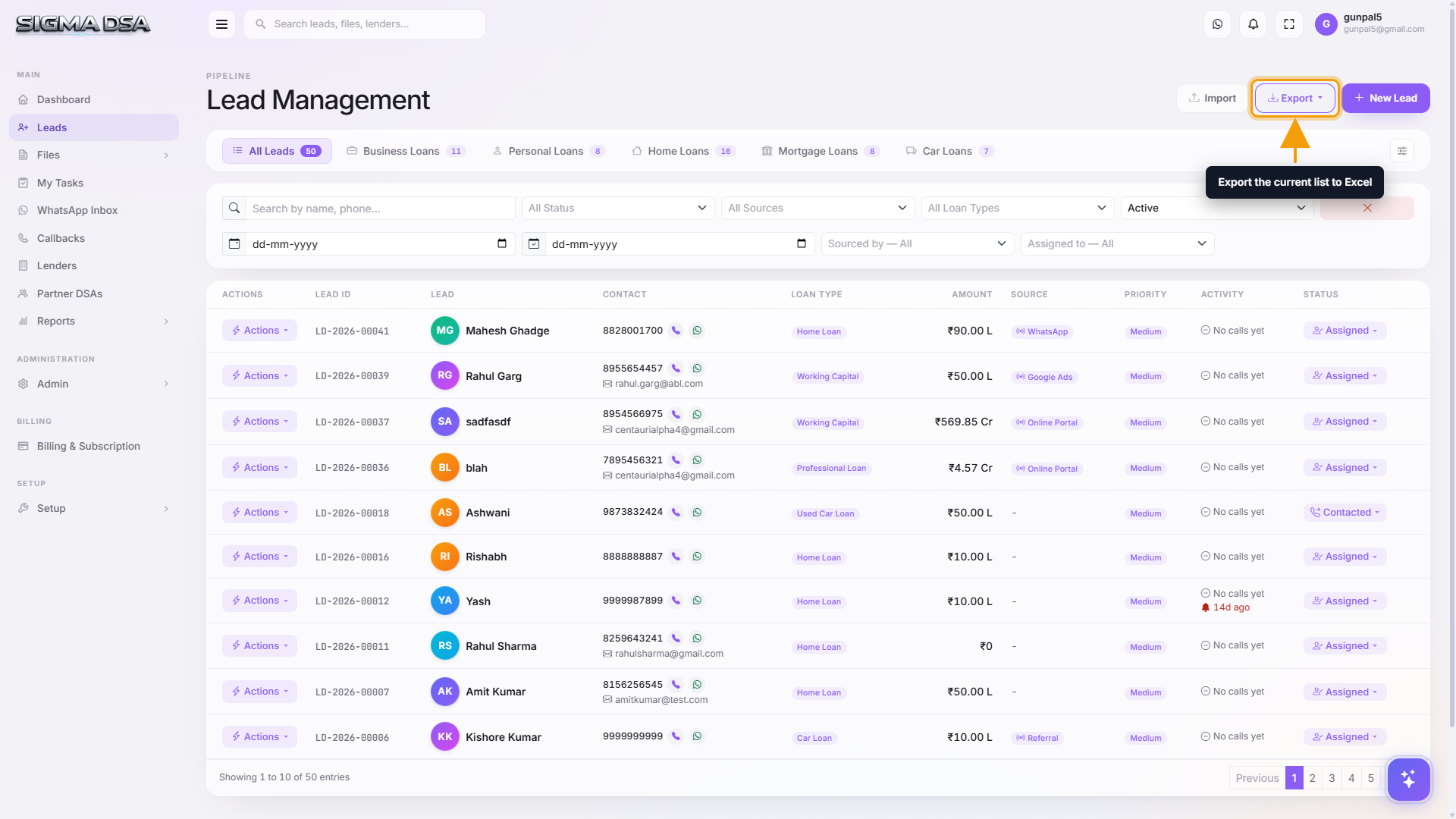
Need a copy of your pipeline for a manager review, lender report, or spreadsheet analysis? The Export button on the Leads list downloads everything currently in view as an Excel file — every filter, search box, date range, and tab selection is honored.
Apply the filters you want exported
Use the search box, the multi-select filters (Status, Lead Source, Loan Type), the date range, the category tab, and (for managers) the Sourced By / Assigned To dropdowns to narrow the list to exactly what you want. The exported file mirrors what's visible on screen — no filter, no row.
Click Export
Click the Export button in the top-right action bar (next to Import, Auto-Assign All, and + New Lead). The button shows "Exporting…" with a spinner while the file is generated server-side. Big result sets take a few seconds; a 5,000-row export usually finishes in under 10 seconds.
Save the file
SigmaDSA streams the Excel file to your browser as Leads_YYYY-MM-DD.xlsx (e.g. Leads_2026-05-13.xlsx). Your browser saves it to your default Downloads folder, or prompts for a location depending on your settings. Open it in Excel, Google Sheets, or LibreOffice — every column comes through with native type formatting (₹ amounts, dates, dropdown values).
What's in the file
The export is intentionally wider than the on-screen table so you have everything you might need for downstream reporting. Columns include:
- Identifiers — Lead ID, Lead Source ID, Assigned User ID
- Contact — Contact Person Name, Phone, Secondary Phone, Email, City, State, Pincode
- Applicant — Applicant Full Name, DOB, PAN, Aadhaar
- Loan — Loan Type, Loan Amount, Loan Category, Priority
- Employment — Employment Type, Company Name, Designation, Experience, Monthly Salary / Annual Turnover, GSTIN
- Status & flow — Status, Status Changed At, Is Converted, Converted At, Converted To File ID
- People — Sourced By (name + user ID), Assigned To (name + user ID), Sourced By Partner DSA
- Timestamps — Created At, Updated At, Last Called At, Follow-up At
- Notes — Lead Remarks, Internal Notes
Tips
- Filter first, export second. Exporting "everything" usually means a lot of irrelevant rows. Use the Date range + Status filters to scope to "leads from last month with status Interested" — instantly more useful.
- Export per category if you report to multiple lender desks. Switch to the Home Loans tab, export; switch to Car Loans, export again. Each file is named with the date but you can rename to
Leads_HomeLoans_2026-05-13.xlsxafter download. - Sourced By + Assigned To filters are manager-only. If you're trying to export "leads sourced by John" but don't see those dropdowns, you don't have the
Leads.ViewAllpermission — ask your tenant owner. - Repeat exports for snapshots. Run a weekly export with the same filter, store the file in a dated folder, and you have a free audit trail of how your pipeline evolved.
Next steps
Import leads from Excel
Bulk-upload leads from any Excel or CSV file with auto-mapping for the standard SigmaDSA columns.
Convert a lead to a loan file
Promote a qualified lead into a full loan file in SigmaDSA — pre-fill loan type and amount, then track documentation, bank logins, sanctions, and disbursal.