Add your first lead
Two-stage workflow for adding a lead in SigmaDSA — a six-field Quick Add modal followed by the full edit page for employment, income, address, and existing obligations.
Adding a lead in SigmaDSA is a two-stage flow: a six-field Quick Add modal locks the lead in the database in under 30 seconds, then the full edit page opens for you to fill in everything else — employment, income, address, existing EMIs, follow-up reminders. The split lets you capture a fast-moving phone call without losing data, while still gathering enough detail to qualify the applicant later.
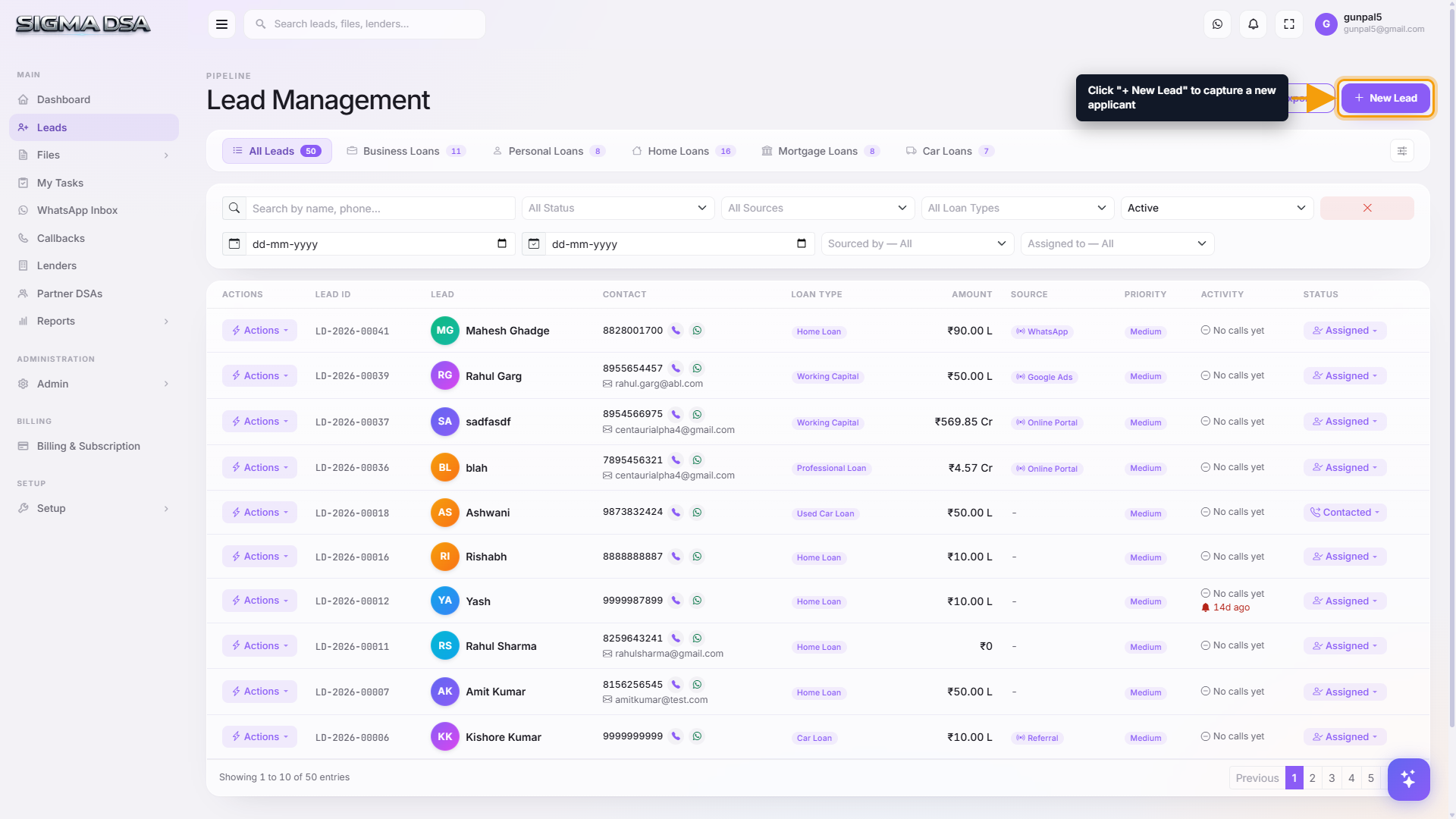
Click "+ New Lead"
From the left sidebar, click Leads. In the top-right corner of the Leads list, click the blue + New Lead button.
Fill the Quick Add modal
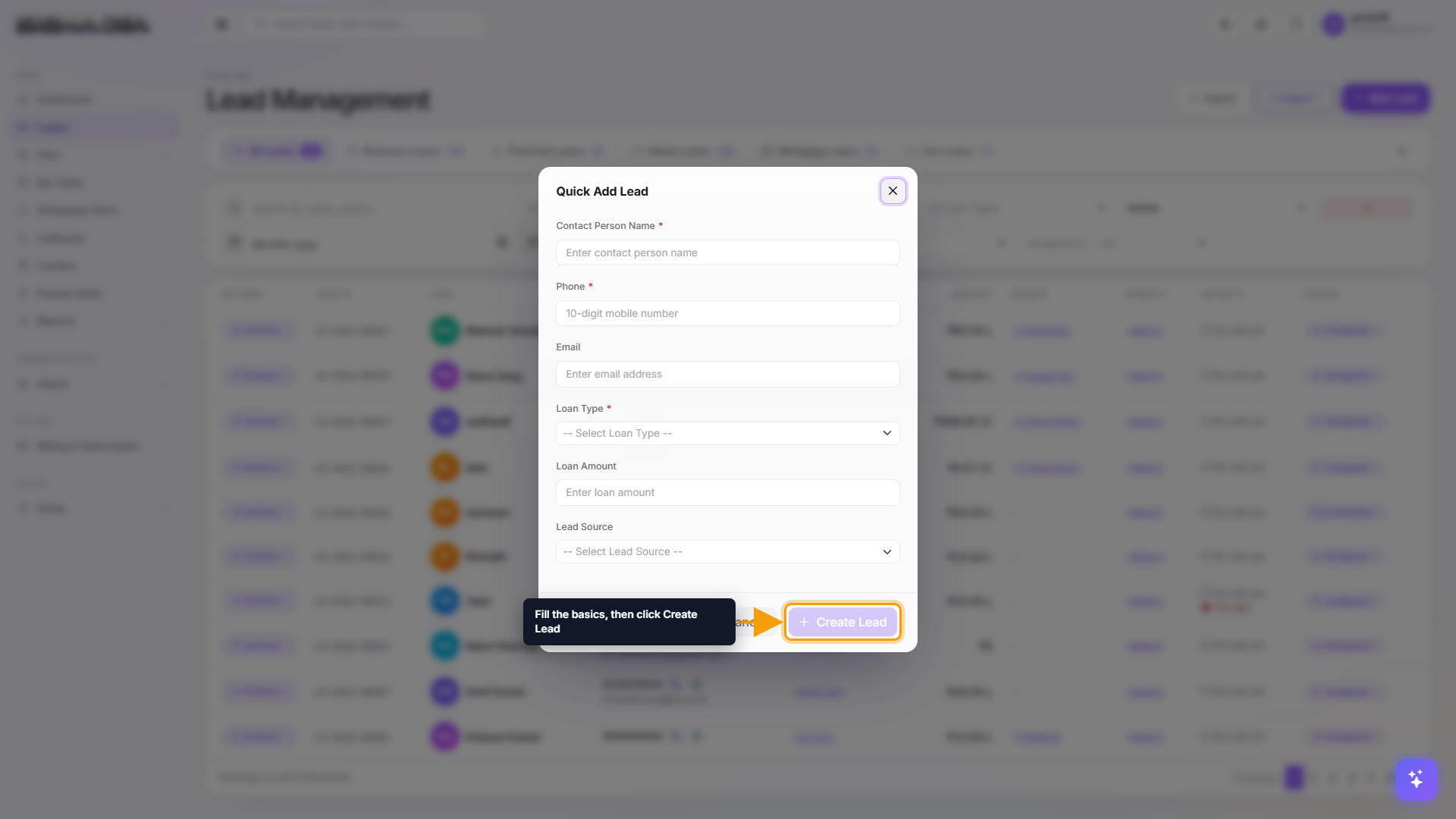
A modal titled Quick Add Lead appears with six fields:
- Contact Person Name (required) — who you're speaking with.
- Phone (required) — 10-digit Indian number;
+91and leading0are stripped automatically. - Email — optional but enables auto follow-up emails later.
- Loan Type (required) — pick from the active loan types in your tenant.
- Loan Amount — the requested ₹ figure.
- Lead Source — Direct, Partner DSA, Website, Connector, etc.
Click Create Lead to save.
Complete the full edit page
After you click Create Lead, SigmaDSA writes the lead to the database and immediately opens its full edit page. This is where you fill in everything the call couldn't cover.
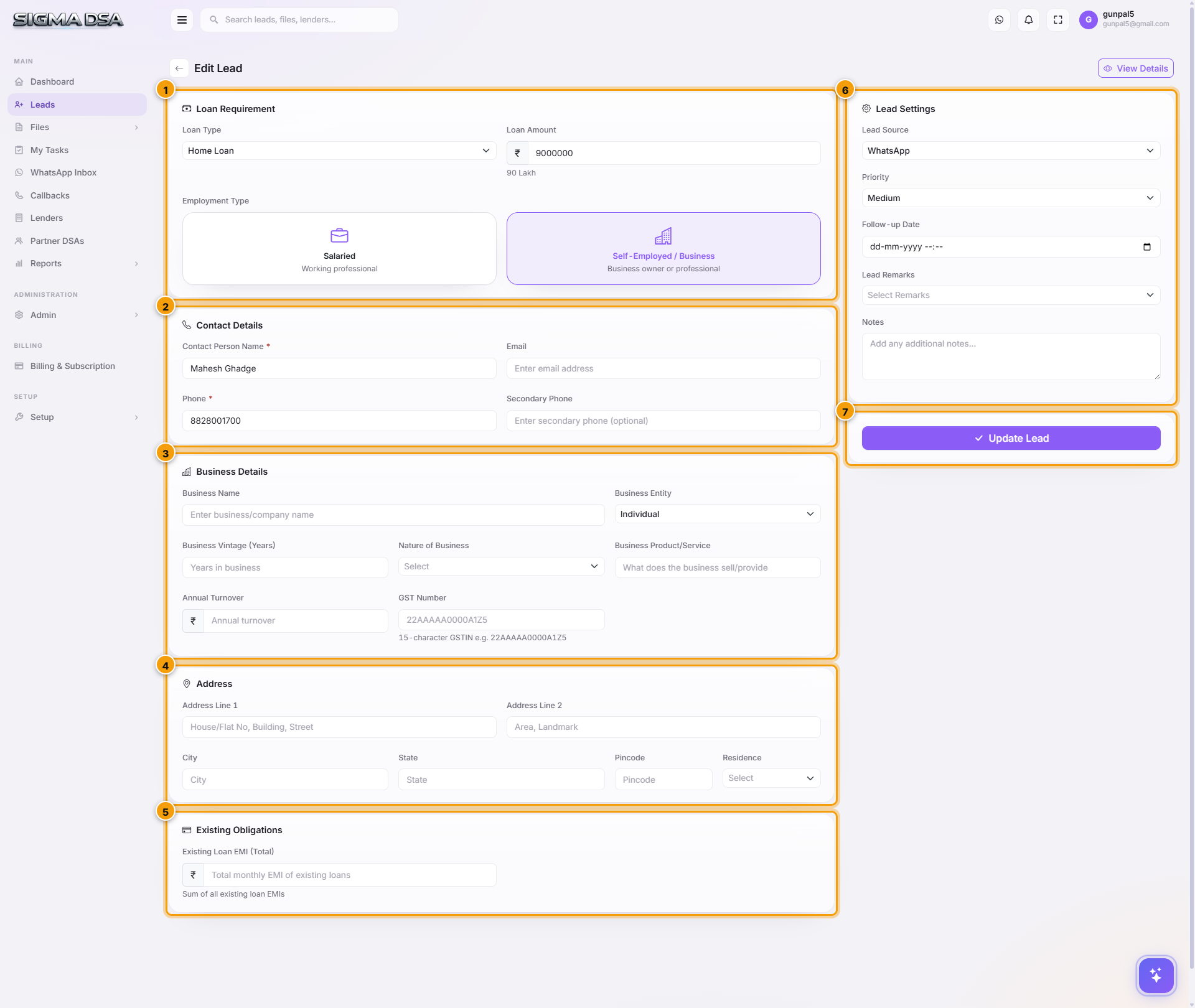
The page is split into seven cards:
- Loan Requirement — Loan Type, Loan Amount, Employment Type (Salaried / Self-Employed-Business).
- Contact Details — Contact Person Name + Designation, Email, Phone, Secondary Phone.
- Applicant Details — Applicant Full Name, DOB, PAN, Aadhaar.
- Employment Details — Company Name, Designation, Experience, Monthly Salary (Salaried) or Business Name, GSTIN, Annual Turnover (Self-Employed).
- Address — Line 1, Line 2, City, State, Pincode, Residence type.
- Existing Obligations — running EMIs (used by the FOIR / DSCR calculators downstream).
- Lead Settings — Lead Source, Priority, Follow-up Date, Lead Remarks, Notes.
Fill in what you have and click Update Lead. Anything missing can be added later — every field on this page is editable from the lead's row → Actions → Edit Lead.
What happens after you save
- The new lead appears at the top of the Leads list with status New.
- If your tenant has auto-assignment turned on, the lead is routed immediately to the team member with the smallest active pipeline.
- A task is created on the assignee's My Tasks board reminding them to make first contact.
- If you set a Follow-up Date, that callback shows up in the Callbacks queue and on the dashboard's Today's Follow-Ups card.
Tips for fast capture
- Phone is the only field that absolutely can't wait. Once Phone is in, the lead is searchable and de-duplicated against any future entry from the same number.
- Use "Other" Loan Type if you're not sure yet. You can refine the loan type from the edit page once the applicant tells you exactly what they're after.
- Pin the most-used Loan Types as their own tabs (see Customize the Leads dashboard) so the dropdown is shorter for your team.
Next steps
Customize the Leads dashboard
Reorder loan-category tabs, pin specific loan types, and pick which table columns appear per tab — saved per user.
The lead detail page
Tour of the SigmaDSA lead detail page — contact and loan info, activity timeline, quick actions, assignment, remarks, and conversion to a loan file.