The lead detail page
Tour of the SigmaDSA lead detail page — contact and loan info, activity timeline, quick actions, assignment, remarks, and conversion to a loan file.
When you click any Lead ID or applicant name in the Leads list, SigmaDSA opens the Lead Details page — a single screen showing every piece of context for that prospect, plus one-click actions for the most common things you'll do next.
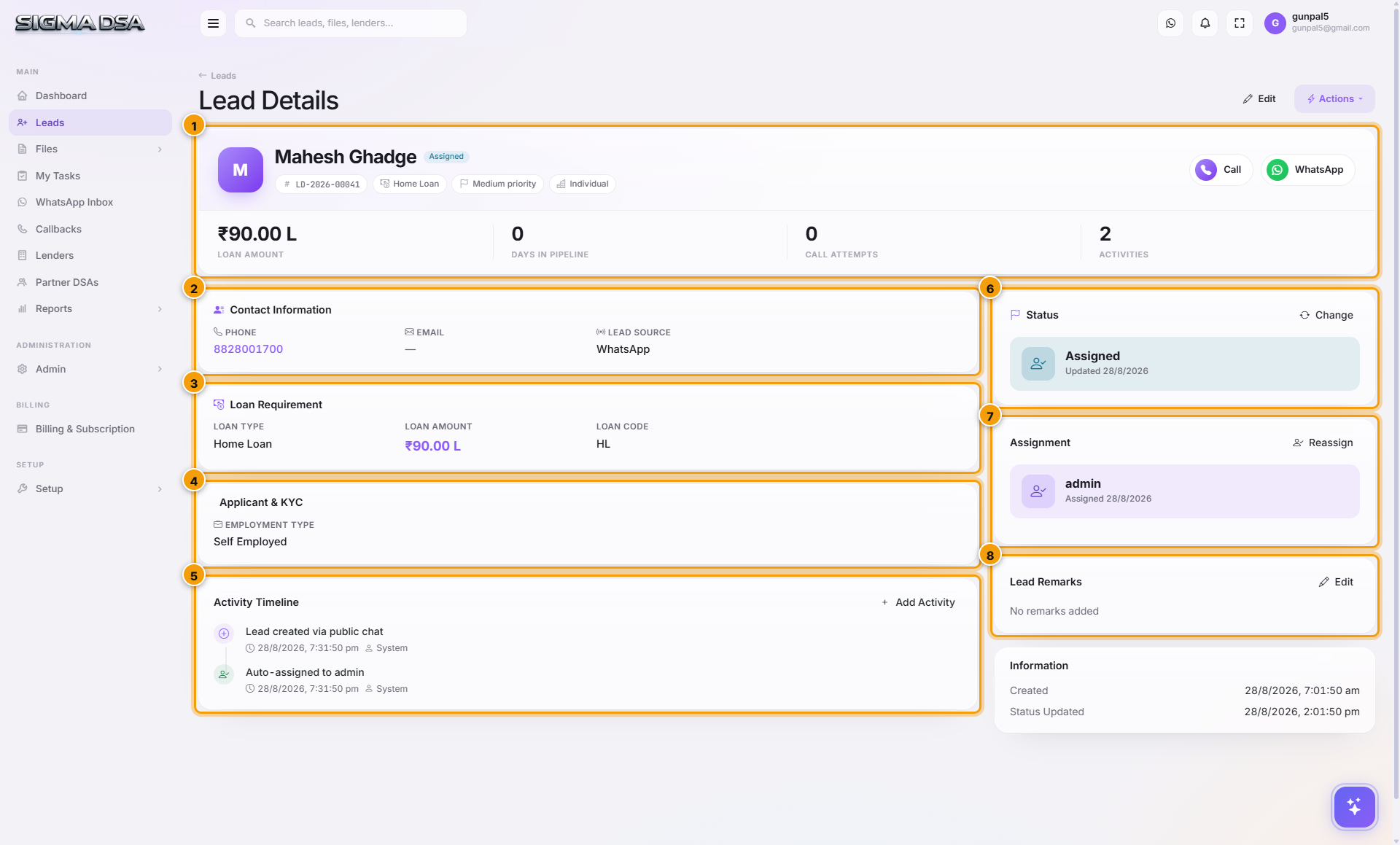
Page header + action buttons
The header card shows the applicant's name, lead ID, loan type and amount, with the primary actions you can take on the lead regardless of where you are on the page:
- Edit — opens the full edit page (same one used when the lead is first created) so you can update applicant info, employment, income, etc. See Add your first lead for what's on that page.
- Actions menu — View, Edit, Call, WhatsApp, Change Status, Mark Contacted / Interested / Not Interested, Schedule Callback, Convert to File, Assign, Delete.
- Status pill — current lead status; click to change it without leaving the page.
- The Leads link in the sidebar returns you to the filtered list you came from (your filters are remembered).
Contact Information
Who the lead is and how to reach them — phone, secondary phone, email, city and state. Phone numbers are click-to-call; the WhatsApp icon opens a wa.me link to the same number.
Loan Requirement
A compact summary of what the applicant is asking for: Loan Type, Loan Amount (formatted in ₹ Lakhs / Crores), and any loan-type-specific fields (employment type for personal loans, vehicle type for car loans, property type for home loans, etc.).
This is the data SigmaDSA's AI matching engine uses to suggest which lenders fit the file once converted.
Applicant & KYC
Business name, designation, PAN and other identity details captured so far. Anything still missing here shows as a dash — fill it in from Edit before you convert the lead so the loan file starts complete.
Activity Timeline
A chronological log of everything that has happened on this lead — created, auto-assigned, status changes, callbacks, comments, and the final conversion to a loan file. Every entry shows the timestamp, the user who triggered it, and any associated notes.
Use the Add Activity button (top-right of this card) to manually log an interaction that didn't go through the app — for example a phone conversation you had on a personal mobile.
Status Change
Side panel on the right showing the current status with a Change button — update the lead's status from the right column without opening the Actions menu.
Assignment
Shows who currently owns the lead, with a Reassign link to hand it to another team member. Reassignment respects your tenant's auto-assignment workload rules — the dropdown is sorted by least-loaded user by default.
Lead Remarks
Free-form notes about the lead — first impressions, callback context, anything that doesn't fit into structured fields. The Edit button (top-right) opens an inline editor. Remarks travel with the lead when it's converted to a file — they become the first comment on the new file's timeline.
What's not on this page
- Documents — file uploads (PAN, Aadhaar, bank statements) live on the loan file, not the lead. Convert the lead first; the documents tab appears on the file detail page.
- Bank logins / sanctions / disbursals — also file-level. The lead page deliberately stays lightweight so a busy salesperson can scan it in two seconds.
- Co-applicants — captured during conversion or on the file's edit page.
Common flows from this page
- Just spoke to them on the phone → Actions → Mark Contacted / Interested (or click the status pill).
- They want time to think → Actions → Schedule Callback (sets a follow-up date).
- They're ready to apply → Actions → Convert to File. See Convert a lead to a loan file.
- Not the right fit → Actions → Mark Not Interested / Lost.
- Wrong person assigned → side panel → Reassign.
Next steps
Add your first lead
Two-stage workflow for adding a lead in SigmaDSA — a six-field Quick Add modal followed by the full edit page for employment, income, address, and existing obligations.
Assign a lead to a team member
Two ways to assign or reassign a lead in SigmaDSA — from the Actions menu on the Leads list, and from the Assignment card on the lead detail page.