Tour of the Files dashboard
Walkthrough of the SigmaDSA Files list — category tabs, bank-logins column, stage pill, row actions, and how files move through Documentation → Sanction → Disbursal.
A file is a loan application that's already past the lead stage — the applicant has agreed to apply, and you're tracking documents, bank logins, sanctions, and disbursal. The Files list is where every active file lives.
What's on the Files page
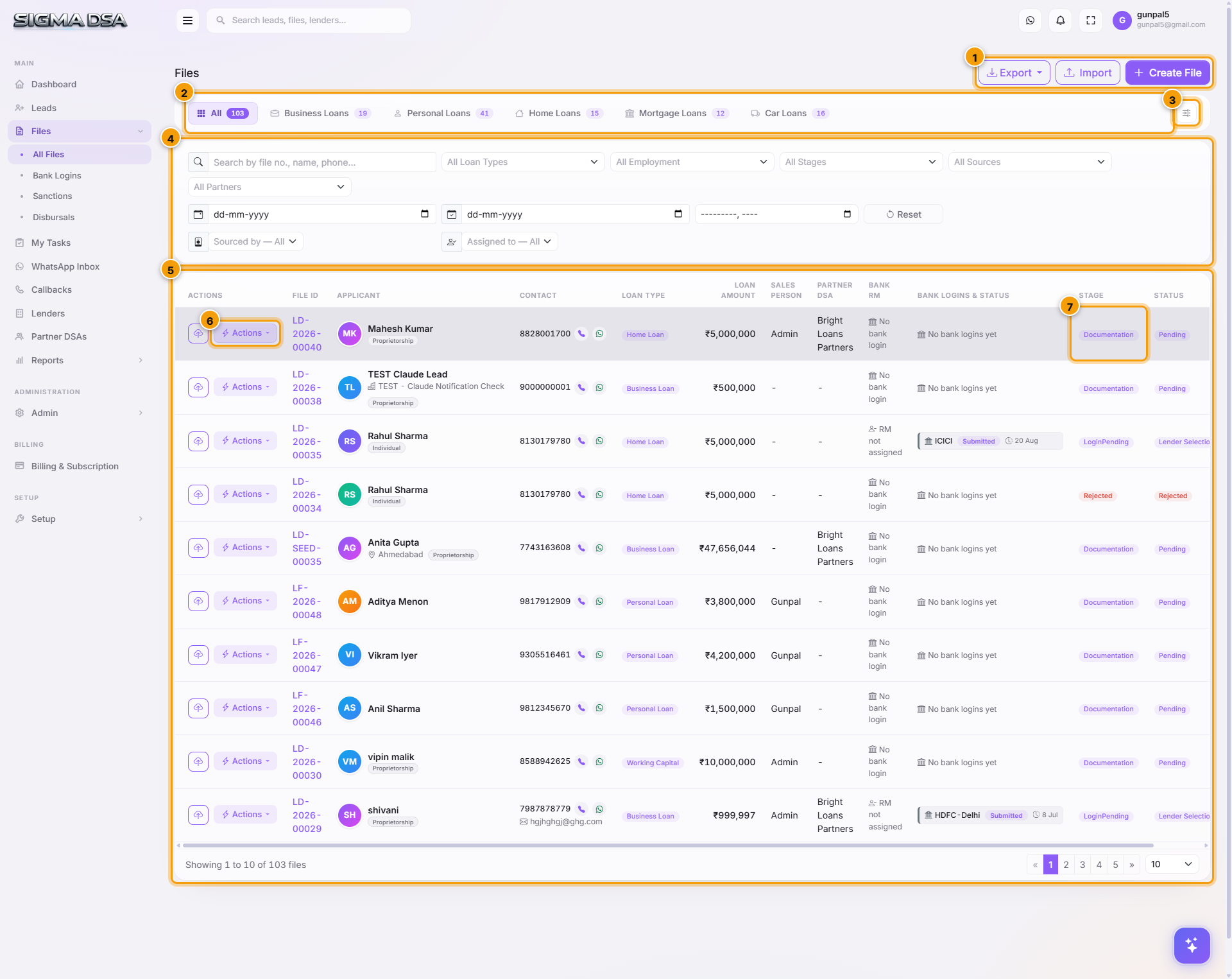
Page header + actions
The top bar shows the page title (Files) and two primary action buttons:
| Button | What it does |
|---|---|
| Export | Downloads the current filtered Files list as Files_YYYY-MM-DD.xlsx. Every filter and the current tab are honored. |
| Create File | Opens the Create File modal — a six-field quick-capture form, identical in spirit to the Quick Add Lead modal. After saving, the full file edit page opens so you can add documents, applicant details, and bank logins. |
Most files arrive at this list automatically when a lead is converted (see Convert a lead to a loan file) — you'll rarely create one from scratch here.
Category tabs
One tab per loan category — All Files, Business Loans, Car Loans, Home Loans, Mortgage Loans, Personal Loans. The badge on each tab shows the live count of files in that category, computed from the same scope as the table. Clicking a tab filters the list and remembers your choice when you come back.
Sub-routes also exist for stage-specific views — /files/bank-logins, /files/sanctions, /files/disbursals, /files/rejects — all reachable from the Files menu in the left sidebar.
Customize Tabs button
The small gear icon to the right of the tab row opens the Customize Tabs panel. Reorder tabs, hide categories you don't deal in, pin specific loan types as their own tabs, and pick which table columns each tab shows. Customizations are saved per user.
Filters card
Search by file number, applicant name, or phone, plus filters for Loan Type, Employment, Stages, Sources, Partners, a date range, and a month picker. Managers (users with the ViewAll permission) also get Sourced By and Assigned To dropdowns on a second row. The × button resets every filter at once.
Files table
The list itself. Columns are tab-specific — the All Files view defaults to Actions, File ID, Applicant (name + avatar + business + city), Contact, Loan Type, Loan Amount, Bank RM, Bank Logins & Status (one row per bank with its current status), Stage, and Status. Loan-type-specific tabs surface extra columns (vehicle details on Car Loan, property details on Home Loan, etc.).
The Bank Logins & Status column is unique to Files — it stacks every bank login on the file with a colored left-border indicating the current status (approved / rejected / under-query / pending), so a manager can scan dozens of files in seconds.
Actions menu (per row)
The Actions button on every row opens a dropdown with every operation you can take on that file. Items are grouped by what they do:
Navigation
| Item | What it does |
|---|---|
| View Details | Opens the file detail page — overview, documents, bank logins, sanctions, and disbursal in one view. |
| Edit File | Opens the full edit page so you can update applicant, employment, loan type, property/vehicle, address, and existing obligations. |
Workflow
| Item | What it does |
|---|---|
| Add Bank Login | Submits the file to one or more banks. See Add bank logins. |
| Sanction | Records a sanction — amount, ROI, tenure, conditions. See Track sanctions and disbursals. |
| Disbursal | Records a disbursal — date, amount, commission. Moves the file to Disbursed. |
| Change Stage | Manually advance the file's pipeline stage (Documentation → Login Pending → Logged In → Sanctioned → Disbursed). |
| Change Status | Update the within-stage status (e.g., on a Sanctioned file, mark Sanction Issued vs Sanction Held). |
| Reject File | Mark the file as Rejected with a reason. Terminal. |
Contact + admin
| Item | What it does |
|---|---|
| Send SMS | Sends a templated SMS to the applicant's phone. |
| Add Comment | Drops a free-form note on the file's activity timeline — visible to anyone with ViewAll. |
| Assign | Hand the file to a specific team member. See Assign a file. |
| Delete | Permanently removes the file (and its bank logins). Reserved for genuinely-erroneous entries; usually Reject is the right move. |
Inline stage / status pill
The pill in the last column is itself a dropdown — click it to quickly change a file's stage or status without opening the row. Stage colors run from blue (early) through warning (in-progress) to green (sanctioned / disbursed) to red (rejected) so the table reads at a glance.
How files relate to leads
Every file starts as a lead. Once the applicant agrees to apply, you convert the lead and the file is born with status Documentation and stage 1 (collecting paperwork). From there it moves through:
- Documentation — KYC + income docs uploaded; AI Bank Statement Analyzer runs.
- Login Pending — file ready to submit to banks.
- Logged In — submitted to one or more lenders.
- Under Process — banks reviewing.
- Credit Approved — at least one bank approved (without sanction letter yet).
- Sanctioned — sanction letter issued.
- Disbursal Pending — sanction accepted, awaiting disbursement.
- Disbursed — money in customer's account; commission tracked.
- Rejected — terminal failure.
Every stage transition is logged on the file's Activity Timeline.
Next steps
- Customize the Files dashboard — pick which tabs and columns each user sees
- Create a new file
- The file detail page
- Add bank logins (multi-bank submission)
Convert a lead to a loan file
Promote a qualified lead into a full loan file in SigmaDSA — pre-fill loan type and amount, then track documentation, bank logins, sanctions, and disbursal.
Tour of file details page
Tour of the SigmaDSA file detail page — header, stage stepper, tabs strip, applicant info, loan details, workflow summary, plus how each tab fits into the full file lifecycle.