Create a new file
Two-stage flow for adding a loan file in SigmaDSA — a ten-field Create Loan File modal followed by the full edit page for KYC, employment, property, and bank-login setup.
Most files in SigmaDSA are created automatically by converting a lead — the lead is the original capture point. But sometimes you'll start a file directly: a walk-in customer who already has every document ready, a referred file from a partner DSA, or a re-finance for an existing borrower. The flow is two stages — a quick capture modal, then the full edit page.
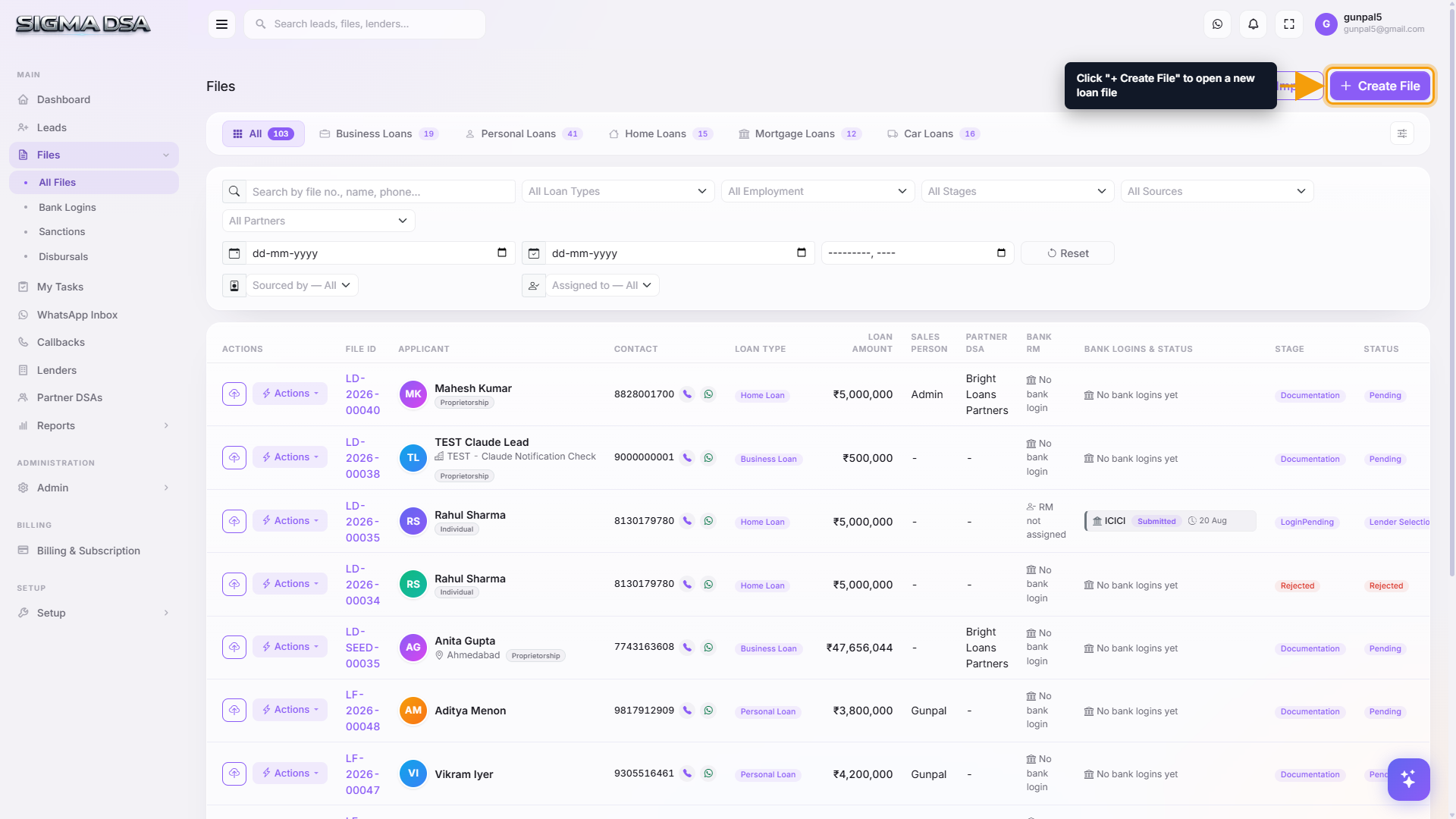
Click "Create File"
From the left sidebar, click Files. In the top-right corner of the Files list, click the blue Create File button.
Fill the Create Loan File modal
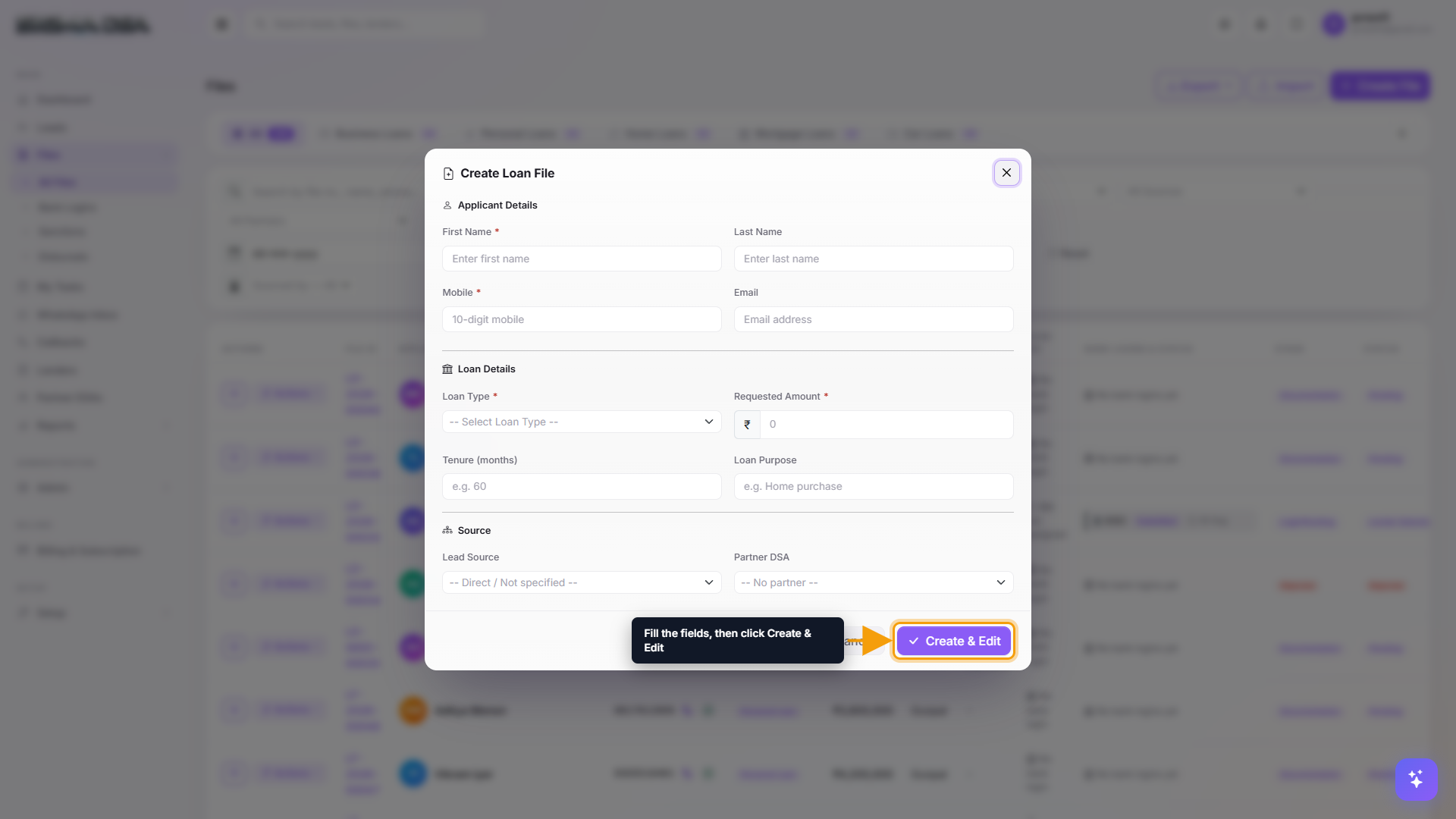
A modal titled Create Loan File appears with ten fields:
- First Name (required) — applicant's given name.
- Last Name — surname.
- Mobile (required) — 10-digit Indian number;
+91and leading0are stripped automatically. - Email — optional but enables auto follow-up emails.
- Loan Type (required) — pick from your tenant's active loan types.
- Requested Amount (required) — the ₹ figure.
- Tenure (months) — repayment period.
- Loan Purpose — free-text reason (e.g., "Plot purchase", "Business expansion").
- Lead Source — Direct, Partner DSA, Website, etc.
- Partner DSA — only fill if the file came through a connector.
Click Create & Edit to save.
Complete the full edit page
After saving, SigmaDSA does five things:
- Creates a new loan file with a unique
LF-YYYY-NNNNNnumber. - Sets stage to Documentation and status to In Progress.
- Logs File created manually on the activity timeline.
- Auto-assigns the file (if your tenant has auto-assignment on) to the team member with the smallest open pipeline.
- Redirects you to the full edit page so you can fill in everything else.
The full edit page is organized into cards covering: Applicant details (PAN, Aadhaar, DOB), Co-applicants, Employment, Address, Property / Vehicle (loan-type-specific), Existing Obligations, and File Settings. Fill what you have and click Update File. Anything missing can be added later — every field is editable from the file's Actions → Edit File.
What happens after you save
- The new file appears at the top of the Files list with stage Documentation.
- A task is created on the assignee's My Tasks board reminding them to collect documents.
- The applicant gets the file's portal link (if portal access is enabled) so they can upload documents themselves.
Tips
- Mobile is the only field you can't change later. It's the unique key SigmaDSA uses for de-duplication. If you might have an existing lead or file for the same applicant, search by phone first — SigmaDSA will warn you about duplicates.
- Use Lead Source = "Direct" for walk-ins. Reserve "Partner DSA" for files that came through your connector network.
- For business loans, Last Name can be the firm's short name. The full business name lives on the edit page's Applicant card.
Next steps
- The file detail page — what you'll see after the redirect
- Upload documents — KYC and income docs to move the file forward
- Add bank logins — submit to lenders once the file is ready
Customize the Files dashboard
Reorder loan-category tabs, pin specific loan types, and pick which table columns appear per tab — saved per user.
Assign a file to a team member
Two ways to assign or reassign a loan file in SigmaDSA — from the Actions menu on the Files list, and from the Assignment card on the file detail page.