Add bank logins (multi-bank submission)
How to submit a loan file to one or more banks from SigmaDSA — picking lenders, capturing RM info, sending the document packet, and tracking each submission independently.
When a file reaches Login Pending stage, the next workflow step is adding bank logins — submitting the file to one or more lenders for credit decisioning. This is where SigmaDSA's "submit to many banks in parallel" advantage shines.
This page covers the how. The Bank Logins tab tour covers what each row on the tab means and the status lifecycle.
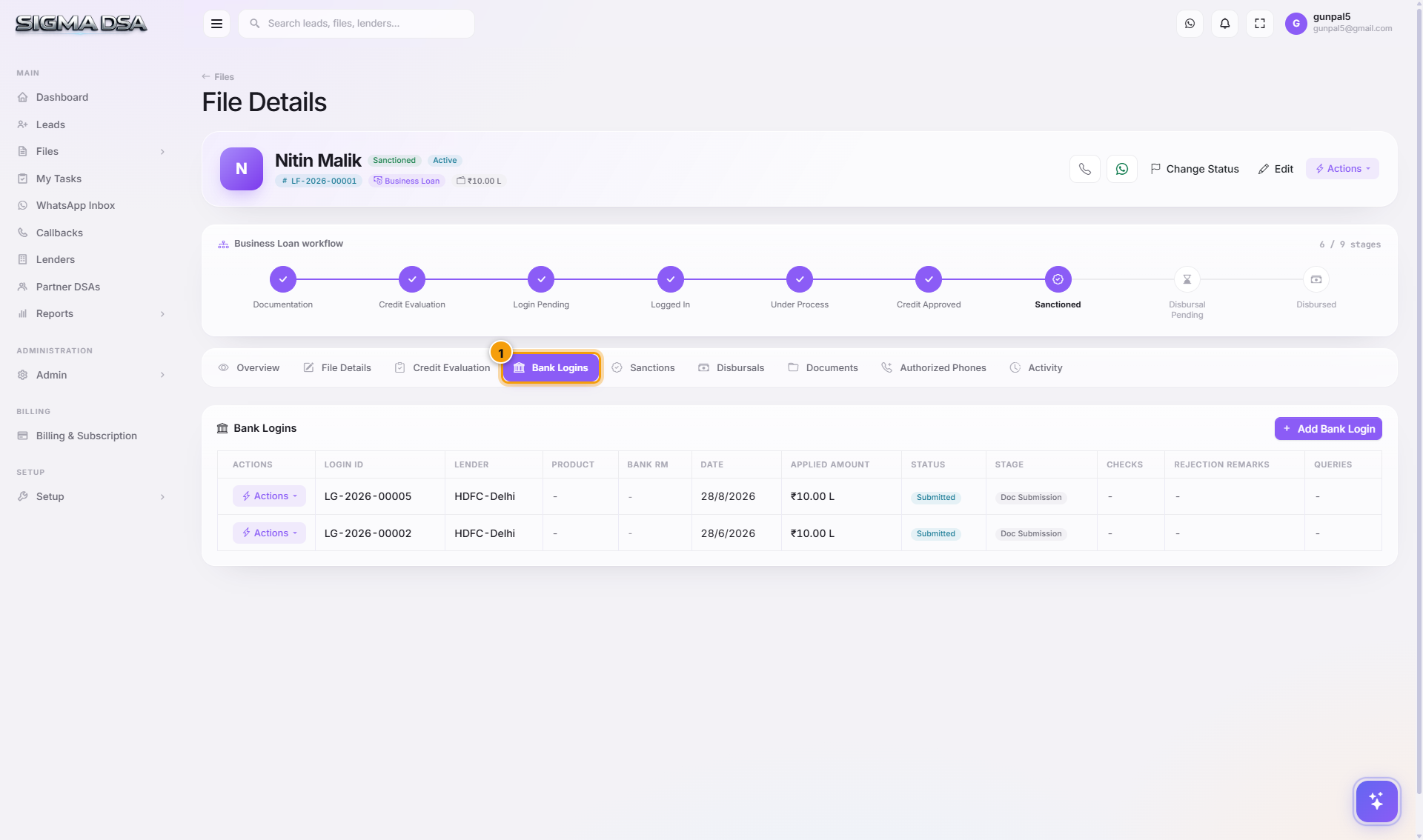
Three entry points to Add Bank Login
1. Quick Action button on the Overview tab
The fastest path. On the file's Overview tab, the right-side Quick Actions panel has a Bank Login button. Click it — the Add Bank Login modal opens.
This is the path the design optimises for, since submit to bank is the highest-frequency action on a file.
2. + Add Bank Login on the Bank Logins tab
When you're already on the Bank Logins tab reviewing existing submissions and decide to add another, click + Add Bank Login at the top-right of the tab.
3. Actions menu in the header
The header's Actions menu (top-right of the file detail page) also has Add Bank Login. Use this when you're deep in another tab and don't want to navigate.
Filling the Add Bank Login modal
The modal is split into five regions, top to bottom. Fill each in order.
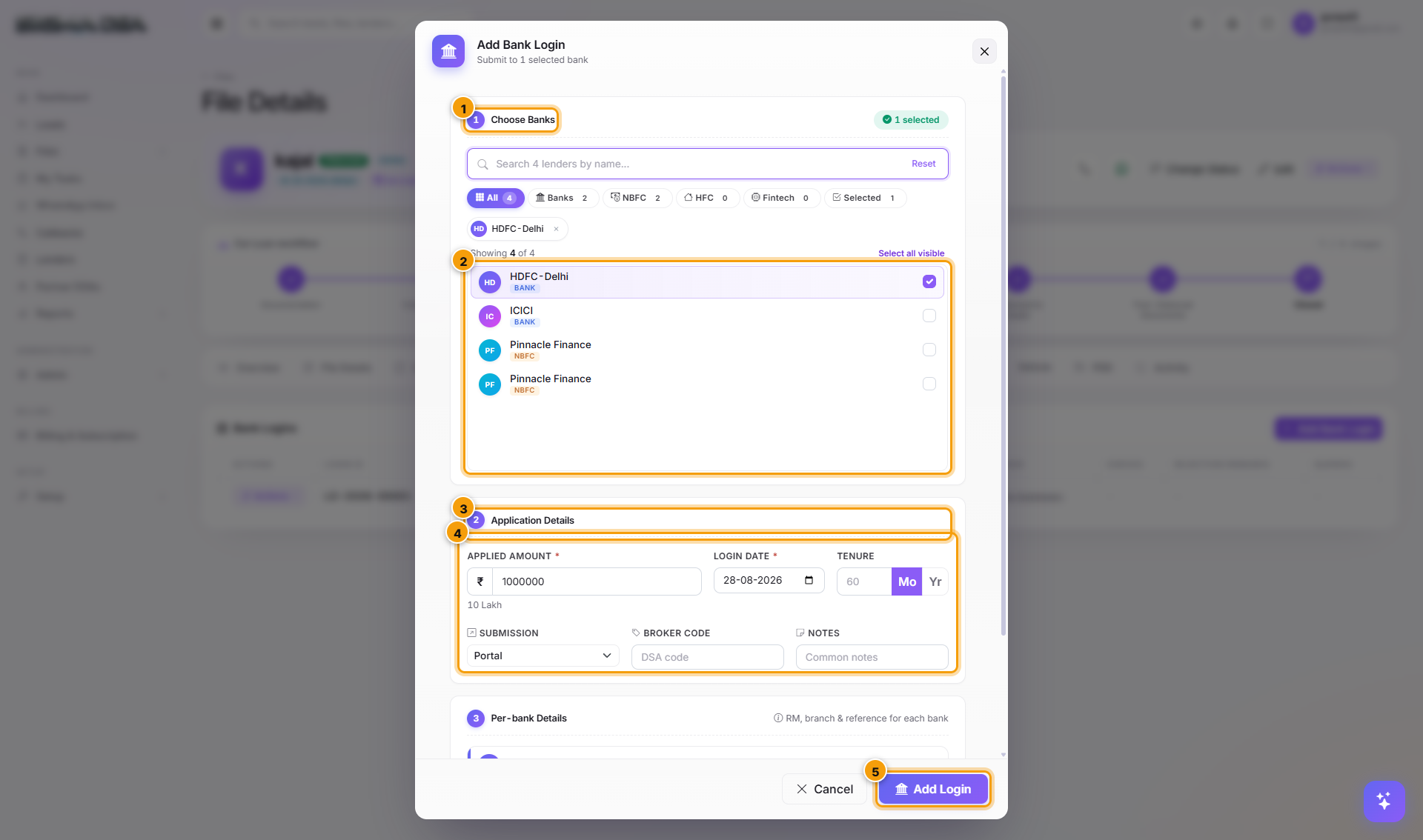
Select lenders
The lender dropdown is multi-select. As you pick lenders, SigmaDSA shows a small pill next to each:
- Pass (green) — file's profile matches the lender's eligibility rules.
- Marginal (yellow) — close to a cap (e.g., FOIR at 58% with the lender's 60% limit).
- Fail (red) — would likely be rejected. You can still submit; the badge is advisory.
The Credit Evaluation tab's Lender matching section is the same data source — only here it's actionable.
Confirm applied amount and tenure
Defaults to the file's requested amount and tenure, but a common pattern is to submit different amounts to different banks (the conservative bank gets the lower ask). Edit per-lender if needed.
Pick the product variant
If the lender has multiple loan products on your tenant's panel (e.g., HDFC Home Loan vs HDFC Home Loan Plus), pick the right variant. The selection drives which template gets used for the application packet.
Enter RM information
For each selected lender, fill RM Name, Phone, Email, Branch. SigmaDSA remembers RMs per tenant — if you've submitted to this RM before, the fields auto-fill from the RM directory.
If you don't have RM details yet, leave it blank and update later from the bank-login row's Edit RM action.
Curate the document packet
SigmaDSA pre-selects the documents this lender typically asks for, based on the loan type and the lender's panel configuration. Review the checklist — uncheck documents you don't want to send, check additional ones the RM specifically asked for.
If any required document is missing, the modal shows a warning at the bottom. Upload missing documents on the Documents tab before saving.
Choose dispatch method
Pick how you'll deliver the file to the bank:
| Method | When to use |
|---|---|
| Email to RM | Default. SigmaDSA builds a packet PDF + cover email and sends to the RM email on file. CC's the salesperson. |
| WhatsApp share link | Share a link the RM can click on their phone — auto-expires in 7 days. |
| API submission | Only available for integrated lenders (HDFC, ICICI, Bajaj). Pushes directly into their loan origination system. |
| Save without dispatch | Creates the bank login row in Pending status — useful when you'll dispatch manually later. |
Save
Click Save. Each selected lender becomes a separate row on the Bank Logins tab with status Submitted (or Pending if you skipped dispatch). The file's stage flips to Logged In if it was on Login Pending.
After submission
- The bank login row tracks its own status independently — query raised, query responded, credit approved, sanctioned, rejected.
- Activity entries for each status change land on the Activity tab.
- Per-bank-login query threads live inside each row — click a row to open the thread and respond to RM queries with attached documents.
- Once a lender sanctions, click Sanction on the row to open the Sanction modal pre-filled with that lender's details.
Common multi-bank patterns
- Conservative + aggressive — submit the same file to two banks, one at the requested amount and one at a higher amount. Whichever sanctions first wins.
- Spread across categories — for a borderline FOIR file, submit to a salaried bank (HDFC), a NBFC (Bajaj), and a small-finance bank (Equitas) simultaneously. Higher chance of one acceptance.
- Follow the lead — submit only to one preferred bank first; if they reject, escalate to two more. Saves panel-wide noise.
Tracking and follow-up
The Bank Logins tab is the operations team's daily view. Sort by status to surface Query Raised rows first; chase RMs; respond to queries inline; mark sanctioned when the letter arrives.
If a lender's status hasn't changed in N days, SigmaDSA auto-flags the row as Stuck — surfaces in the Files dashboard's Stuck Files counter.
Next steps
Request documents from a customer
Ask a customer for missing documents from the loan file in SigmaDSA — pick the documents, send the request over WhatsApp and email, and let them upload through the secure customer portal while the file tracks what has arrived.
Bank Logins list
The company-wide Bank Logins page in SigmaDSA — every file submitted to a lender in one queue, with verification-check progress, login status filters and reject remarks.