Bank Logins tab
Tour of the Bank Logins tab on the file detail page — per-lender submission rows, status, RM contact, query threads, and how to add or sanction directly from this tab.
The Bank Logins tab lists every lender the file has been submitted to, with per-row status, the RM you're dealing with, branch, applied amount, login date, and any open queries. This is the workflow tab where most operations time gets spent — the file is "live" in front of multiple banks here.
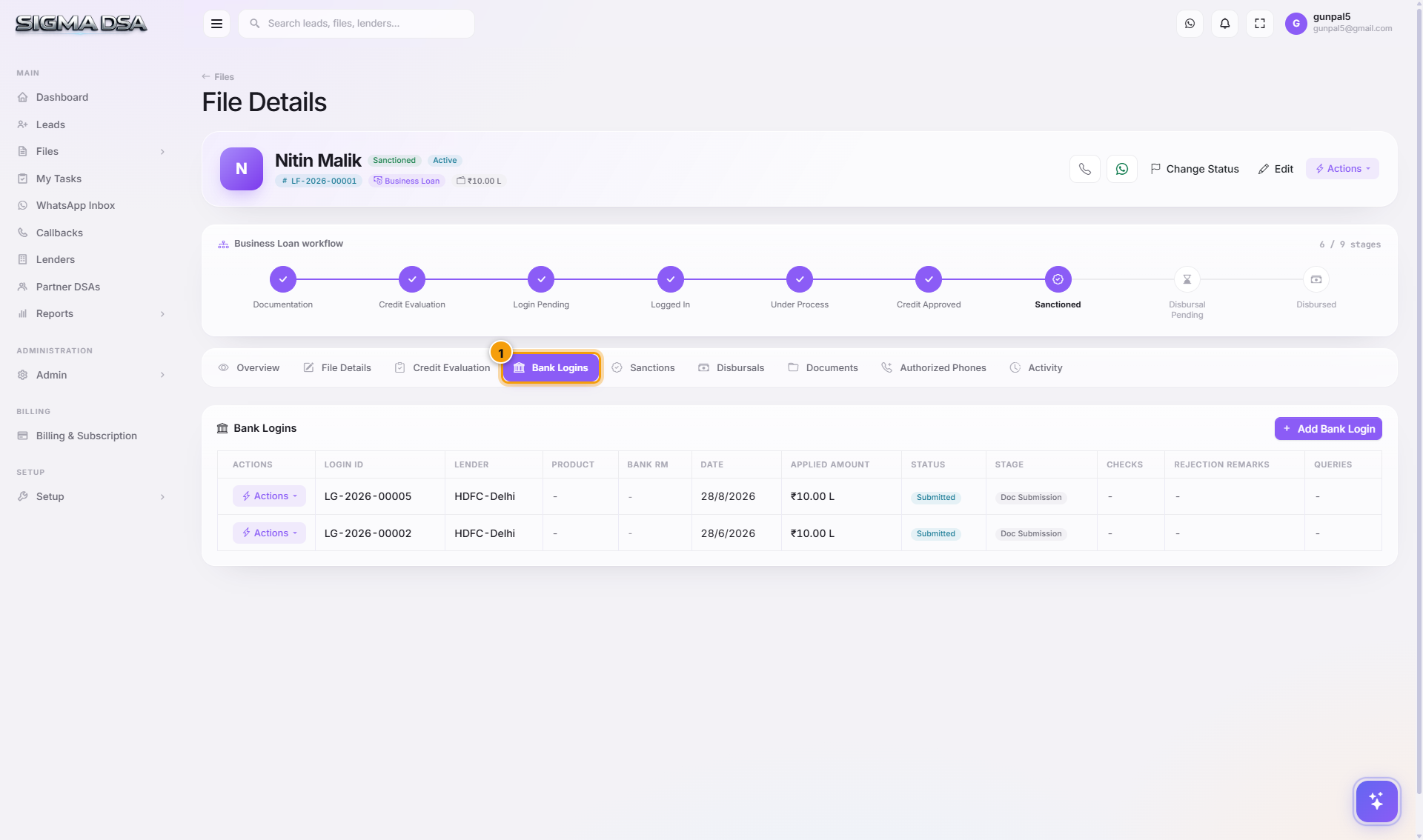
What's on the tab
- Add Bank Login button at the top-right opens the multi-bank submission modal. See Add bank logins for the full submission flow.
- One row per bank login — Lender name + logo, Login ID, Login Date, Applied Amount, current Status, RM Name + phone, Branch, Bank Reference Number, and open-query count.
- Color-coded left border on each row based on status — green for sanctioned, red for rejected, yellow for query-raised, grey for pending. So the file's situation across all banks is readable in two seconds.
- Per-row actions — Update Status, Add Query Response, Mark Sanctioned (jumps to Sanction modal), Mark Rejected, Edit RM/Branch, Withdraw.
Bank login statuses
A bank login moves through these states independently of the file's overall stage:
| Status | Meaning |
|---|---|
| Pending | Just created, not yet submitted to the bank. |
| Submitted | Application packet delivered to the lender. |
| Under Process | Lender is reviewing. |
| Query Raised | Lender asked for something extra. Resolve in the file's query thread. |
| Query Responded | You replied to the query; back to the lender. |
| Credit Approved | Approved internally, awaiting sanction letter. |
| Credit Rejected | Rejected. Move on. |
| Sanction Issued | Sanction letter received → file moves to Sanctioned if this is the first approval. |
| Expired | Sanction or approval lapsed. |
| Withdrawn | You pulled the application back. |
Common flows from this tab
- Submit to a new bank → click Add Bank Login at top-right. See Add bank logins.
- Lender raised a query → the row shows Query Raised with a count. Click into the login, post a reply, attach docs.
- Lender sanctioned the loan → click Sanction on the row. The Sanction modal opens pre-filled with this lender's name.
- Need to email the RM → RM's email + phone are right on the row; both are click-to-action.
Next steps
Credit Evaluation tab
Tour of the Credit Evaluation tab — FOIR/DSCR calculations, existing loan obligations, AI Bank Statement Analyzer output, and lender-matching scores.
Sanctions tab
Tour of the Sanctions tab — every sanction letter received on the file with amount, lender, ROI, tenure, conditions, and acceptance status.