Tour of file details page
Tour of the SigmaDSA file detail page — header, stage stepper, tabs strip, applicant info, loan details, workflow summary, plus how each tab fits into the full file lifecycle.
When you click any File ID or applicant name in the Files list, SigmaDSA opens the File Detail page — every piece of context for that loan in one screen, plus one-click actions for the most common workflow steps (submit to bank, record sanction, record disbursal, change stage, etc.).
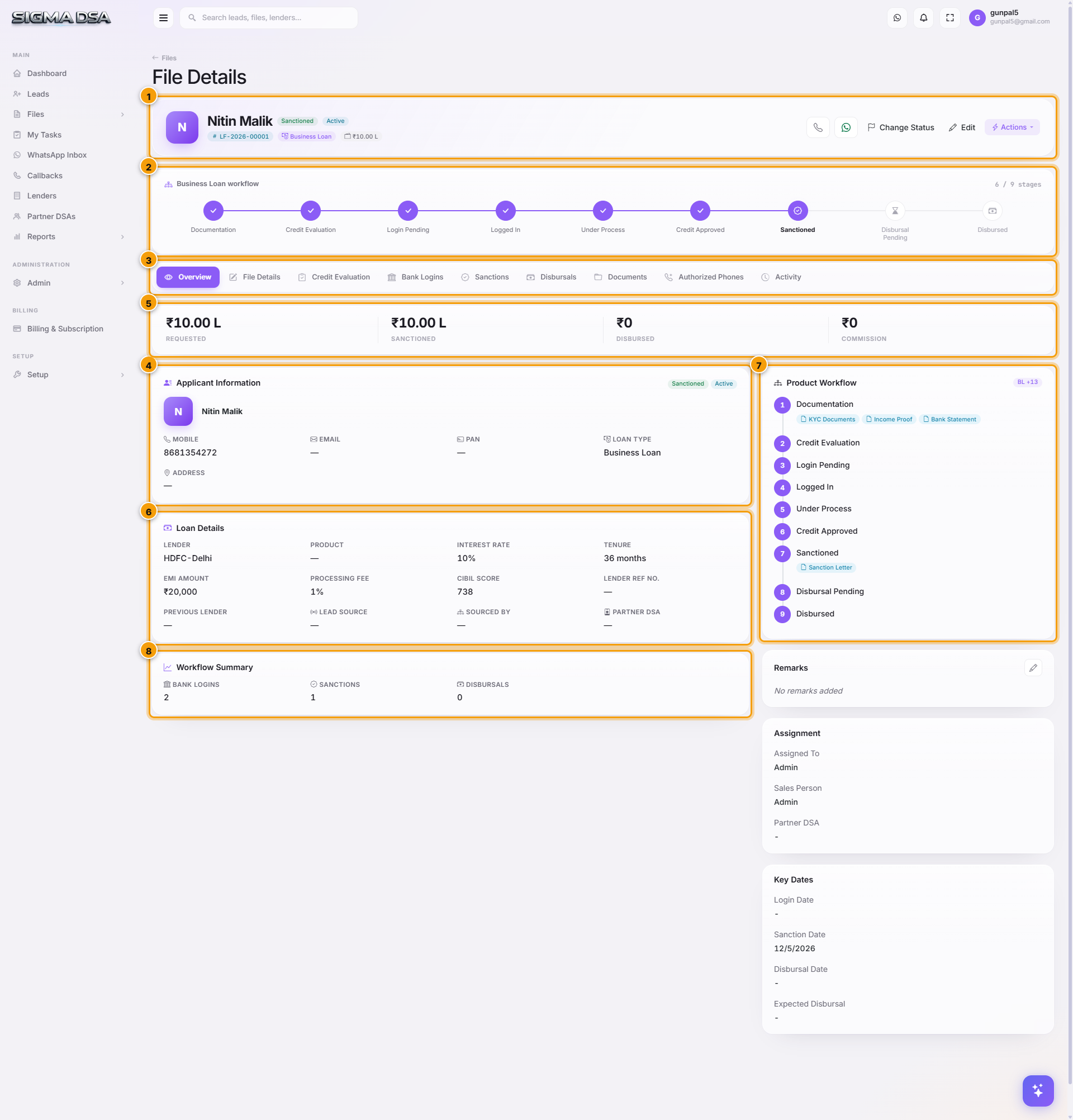
The Overview screenshot below is annotated with eight orange-bordered regions, each with a numbered badge — every number refers to the matching step below. The screenshots for the data-rich tabs (Bank Logins, Sanctions, Disbursals, Documents, Activity) come from a fully-disbursed car loan with realistic populated data so you can see every region in use.
What's on the Overview tab
Page header + action buttons
The top bar shows the file number (LF-YYYY-NNNNN), the applicant's name, the current stage + status pills, and the action buttons that drive the workflow:
- Change Status — flip within-stage status (e.g., In Progress → On Hold).
- Edit — opens the File Details (full edit) tab so you can update applicant, employment, property, etc.
- Actions menu — grouped into Status & Stage (Change Status, Change Stage, Mark as Rejected), Assignment (Assign Team Member, Change Sales Person), Communication (Add Comment, Send SMS, Send WhatsApp, Request Documents) and Workflow (Record Sanction, Record Disbursal), plus Delete File.
Stage stepper
A horizontal progress bar showing every stage of the product workflow for this loan type — for a car loan that is Documentation → Credit Evaluation → Lender Login → Sanctioned → Dealer Coordination → Disbursed to Dealer → Post-Disbursal Documents → Closed; home and business loans have their own sequences. Completed stages are ticked; the current one is highlighted; future ones are greyed, and the counter on the right (e.g. 7 / 8 stages) shows how far along the file is.
Tabs strip
Right below the stepper sits the tabs strip — the navigation between the file's data sections. Loan-type-specific tabs (for example Vehicle and PDD on a car loan) appear when the product needs them; every file has these nine:
| Tab | What's there |
|---|---|
| Overview | This page — the at-a-glance summary you're reading now. |
| File Details | Full edit page — applicant, co-applicants, employment, address, property/vehicle, existing obligations, file settings. |
| Credit Evaluation | Credit assessment — FOIR/DSCR, existing loans, eligibility calculator, AI Bank Statement Analysis. |
| Bank Logins | Per-bank submission tracking. |
| Sanctions | Sanction letter records. |
| Disbursals | Disbursal events + commission. |
| Documents | Uploaded KYC + income + property documents with OCR-extracted fields. |
| Authorized Phones | Phone numbers allowed to interact with this file over WhatsApp (the applicant plus any co-applicants or representatives). |
| Activity | Chronological audit log of every event on the file. |
Clicking any tab swaps the panel below the tab strip; the header, stepper, and side panels (Remarks, Assignment, Key Dates) stay visible.
Applicant Information
Primary card on the left, summarizing who the applicant is — name, business name (for self-employed loans), mobile, email, address, KYC IDs (PAN, Aadhaar). The Update Lead button (top-right of the card) jumps you straight to the applicant section of the File Details tab.
Amount strip
The strip under the tabs shows the four ₹ figures that matter most — Requested, Sanctioned, Disbursed and Commission — so the commercial position of the file is visible on every tab without scrolling.
Loan Details
Compact summary of the loan: Lender, Product, Interest Rate, Tenure, EMI Amount, Processing Fee, CIBIL Score, Lender Ref No., Previous Lender, Registration No, Lead Source, Sourced By and Partner DSA. This is the snapshot a manager scans when reviewing the file's commercial terms.
On Kajal's car loan, this card reads: HDFC-Delhi, 12% interest, 48 months, ₹26,334 EMI.
Product Workflow
Right-side panel listing every workflow stage for the file's loan type as numbered steps, with the document chips each stage expects underneath it (for example KYC Documents, Income Proof and Bank Statement under Documentation, Sanction Letter under Sanctioned). It mirrors the stepper at the top but adds the "what do I need to collect here" detail.
Workflow Summary
Four counters below Loan Details that summarize the file's outcomes:
| Counter | Kajal's file |
|---|---|
| Bank Logins | 1 |
| Sanctions | 1 |
| Disbursals | 1 |
| Pending Commission | ₹20,000 |
Files submitted to multiple banks will show higher numbers — each bank's login counts separately, and each sanction/disbursal event adds one to its counter.
All tabs at a glance
| Tab | What's there |
|---|---|
| Overview | This page — the at-a-glance summary you're reading now. |
| File Details | The full edit form — applicant, co-applicants, employment, address, property/vehicle, existing obligations, file settings. |
| Credit Evaluation | Credit assessment — FOIR/DSCR, existing loans, eligibility, AI Bank Statement Analysis. |
| Bank Logins | Per-bank submission tracking — every login row with status, RM contact, query thread, sanction button. |
| Sanctions | Sanction letter records — amounts, terms, conditions, validity. |
| Disbursals | Disbursal events + commission. |
| Documents | Uploaded KYC + income + property documents with OCR-extracted fields. |
| Authorized Phones | Numbers allowed to interact with the file over WhatsApp. |
| Activity | Chronological audit log of every action taken on the file. |
Right-side context panels (visible on Overview)
Below the Workflow Summary, three more side panels surface frequently-needed context:
- Remarks — free-form notes about the file. Editable inline.
- Assignment — who currently owns the file with a Reassign link. See Assign a file.
- Key Dates — Login Date, Sanction Date, Disbursal Date, Expected Disbursal, Follow-up. Mostly auto-populated as the file moves through stages.
Next steps
Tour of the Files dashboard
Walkthrough of the SigmaDSA Files list — category tabs, bank-logins column, stage pill, row actions, and how files move through Documentation → Sanction → Disbursal.
File Details tab
The File Details tab is the full edit page for a file — applicant identity, co-applicants, employment, address, property or vehicle, existing obligations, and file settings.