Upload documents to a file
Step-by-step guide to uploading KYC, income, and property documents to a loan file in SigmaDSA — single upload, bulk drag-and-drop, OCR extraction, AI Bank Statement Analysis, and verification.
Uploading documents is the single most-leveraged action on a file. Every other piece of intelligence SigmaDSA produces — FOIR, DSCR, lender-fit, bank submissions — depends on what's been uploaded here.
This page covers how to upload and what happens after. The Documents tab tour covers the layout of the tab itself.
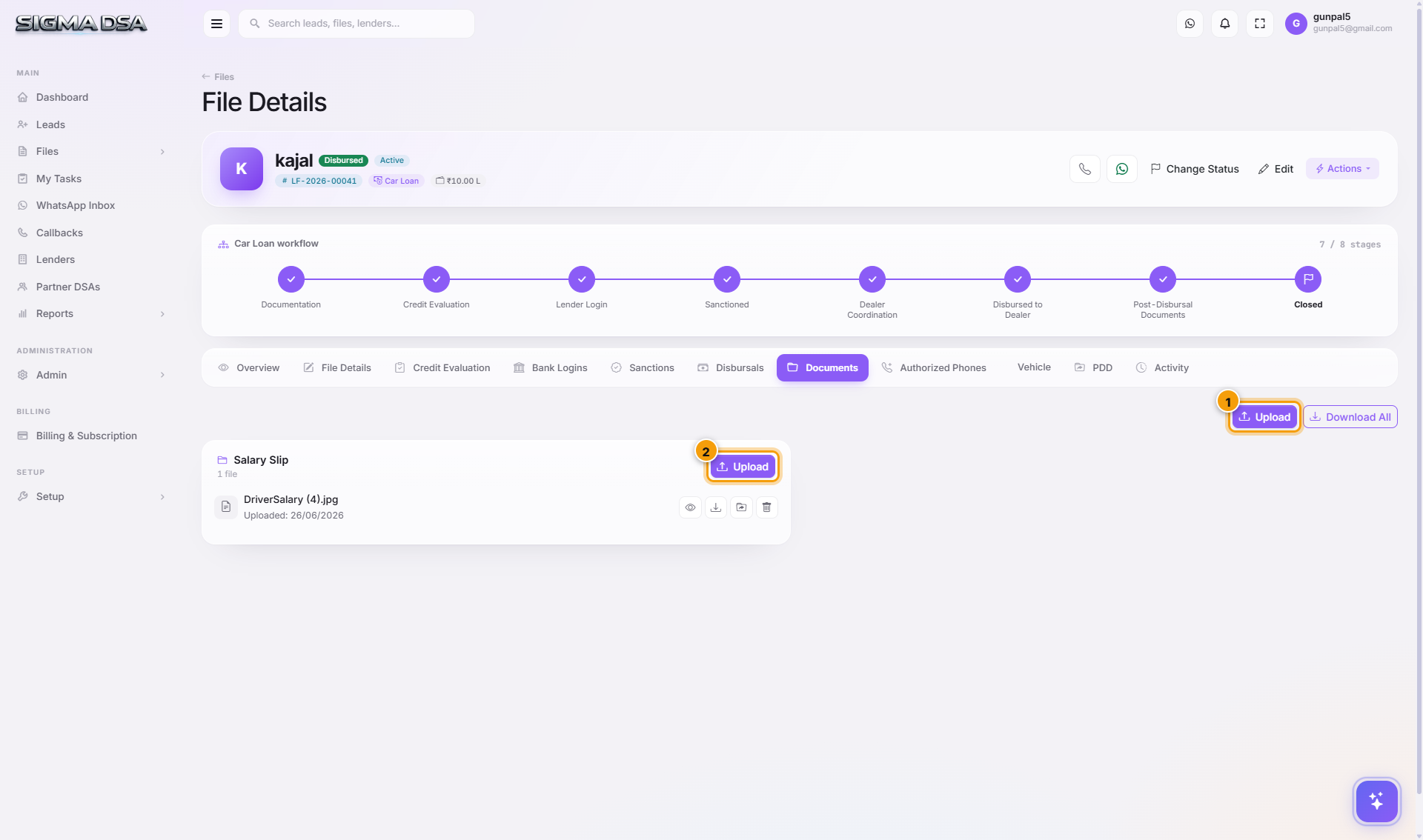
Three ways to upload
Drag and drop
The simplest path. Open the file's Documents tab, then drag one or more files from your file manager onto the dotted upload area at the top.
You can drag a whole folder too — SigmaDSA walks the folder and uploads every supported file inside it, including nested sub-folders.
Upload button (file picker)
Click the Upload button at the top-right of the Documents tab. Pick one or many files in the OS file dialog and confirm. Same outcome as drag-and-drop; useful when the file is buried somewhere in your folder structure.
Re-upload from the checklist
If a document type is missing — say, Form 16 on a home loan checklist — click the placeholder tile for that type. The file picker opens pre-tagged for that document type, so the uploaded file lands in the right slot automatically.
What happens after upload
Auto-detection of type
For common documents (PAN, Aadhaar, salary slip, bank statement) the AI Employee identifies the type from the document content. You'll see the type badge populate on the tile within a couple of seconds.
If the detection is wrong, click the tile's Edit Type dropdown and override — your correction trains the per-tenant detector over time.
OCR extraction
PAN cards, Aadhaar, driver's licences, and salary slips are run through OCR to extract structured fields:
| Document | Extracted |
|---|---|
| PAN Card | PAN number, name, DOB, father's name |
| Aadhaar | Aadhaar number, name, DOB, address, gender |
| Salary Slip | Employer, month, gross + net salary, deductions |
| Form 16 | Employer, annual gross + net, TDS |
| ITR | Assessment year, total income, tax paid |
Extracted fields appear on the document tile and auto-fill the applicant / employment cards on the File Details tab — you don't have to retype anything.
Bank Statement Analysis (BSA)
If you upload a bank statement, the AI Bank Statement Analyzer runs automatically. It:
- Parses every transaction.
- Detects salary credits, EMIs, bounces, UPI patterns.
- Computes monthly inflow, outflow, and net savings.
- Calculates FOIR for the applicant's net income.
- Pushes detected EMIs to the Existing Obligations card on File Details.
- Output lands on the Credit Evaluation tab.
BSA takes 30–90 seconds for a 6-month statement. You can keep working — a notification fires when it's done.
Mark Verified
Once you've visually checked the uploaded document against the original, click Mark Verified on the tile. Verified docs get a green badge. Lender RMs trust files with higher verified-counts and tend to clear them faster.
Verification is a permission-gated action — by default, anyone with the file can verify, but tenants on the Enterprise plan can restrict it to a Document Verifier role.
Bulk upload patterns
- Whole file folder from email — save the customer's email attachments to a folder, drag the folder onto the upload area. SigmaDSA auto-tags PAN, Aadhaar, salary slips, and bank statements; you tag the rest manually.
- Document collection link — share the public document upload link with the applicant via WhatsApp or SMS. Anything they upload from their phone lands directly on this tab.
Document categories and checklists
The checklist on the tab is loan-type-aware:
| Loan type | Categories |
|---|---|
| Home Loan / LAP | KYC · Income · Property · Banking · Other |
| Personal Loan | KYC · Income · Banking · Other |
| Business Loan / OD | KYC · Business Proof · Financials · Banking · Other |
| Car Loan | KYC · Income · Vehicle · Banking · Other |
Within each category, expected document types light up green when uploaded and grey when missing. Lenders won't process a file until the green-tick count meets their per-product threshold (typically 80%+).
Common issues
- OCR extracted garbage — usually a low-quality scan. Re-scan the document at 300 DPI and re-upload, or click Re-extract OCR if the issue is intermittent.
- BSA reports "Statement format not recognized" — usually a custom or non-bank-issued statement. Download the official PDF from the bank's net-banking portal and re-upload.
- PDF is password-protected — SigmaDSA prompts for the password during upload. If you don't have it, ask the applicant; bank statements are typically encrypted with last-6-digits of the account or PAN.
- File too large — split a multi-month statement into single-month files, or compress the PDF.
Next steps
Assign a file to a team member
Two ways to assign or reassign a loan file in SigmaDSA — from the Actions menu on the Files list, and from the Assignment card on the file detail page.
Request documents from a customer
Ask a customer for missing documents from the loan file in SigmaDSA — pick the documents, send the request over WhatsApp and email, and let them upload through the secure customer portal while the file tracks what has arrived.