File Details tab
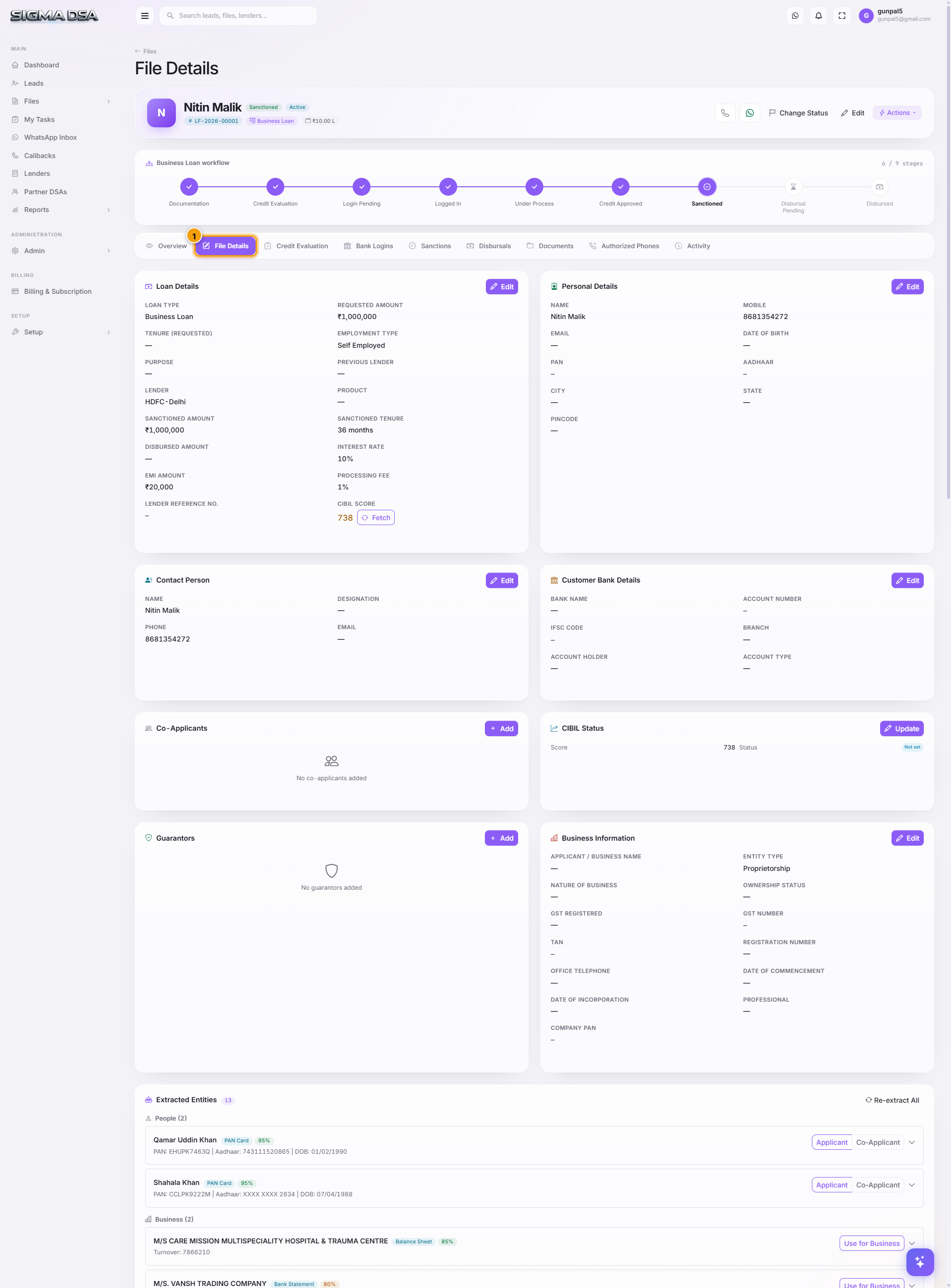
The File Details tab is the full edit page for a file — applicant identity, co-applicants, employment, address, property or vehicle, existing obligations, and file settings.
The File Details tab is where you fill in (or update) every piece of structured information about the file. It's the same form used when the file is first created or when a lead is converted — but exposed as a tab so you can come back to refine details after the file is live.
What's on the tab
The tab is organized into a stack of cards, top-to-bottom. Every card has its own Update button so you can save piece by piece without losing focus.
1. Loan Requirement
What the applicant is asking for: Loan Type, Loan Amount, Tenure, Employment Type (Salaried / Self-Employed / Business), Loan Purpose.
Changing the loan type here re-routes the file through the loan-type-specific workflow (e.g., switching from Personal Loan to Home Loan surfaces the Property card; switching to Car Loan surfaces the Vehicle card).
2. Applicant Details
The borrower's identity: First Name, Last Name, Business Name (for self-employed), DOB, PAN, Aadhaar, Mobile, Secondary Phone, Email.
PAN and Aadhaar fields validate format on save. If you uploaded a PAN card or Aadhaar to the Documents tab, the OCR-extracted PAN number auto-fills here.
3. Co-Applicants
Up to four co-applicants (joint home loans typically have one spouse, business loans can have multiple directors as co-applicants). For each:
- Full name, relationship to primary applicant, mobile, email, PAN, DOB.
- Income for FOIR/DSCR pooling — co-applicant income is added to the primary income when computing eligibility.
- Co-applicant type — Income earner (contributes to FOIR) vs Guarantor (collateral only).
4. Employment Details
Tabs at the top switch between Salaried and Self-Employed / Business views:
Salaried:
- Company Name, Designation, Years of Experience, Monthly Salary, Work Location, Office Email.
Self-Employed / Business:
- Business Name, Business Type (Proprietorship, Partnership, LLP, Private Limited), GSTIN, Annual Turnover, Years in Business, Office Address.
5. Address
Current and permanent address: Line 1, Line 2, City, State, Pincode, Residence Type (Owned / Rented / Family), Years at current address.
For Home Loans, this is not the property address — the property goes in the Property card below.
6. Property / Vehicle (loan-type-specific)
Shown only for the relevant loan types:
Home Loan / LAP:
- Property Type (Apartment / Independent House / Plot / Commercial), Property Value, Property Address, Built-up Area, Carpet Area, Builder, Project Name.
Car Loan:
- Vehicle Type (New / Used), Make, Model, Variant, Year, Registration Number (Used only), Vehicle Cost, Down Payment.
7. Existing Obligations
Running EMIs the applicant is already paying. Each entry: Lender, Loan Type, Outstanding Amount, EMI, Months Remaining. Sum of EMIs feeds the FOIR calculation on the Credit Evaluation tab.
If you've uploaded a bank statement to Documents, the AI Bank Statement Analyzer auto-populates existing EMIs detected in transactions — you can verify and edit here.
8. File Settings
Operational fields not directly about the loan:
- Priority — Low / Medium / High / Urgent (drives sorting on the Files list).
- Lead Source — where the file came from.
- Partner DSA — connector who sourced the file (if any).
- Follow-up Date — next scheduled callback. Surfaces on the Callbacks queue.
- Internal Notes — operations-only notes, hidden from customer-facing exports.
How fields connect across tabs
| Field on File Details | Used by |
|---|---|
| Loan Amount, Tenure, Employment Type | Credit Evaluation (FOIR / DSCR) + Bank Logins (per-lender eligibility) |
| PAN, Aadhaar | Bank Logins (auto-fills lender API submissions where supported) |
| Co-applicant income | Credit Evaluation (pooled FOIR) |
| Existing Obligations | Credit Evaluation (FOIR denominator) |
| Property Value, Property Address | Bank Logins (LTV calculation, RM dispatch) |
| Vehicle details | Bank Logins (loan-to-value, vehicle valuation) |
Common flows from this tab
- Update applicant PAN after KYC verification → Applicant Details card → save.
- Switch from Personal to LAP after collateral discussion → Loan Requirement card → change Loan Type → the Property card appears below.
- Add a co-applicant → Co-Applicants card → + Add Co-Applicant → fill the row → save. FOIR on Credit Evaluation tab updates instantly.
- Refresh existing EMIs from a fresh bank statement → re-upload the statement on the Documents tab → the AI re-extracts and updates Existing Obligations.
Next steps
Tour of file details page
Tour of the SigmaDSA file detail page — header, stage stepper, tabs strip, applicant info, loan details, workflow summary, plus how each tab fits into the full file lifecycle.
Credit Evaluation tab
Tour of the Credit Evaluation tab — FOIR/DSCR calculations, existing loan obligations, AI Bank Statement Analyzer output, and lender-matching scores.