Documents tab
Tour of the Documents tab — every KYC, income, and property document uploaded to the file, with OCR-extracted fields and per-bank export.
The Documents tab is where every PDF, image, and scanned document related to the file lives — KYC (PAN, Aadhaar), income (salary slips, ITRs, bank statements), property (sale deed, title chain), business (GST returns, balance sheet), and anything else a lender might ask for.
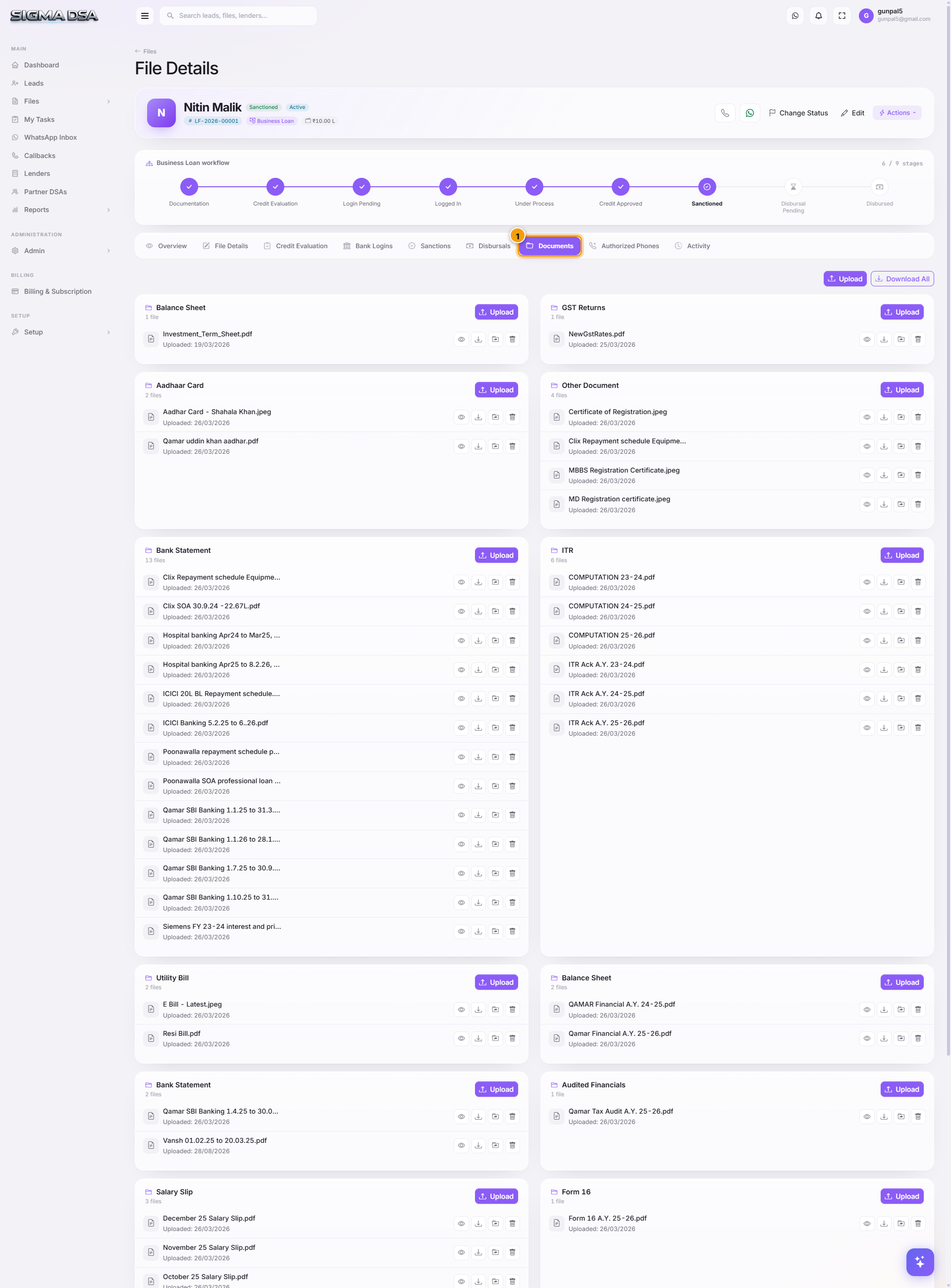
What's on the tab
- Upload button at the top-right opens a file-picker (multi-select supported). Drag-and-drop into the upload area also works.
- Checklist organized by category — KYC, Income, Property/Collateral, Business (for self-employed). Each category shows expected documents with green ticks for uploaded items and grey placeholders for missing ones.
- Per-document tile: thumbnail/preview, document type, file name, uploaded by + date, Verified badge if an admin reviewed it, OCR-extracted fields (PAN number from PAN card, salary from payslip, account balance from statement, etc.).
- Per-document actions — View (opens lightbox), Download, Edit Type, Re-extract OCR, Delete.
Document types SigmaDSA understands
The system has built-in document types per loan category. Examples:
| Loan Type | Required documents |
|---|---|
| Home Loan | PAN, Aadhaar, salary slip × 3, Form 16, bank statement × 6 months, property sale agreement, title chain, NOC from builder |
| Personal Loan | PAN, Aadhaar, salary slip × 3, bank statement × 6 months |
| Business Loan | PAN, Aadhaar, GST returns × 12 months, ITR × 2 years, business bank statement × 12 months, GST registration |
| Car Loan | PAN, Aadhaar, salary slip × 3, RC of trade-in vehicle (if any), vehicle invoice |
What the AI does with these documents
When you upload, the AI Bank Statement Analyzer automatically runs on any bank-statement PDF:
- Extracts every transaction.
- Computes monthly inflow and EMI outflow patterns.
- Detects bounces, salary credits, existing EMIs.
- Calculates FOIR and DSCR for the applicant.
- Output appears on the Credit Evaluation tab — no manual data entry.
PAN, Aadhaar, and income docs get OCR processing to extract the structured fields (PAN number, name, DOB, salary figures). Those auto-fill applicant/employment cards on the File Details tab.
Common flows from this tab
- Upload several documents at once → drag a folder onto the upload area. SigmaDSA auto-detects type for common formats (PAN cards, Aadhaar, bank statements).
- Lender asked for one specific document → use the checklist to see what's missing. Upload it. Mark Verified once you've checked it visually.
- Re-extract OCR after fixing a bad scan → per-document action → Re-extract OCR. Useful when the initial scan was low-quality.
- Send documents to a bank → on the Bank Logins tab, use the bank login row's Send Docs to RM action — bundles selected documents into an email/share link.
Next steps
Disbursals tab
Tour of the Disbursals tab — every disbursal event on the file with date, amount, commission earned, mode, and supporting reference.
Activity tab
Chronological audit log of every action taken on the file — stage transitions, status changes, bank logins, sanctions, disbursals, comments, document uploads, and reassignments.