Assign a file to a team member
Two ways to assign or reassign a loan file in SigmaDSA — from the Actions menu on the Files list, and from the Assignment card on the file detail page.
Every file in SigmaDSA has a single owner — the team member responsible for moving it through the pipeline (uploading docs, submitting to banks, following up with the customer). Files inherit their owner from the originating lead at conversion time, but you'll reassign frequently — when someone goes on leave, the wrong person picked up a file, or the file moves from a sales rep to an operations specialist for the bank-login stage.
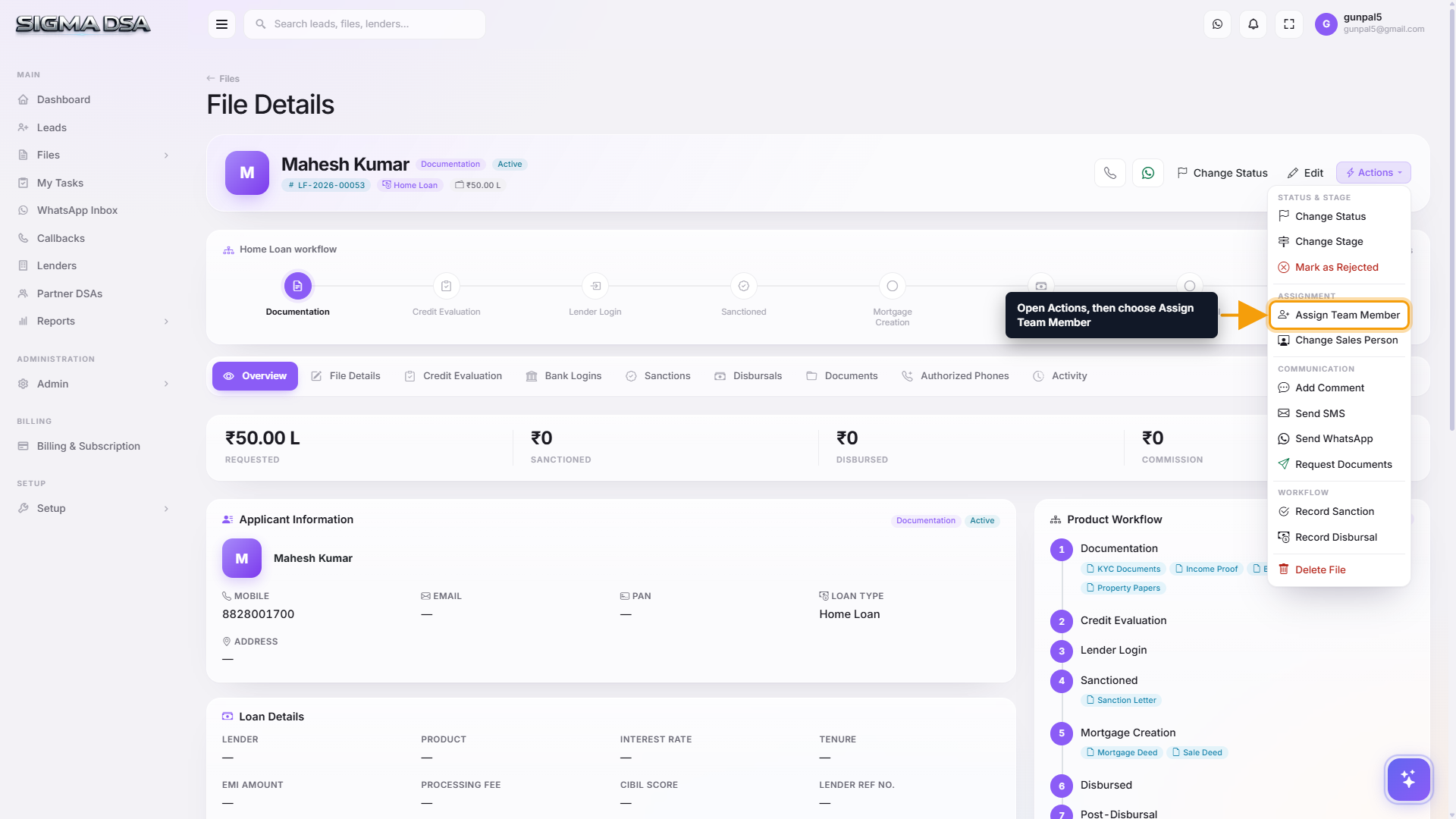
Assignment is done from the file detail page → Actions menu → Assign Team Member.
Assign a team member to the file
Open the file and click the Actions menu
Click the file's row in the Files list to open the file detail page. At the top-right of the page header, click the green Actions button. The dropdown opens with every workflow action — including Assign Team Member.
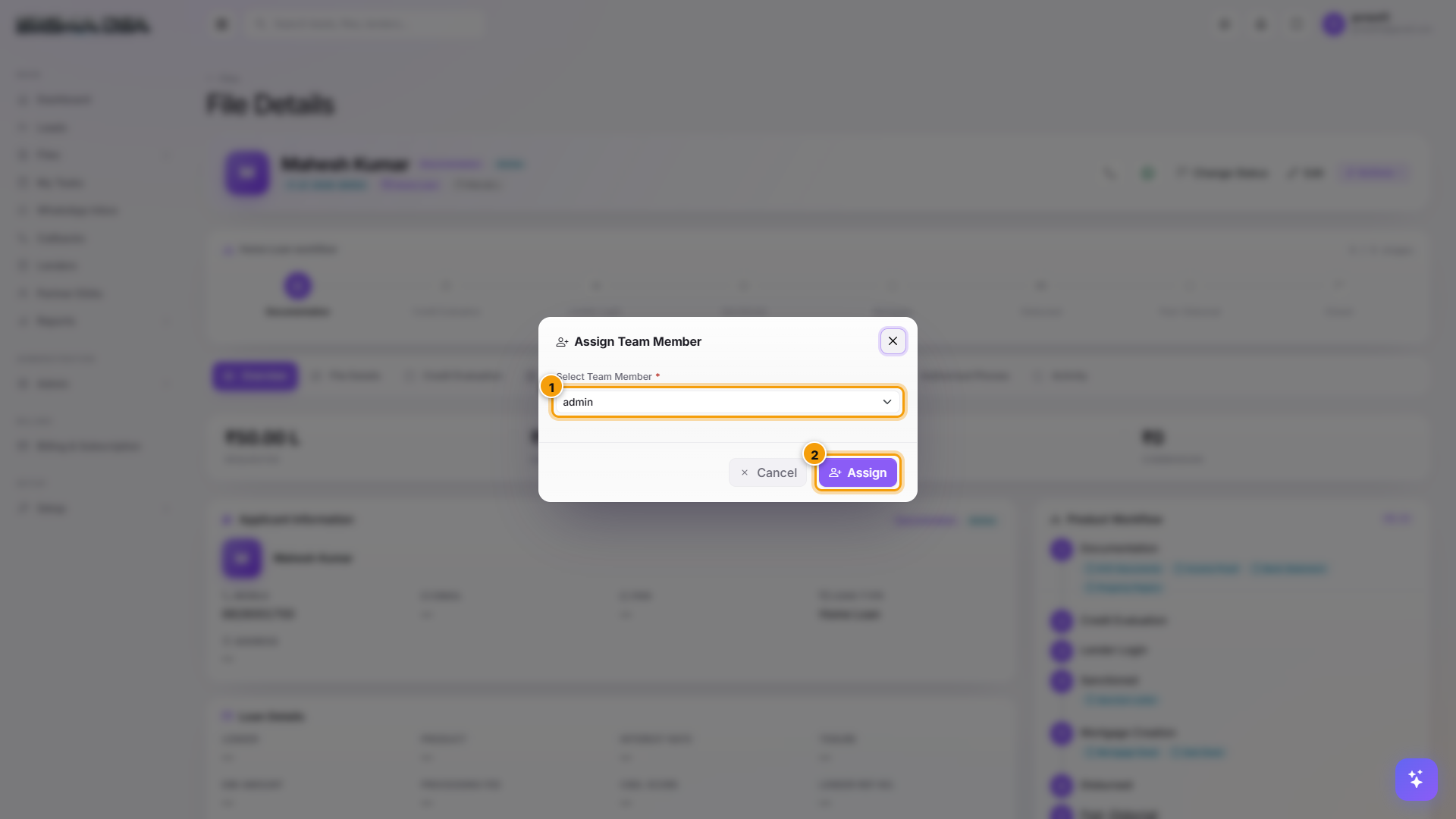
Pick the team member and click Assign
The Assign Team Member modal opens. The dropdown lists every active user in your tenant who has the LoanFiles permission. Pick the team member and click the Assign button.
The right-hand Assignment card on the Overview tab updates immediately, and a new entry appears on the Activity tab recording who reassigned and when.
Note: The row Actions menu on the Files list (View Details, Edit File, Upload Documents, Change Stage, Change Status, Open Credit Evaluation, Open Bank Login, Reject File) does not include Assign. Assignment is intentionally surfaced only from inside the file to avoid accidental ownership changes from a list view.
Reassign vs. Change Sales Person
The Actions menu has two ownership-related items:
| Action | What it changes |
|---|---|
| Assign Team Member | The operations owner — the user responsible for moving the file through bank logins, sanctions, disbursals. |
| Change Sales Person | The sales credit — the user who originally sourced the lead. Used for commission attribution; doesn't change who works the file. |
Both fields show on the Overview tab's Assignment side panel.
What happens after assignment
- The new owner receives a notification (in-app + email if alerts are on).
- A task appears on the new owner's My Tasks board prompting them to pick up the file.
- The reassignment is logged on the file's Activity tab — visible to anyone with ViewAll permission.
- The previous owner loses the file from their personal view (unless they have ViewAll).
- Every bank login, sanction, disbursal, and document stays tied to the file.
Sales → Operations handoff pattern
A common workflow: the sales rep owns the file through Documentation and Login Pending; then ops takes over for bank submissions, sanctions, and disbursal. Use Reassign when the file enters Login Pending and hand it to the ops queue.
Next steps
Create a new file
Two-stage flow for adding a loan file in SigmaDSA — a ten-field Create Loan File modal followed by the full edit page for KYC, employment, property, and bank-login setup.
Upload documents to a file
Step-by-step guide to uploading KYC, income, and property documents to a loan file in SigmaDSA — single upload, bulk drag-and-drop, OCR extraction, AI Bank Statement Analysis, and verification.