Change stage, status, or reject a file
How loan files move through stages in SigmaDSA — automatic stage transitions, manual override, within-stage status changes, and the Reject flow with reason capture.
Every loan file has a stage and a status. The stage is its position in the overall funnel; the status is where it sits within that stage. SigmaDSA moves files between stages automatically as you complete workflow actions — but you can also override manually when life doesn't follow the happy path.
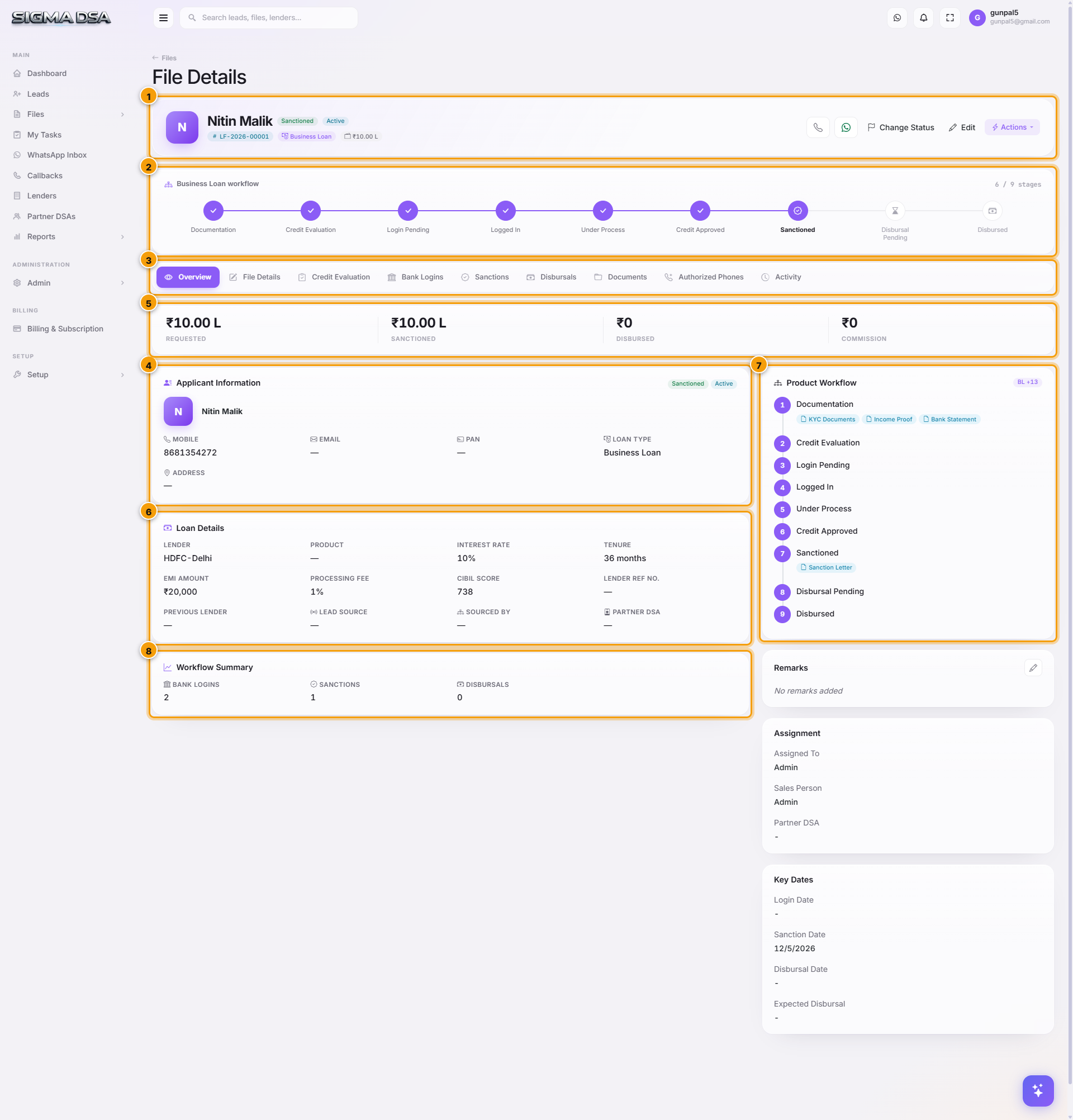
All three workflow controls — Change Status, Change Stage, Mark as Rejected — live in the file detail page's header Actions menu.
Automatic stage transitions
Most of the time you don't change stage manually — completing the workflow action triggers the move:
| Action you take | File moves from → to |
|---|---|
| Create a file | (new) → Documentation |
| Upload required docs + AI BSA completes | Documentation → Credit Evaluation |
| Mark credit evaluation complete | Credit Evaluation → Login Pending |
| Add first bank login | Login Pending → Logged In |
| Lender starts review | Logged In → Under Process |
| Lender approves internally | Under Process → Credit Approved |
| Record first sanction | Credit Approved → Sanctioned |
| Sanction accepted | Sanctioned → Disbursal Pending |
| Record first disbursal | Disbursal Pending → Disbursed |
| Mark rejected | (any) → Rejected (terminal) |
The stage stepper at the top of the file detail page visualises this — completed stages filled, current highlighted, future greyed.
Within-stage status change (no stage move)
The high-frequency operation — most files flip status several times before moving stage. Use this when you need to update the status (e.g., from In Progress to Awaiting Customer) without changing the stage.
Open the Change Status modal
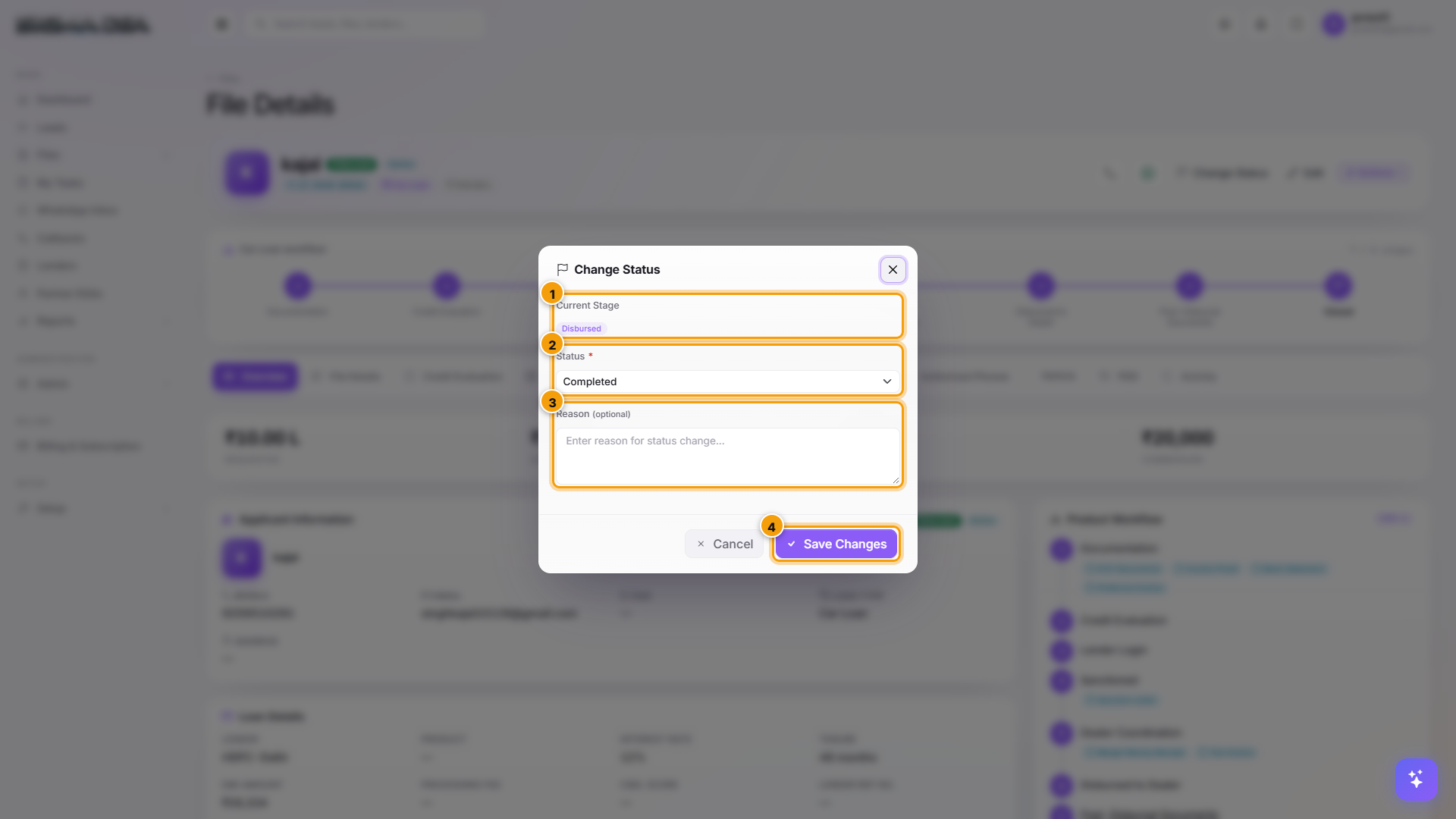
From the file header, click Actions → Change Status. The modal opens.
Pick the new status and Save Changes
The Status dropdown lists every status valid for the file's current stage. Pick the new status, add an optional reason note for audit, then click Save Changes. The file's status pill in the header updates immediately and the change lands on the Activity tab.
Manual stage change
When you need to override automatic transitions — e.g., bank sanctioned verbally before the letter arrived, or a file got pushed forward in error and needs to roll back.
Open the Change Stage modal
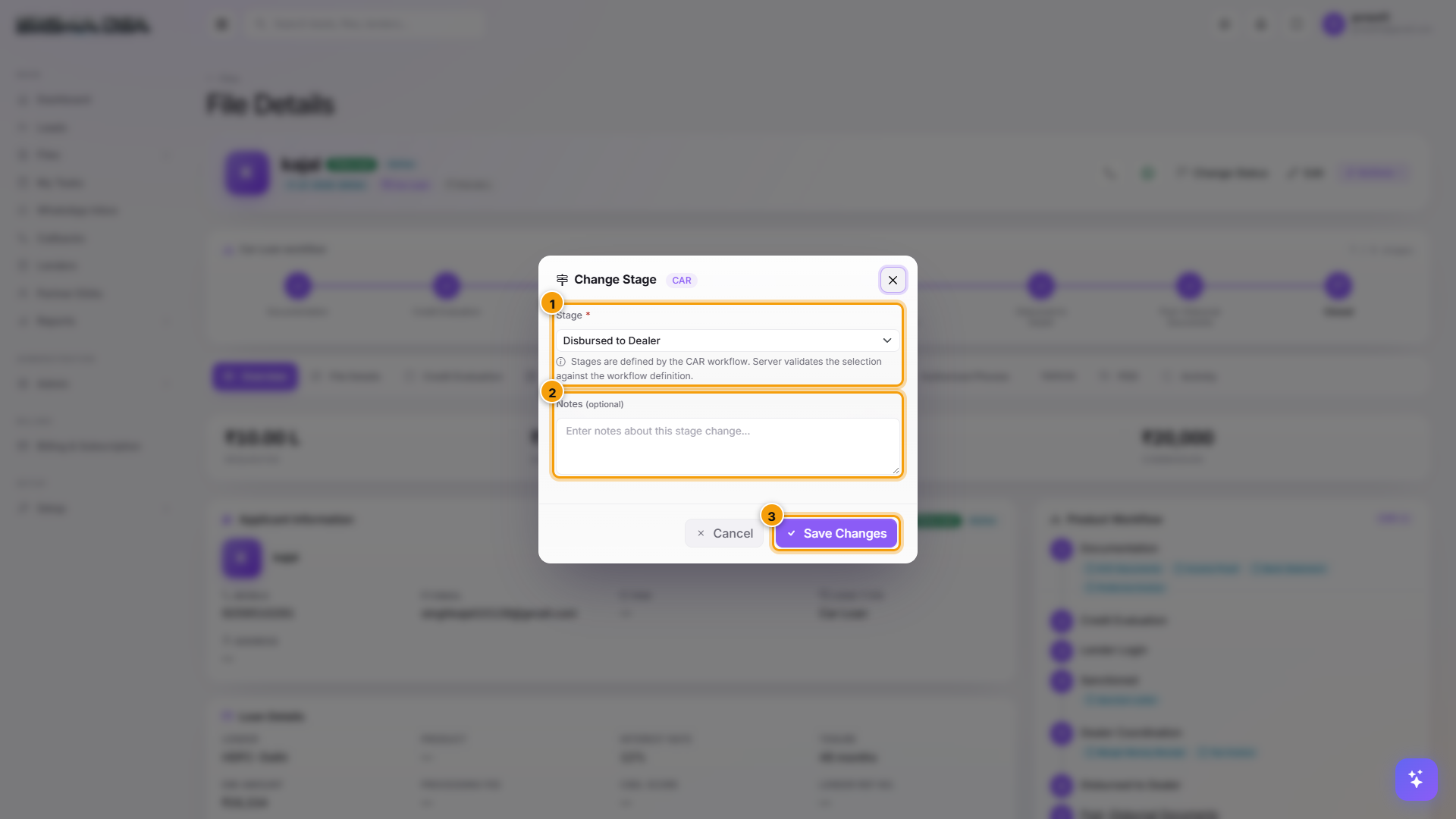
From the file header, click Actions → Change Stage. The modal opens with the current stage pre-selected.
Pick the target stage
The dropdown lists every stage available for the file's loan type. Forward moves are always allowed for the file's owner. Backward moves require a permission gate — by default only admins and ops managers can move backwards.
| Stage | Typical within-stage statuses |
|---|---|
| Documentation | New, In Progress, Awaiting Customer, Documents Received, On Hold |
| Credit Evaluation | Pending, Under Review, Approved Internally, On Hold |
| Login Pending | New, Awaiting Eligibility, Ready to Submit |
| Logged In | Submitted to 1 Bank, Submitted to 2+ Banks, Query Raised |
| Under Process | In Process, Discrepancy, Verification In Progress |
| Credit Approved | Verbally Approved, Letter Awaited |
| Sanctioned | Sanction Received, Accepted, Conditions Pending |
| Disbursal Pending | Awaiting DOD, Funds Awaited |
| Disbursed | Disbursed, Partial Disbursal |
The status options are customisable per tenant under Admin → Workflow Configuration.
Add Notes and Save Changes
The Notes field is free-text. Required for backward moves, optional for forward moves. Reasons live on the Activity tab — useful for audits and for the next person picking up the file. Click Save Changes.
Rejecting a file
When a deal dies — customer drops out, all banks rejected, internal credit policy denial — capture the rejection so the analytics layer learns.
Open the Reject File modal
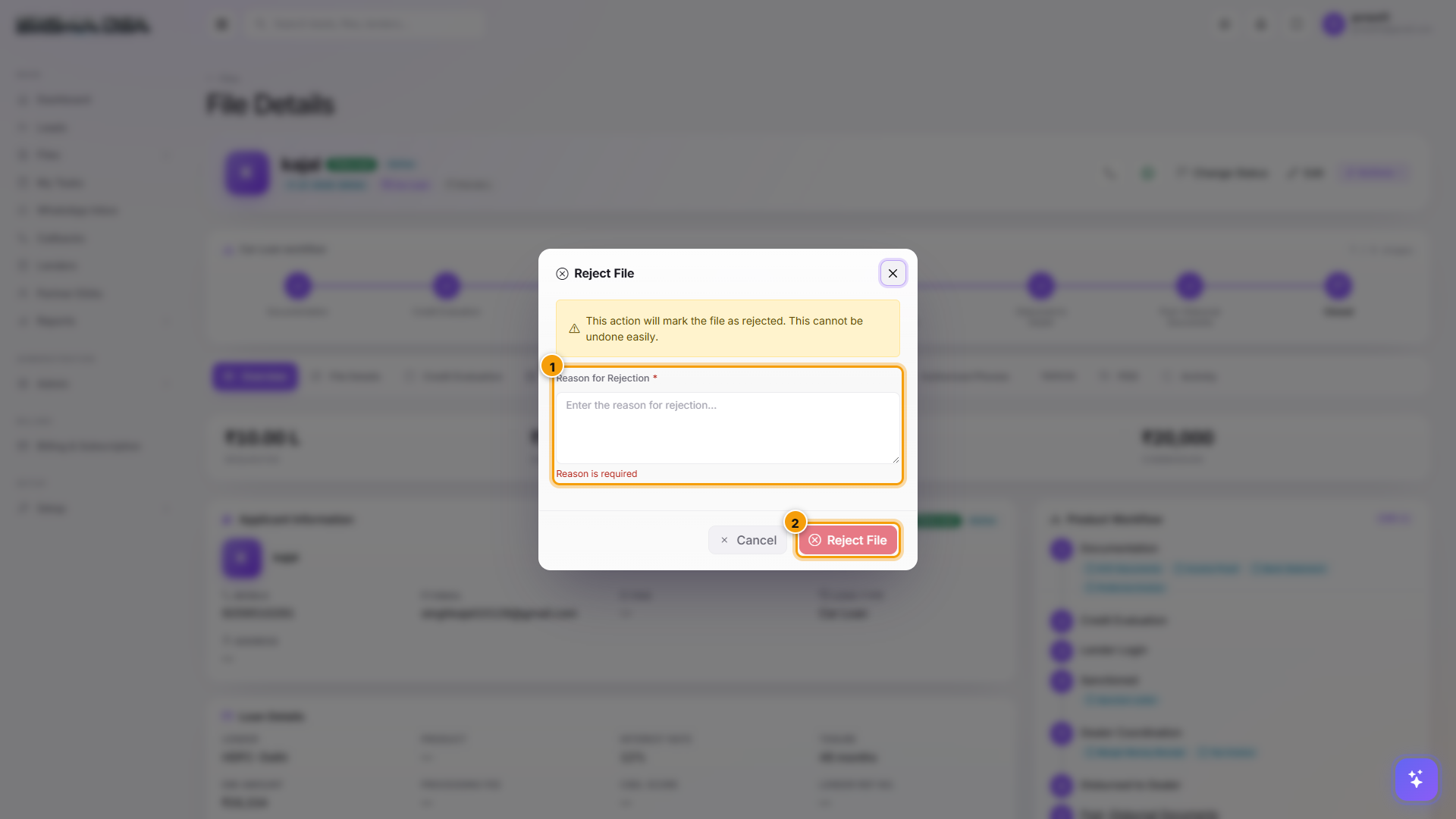
From the file header, click Actions → Mark as Rejected. The Reject File modal opens.
Enter the reason and Reject File
Fill the Reason for Rejection textarea with a clear explanation — typical reasons:
- Customer Withdrew — applicant changed their mind / went elsewhere.
- Document Mismatch — KYC or income docs didn't reconcile.
- Low CIBIL — bureau score below all panel-lender minimums.
- High FOIR — couldn't bring FOIR within any lender's cap.
- Property Issues — title chain / legal opinion failed.
- Lender Rejected — at least one but typically all panel banks rejected.
- Duplicate File — already existed; this one is a duplicate.
Click Reject File. The file's stage moves to Rejected (terminal). It's hidden from active queues by default but stays in the database for analytics.
Reopening a rejected file
Sometimes a "rejected" file revives — customer comes back, bank reconsiders, document was found. Filter the Files list with status filter set to Rejected, open the file, and click Actions → Reopen. The file returns to its pre-rejection stage with a fresh activity entry.
Analytics
Stage + status changes feed three reports:
- Pipeline aging — average days at each stage.
- Rejection breakdown — % by category for funnel learning.
- Salesperson velocity — average stages-moved-per-day per user.
All three live under Reports → Pipeline.
Next steps
Disbursals list
The company-wide Disbursals page in SigmaDSA — every disbursal across all files with sanctioned versus disbursed amounts, dates and attribution.
Export files to Excel
Export the SigmaDSA Files list to Excel — current filter, current columns, current sort. Use for management reports, bank submissions in bulk, lender reconciliations, or external CRM imports.