Bank Logins list
The company-wide Bank Logins page in SigmaDSA — every file submitted to a lender in one queue, with verification-check progress, login status filters and reject remarks.
The Bank Logins page is every file you have submitted to a lender, across the whole tenant, in one queue. The Bank Logins tab answers "where is this file?"; this page answers "what is my team chasing today?"
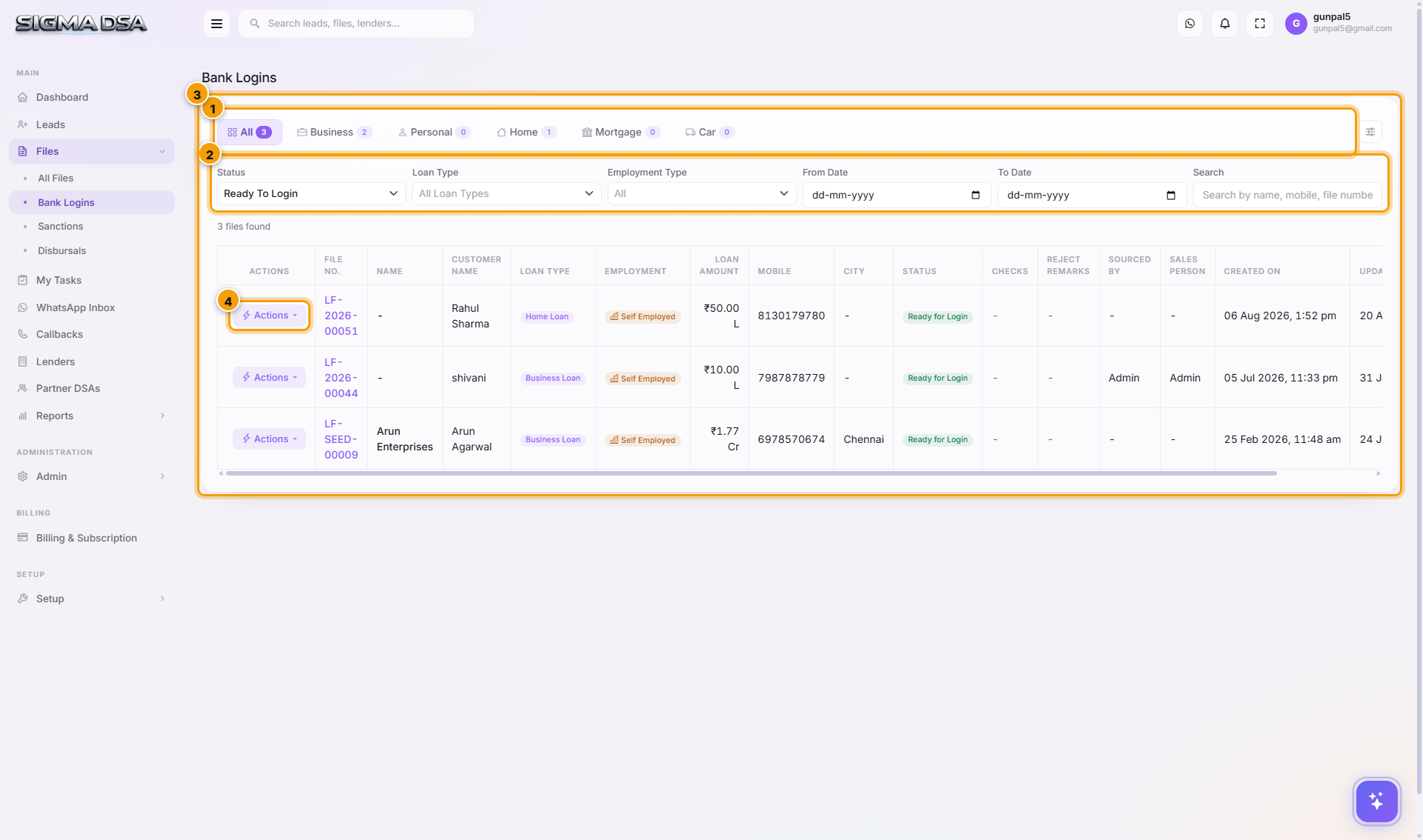
What's on the page
- Loan-type tabs — All, Business, Personal, Home, Mortgage, Car, each with a live count so you can see where the volume sits.
- Filters — narrow by login status (Ready To Login, submitted, and the rest of the login lifecycle) and by loan type.
- The table — one row per submission, with File No., applicant and customer name, loan type, employment, amount, mobile, city, Status, Checks, Reject Remarks, and who sourced and sold it.
- Actions — the per-row menu.
The columns that matter
| Column | What it tells you |
|---|---|
| Status | Where the login is in the lender's process — from Ready To Login through to logged in, under process, and the outcome. |
| Checks | Verification-check progress for that login, e.g. 3/5. See Verification checks. |
| Reject Remarks | The bank's stated reason when a login was rejected. Reading down this column across a lender shows you the pattern. |
| Sourced By / Sales Person | Attribution — useful when filtering by a partner DSA or a rep. |
The Actions menu
Each row's Actions menu carries the whole login workflow, so you rarely need to open the file:
- View Logins / View File — jump to the file's Bank Logins tab or its Overview.
- Create Login — submit the file to another lender.
- Checks:
{lender}— open the verification checks for that submission. - Change Stage / Change Status — move the file, same as Change the stage.
- Change Sales Person / Change Sourced By — fix attribution.
- Send WhatsApp — message the applicant without leaving the queue.
- Bank Reject — record a rejection and its reason.
Next steps
- Bank Logins tab — submitting one file to lenders
- Verification checks
- Login Files report — volume and outcomes per lender
Add bank logins (multi-bank submission)
How to submit a loan file to one or more banks from SigmaDSA — picking lenders, capturing RM info, sending the document packet, and tracking each submission independently.
Verification checks
Per-lender verification checklists in SigmaDSA — define the checks a bank expects once on the lender record, then tick them off Done or Pending on every login, with progress visible on the Bank Logins queue.