Track sanctions and disbursals
How to record sanction letters, accept the best offer, capture pre-disbursal conditions, and log disbursals (with PF, GST, commission) on a SigmaDSA loan file.
After a file's been submitted to banks, two of the most important events you'll log are sanctions (bank says "approved, here are the terms") and disbursals (money actually hit the customer's account). SigmaDSA separates the two because the time gap can be days to weeks, the figures can differ, and the commission you earn is tied to disbursal not sanction.
Step 1 — Record a sanction
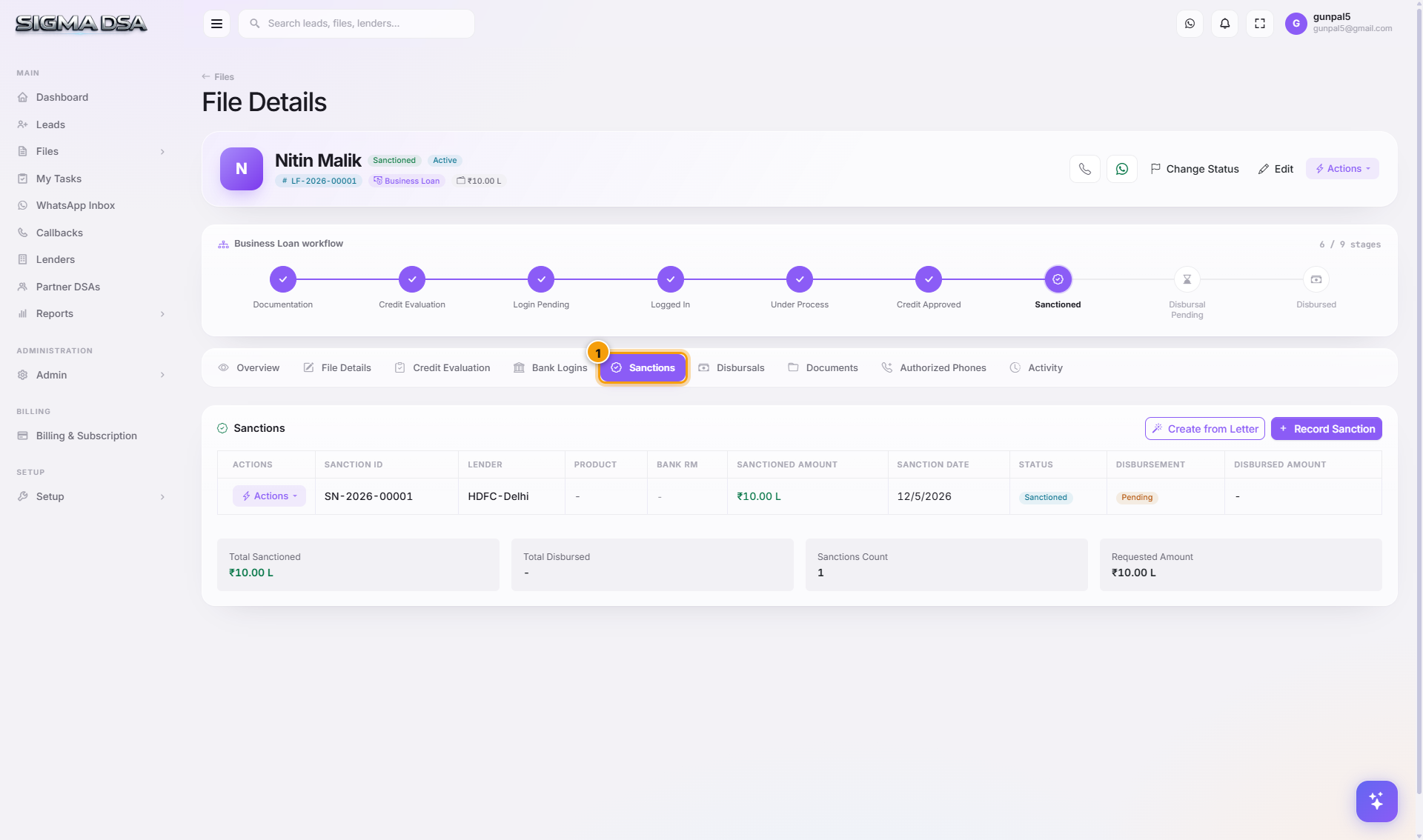
Open the Sanction modal
From the file detail page header, click Actions → Record Sanction. The Record Sanction modal opens with the sanction-letter fields organised into four rows.
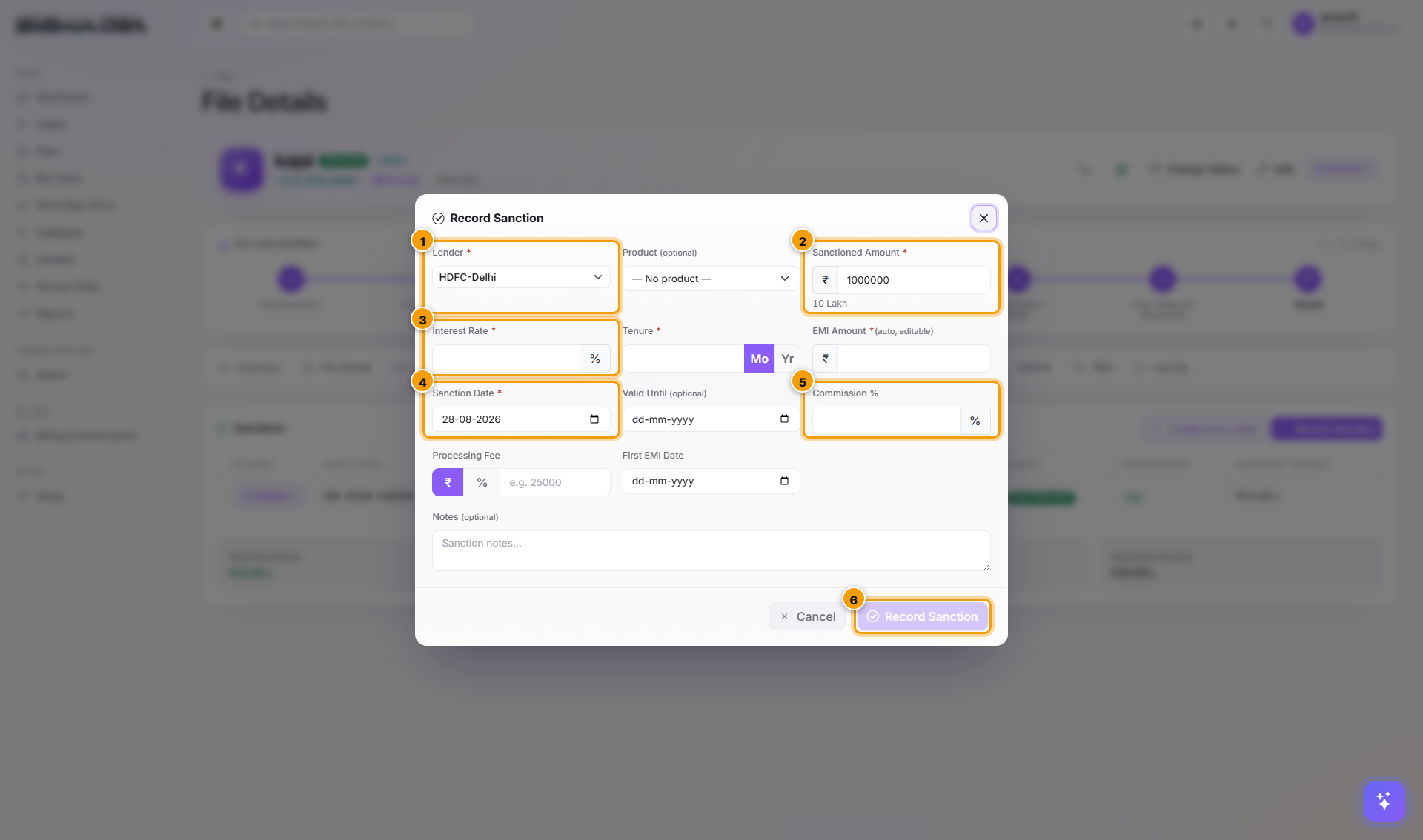
Capture the letter
Fill the fields from the sanction letter:
| Field | Source on the letter |
|---|---|
| Lender | Bank logo / letterhead |
| Sanctioned Amount | "Loan sanctioned: ₹…" |
| ROI | "Rate of Interest: …% p.a." |
| Tenure | "Tenure: … months" |
| EMI | Either stated, or auto-computed by SigmaDSA from amount + ROI + tenure |
| Processing Fee | One-time PF charge |
| Validity | "This sanction is valid until …" |
| Conditions | Pre-disbursal conditions section |
If you upload the sanction letter PDF first (to the Documents tab), the OCR extracts most of these and you just confirm.
Save → stage moves to Sanctioned
Click Save. The new sanction shows on the Sanctions tab and the file's stage auto-advances to Sanctioned (if it isn't there already).
Step 2 — Accept the best offer
If multiple lenders sanctioned, you'll have multiple rows on the Sanctions tab. Compare ROI, tenure, PF, conditions. On the row you want to go with, click Mark Accepted. Click Mark Rejected on the others (or Withdraw if you're keeping them as fallback).
You can also accept two sanctions in parallel for a split loan (e.g., one bank for the main home loan + another for a top-up).
Step 3 — Record the disbursal
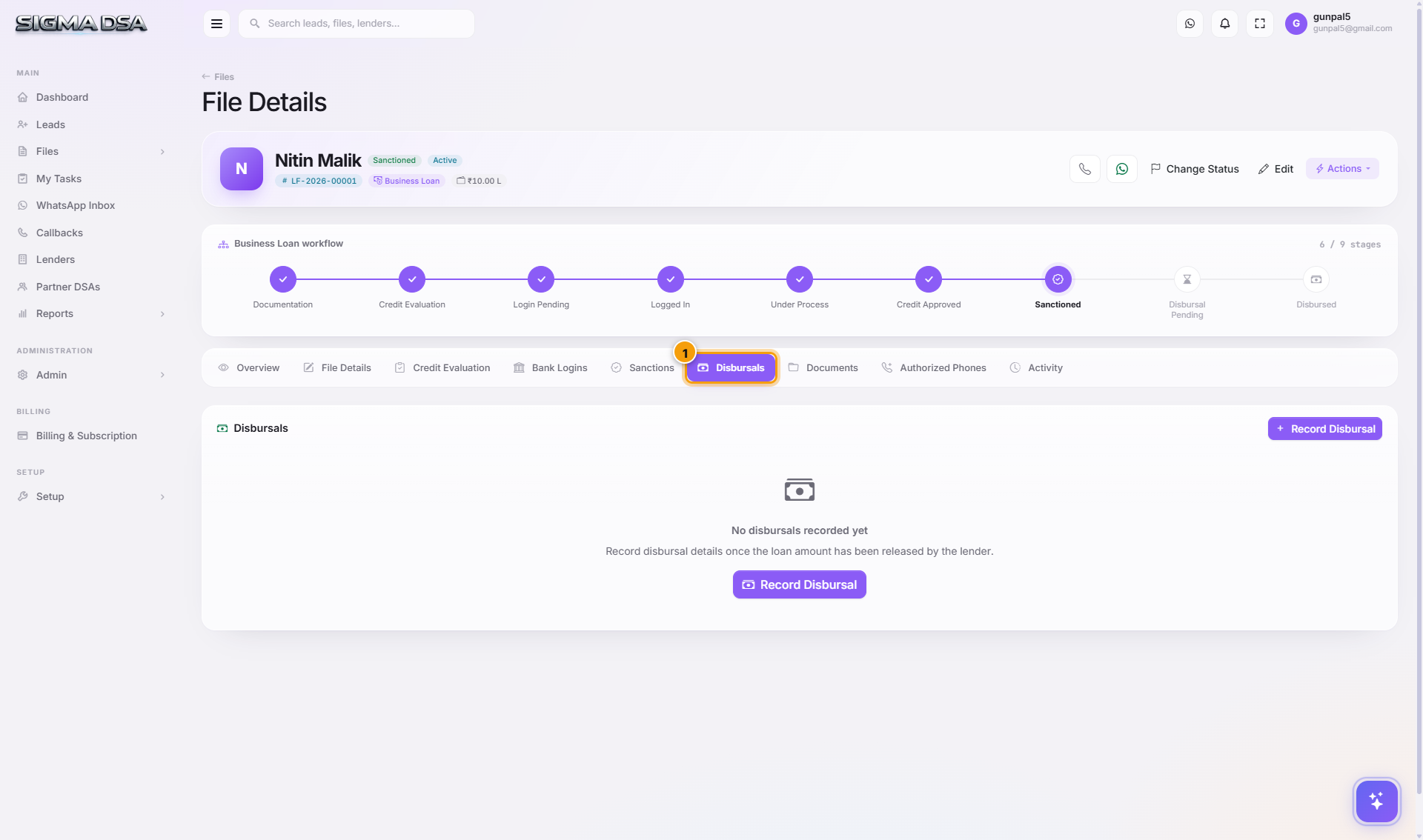
Open the Disbursal modal
From the file detail page header, click Actions → Record Disbursal. The Record Disbursal modal opens. The form is laid out in six numbered regions, each capturing one type of information.
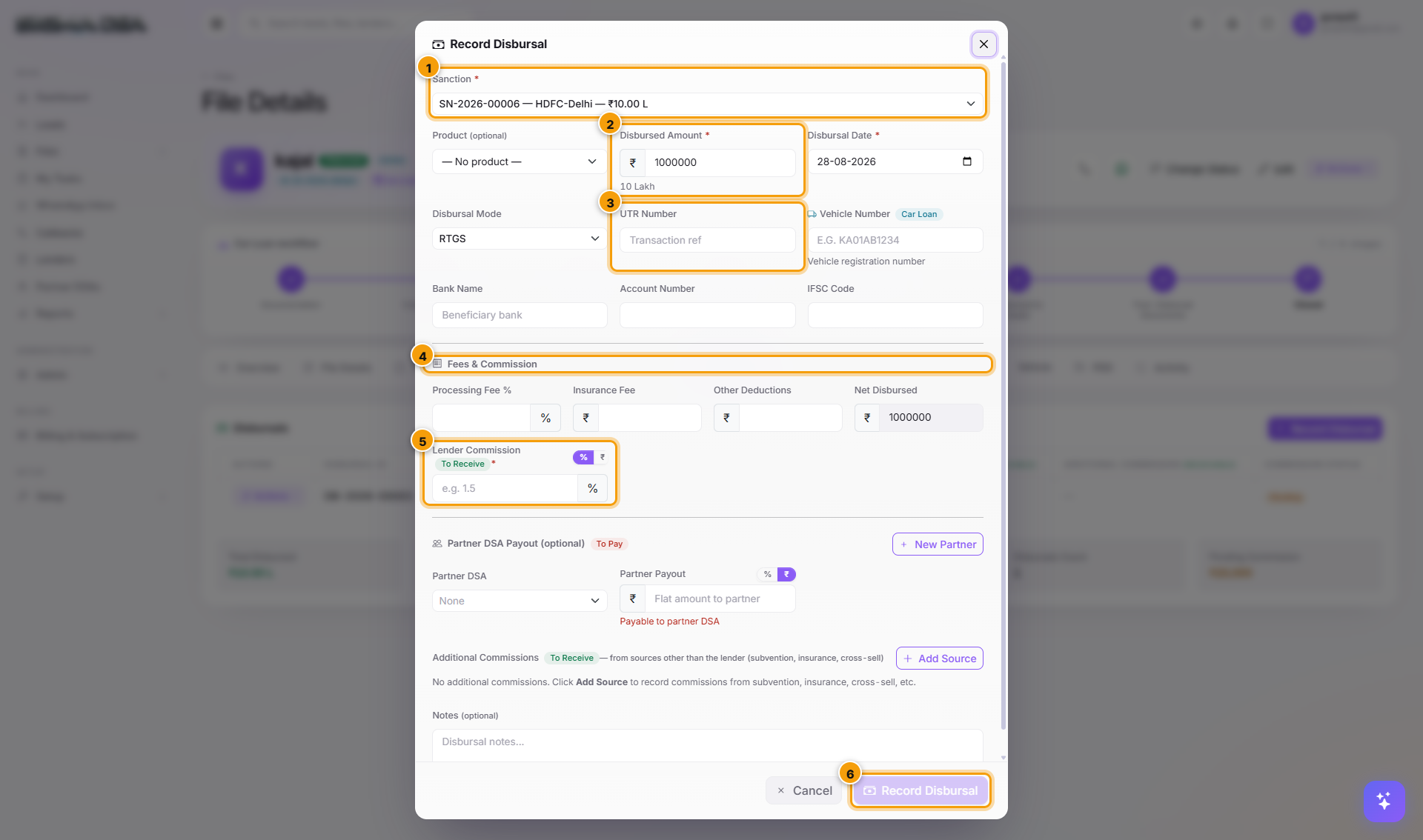
Capture the disbursal details
| Field | What goes here |
|---|---|
| Disbursed Amount | Net amount credited to the customer (sanction minus PF, GST, insurance deductions). |
| Disbursal Date | The date money hit the customer's account. |
| Bank Reference / UTR | The reference number from the bank's NEFT/RTGS notification. |
| Processing Fee | Already on sanction, but re-capture if final value differs. |
| GST | 18% of processing fee. SigmaDSA auto-computes. |
| Insurance / Other Deductions | Any other charges deducted at disbursal. |
| Commission Amount | What you'll receive from the bank for this file. Either ₹ or % of disbursed amount. |
| Commission Status | Pending / Received / In dispute. |
Save → file moves to Disbursed
After saving the first disbursal record on the file, the stage flips to Disbursed. The file's loan summary cards on the Overview tab update — Disbursed Amount, Commission counter, Bank fields.
Subsequent tranches (for construction-linked Home Loans, for example) add additional rows on the Disbursals tab without changing the stage.
Multi-tranche disbursals
Home Loans for under-construction property often disburse in 3–5 tranches matched to construction milestones:
| Tranche | Trigger |
|---|---|
| 1 — Foundation | Plinth-level construction certificate |
| 2 — Slab | First-slab certificate from builder |
| 3 — Brickwork | Wall + brickwork stage |
| 4 — Finishing | Plastering + finishing |
| 5 — Possession | OC / completion certificate |
Add a Disbursal row per tranche. The file's Disbursed Amount sums all rows; remaining sanction = sanctioned − sum(disbursed).
Commission tracking and payouts
Each Commission Amount + Commission Status entered here rolls into the Payouts module. Reconcile bank-side payout statements against your disbursal records once a month — anything marked Pending with a disbursal date older than your tenant's payout cycle (typically 30–45 days) auto-flags for follow-up.
Next steps
CAM Report
The Credit Appraisal Memo in SigmaDSA — financial spreads pulled from the file's own documents, policy deviations flagged, an AI-drafted narrative, and a formatted CAM PDF to send with the login.
Sanctions list
The company-wide Sanctions page in SigmaDSA — every sanction letter received across all files, with sanction status, decline reasons and per-lender attribution.