Credit Evaluation
Tour of the SigmaDSA Credit Evaluation editor — the ten sections (Overview, CIBIL Score, Bank Statement, Existing Loans, DSCR, BTO, GST, Documents, Credit Summary, CAM Report) that together produce the file's underwriting picture.
The Credit Evaluation editor is where SigmaDSA's AI Employee assembles the file's underwriting picture — and where you can review, override, and finalise each piece before sending the file to banks. Open it from the file detail page → Credit Evaluation tab → Edit Evaluation (top-right).
The editor opens at /credit-evaluation/{fileId} and is organised as a left-side section navigator with ten sections. Each section captures one piece of the credit story.
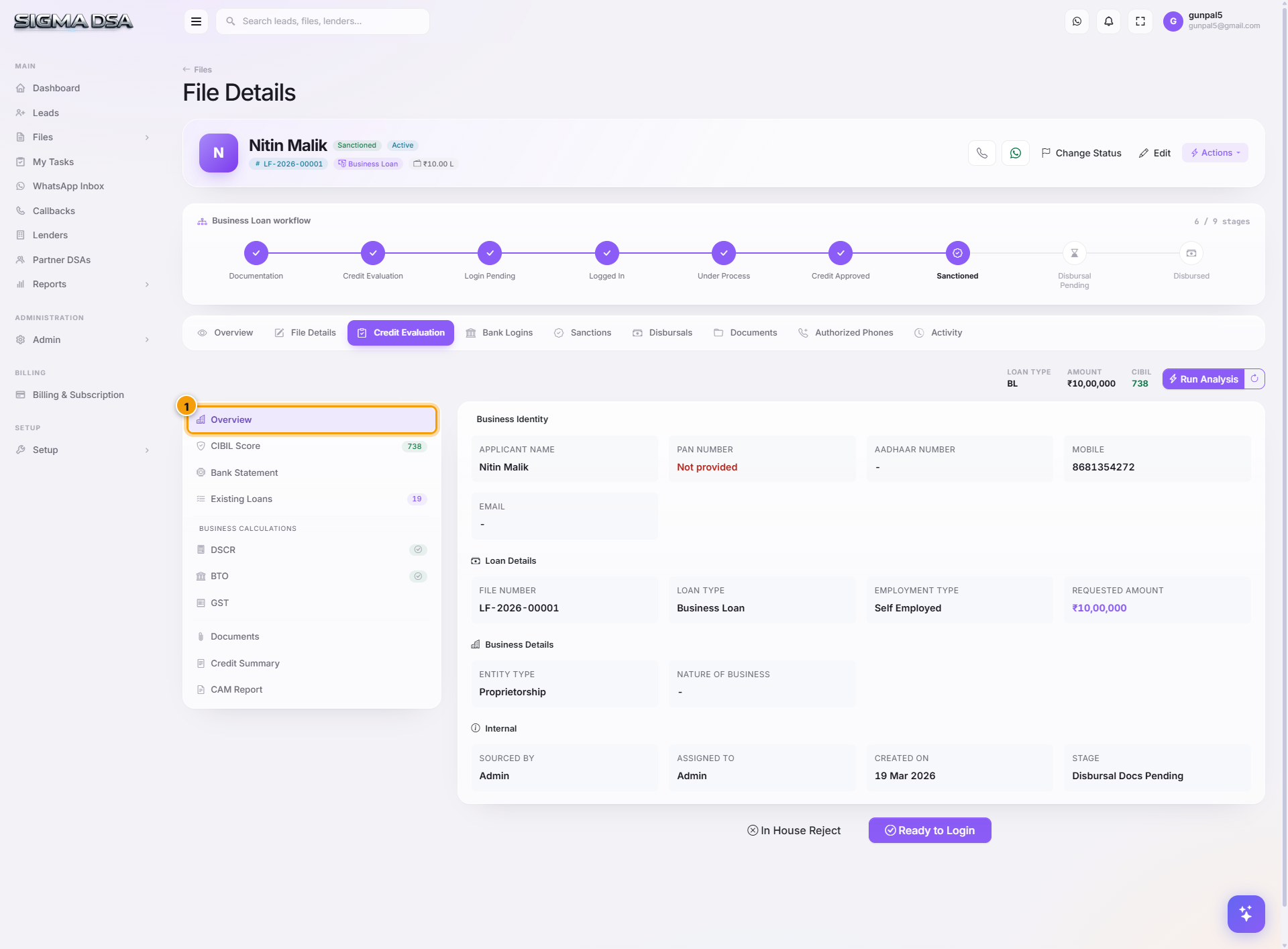
The ten sections
| # | Section | What it captures |
|---|---|---|
| 1 | Overview | Business Identity, Loan Details, Business Details, Internal flags. The applicant/file basics that every underwriting decision starts from. |
| 2 | CIBIL Score | Bureau pull, score, vintage, active accounts, defaults, enquiries, score classifier. |
| 3 | Bank Statement | AI Bank Statement Analyzer output — inflows, outflows, salary, EMIs detected, bounces, average balance. |
| 4 | Existing Loans | Every running loan/EMI obligation. Feeds the FOIR denominator. |
| 5 | DSCR | Debt Service Coverage Ratio — turnover, profit, cash accruals, total debt service. Used for self-employed / business loans. |
| 6 | BTO | Banking Turnover — credit/debit summation from statements + margin amount. Cross-validates DSCR. |
| 7 | GST | GST returns analysis — annual + 12-month turnover, tax paid, filing consistency. |
| 8 | Documents | Documents that are specifically credit-eval-related (ITRs, GST returns, bank statements that drive the sections above). |
| 9 | Credit Summary | Final underwriting narrative — the one-paragraph summary the relationship manager sends to the bank. |
| 10 | CAM Report | The Credit Appraisal Memo the AI Employee drafts from every section above — download it or paste it straight into the bank's format. |
How to use the editor
Open Edit Evaluation
From the file's Credit Evaluation tab on the file detail page, click Edit Evaluation at the top-right. The full-page editor opens.
Work top-to-bottom through the sidebar
Each section is independent — clicking a sidebar link swaps the right pane. You don't have to fill them in order, but top-to-bottom matches the natural underwriting flow: Overview → CIBIL → Bank Statement → Existing Loans → DSCR/BTO/GST → Documents → Credit Summary → CAM Report.
Save per section
Each section has its own Save button — you can save just the DSCR card without touching the rest. The file's main detail page updates immediately after each save.
Hit "Ready to Login" when complete
Once every relevant section is filled, click Ready to Login (bottom-right of the editor) to mark the credit evaluation complete and advance the file to the Login Pending stage. The system will warn if mandatory sections (per loan type) are missing.
Which sections apply per loan type
Not every section matters for every loan. The AI Employee shows the relevant ones based on the file's Loan Type and Employment Type:
| Loan type | Sections that drive the decision |
|---|---|
| Home Loan (Salaried) | Overview, CIBIL, Bank Statement, Existing Loans, Documents, Credit Summary |
| Home Loan (Self-Employed) | All nine — DSCR + BTO + GST are critical |
| Personal Loan (Salaried) | Overview, CIBIL, Bank Statement, Existing Loans, Credit Summary |
| Business Loan / Working Capital | All nine — DSCR + BTO + GST + Documents are critical |
| Car Loan / Two-Wheeler | Overview, CIBIL, Bank Statement, Existing Loans (lighter touch) |
| LAP | Same as Home Loan, plus property/collateral evaluation on file details |
Next steps
Verification checks
Per-lender verification checklists in SigmaDSA — define the checks a bank expects once on the lender record, then tick them off Done or Pending on every login, with progress visible on the Bank Logins queue.
Overview section
The Overview section of the Credit Evaluation editor — Business Identity, Loan Details, Business Details, and Internal flags. The applicant + file basics every underwriting decision starts from.