Sign in and tour the dashboard
A two-minute walkthrough of the SigmaDSA home screen — KPIs, charts, and where to find every feature.
When you sign in to SigmaDSA at app.sigmadsa.com, you land on the Dashboard. This is the home screen for everyone on your team — managers see company-wide numbers, sales reps see only their own pipeline.
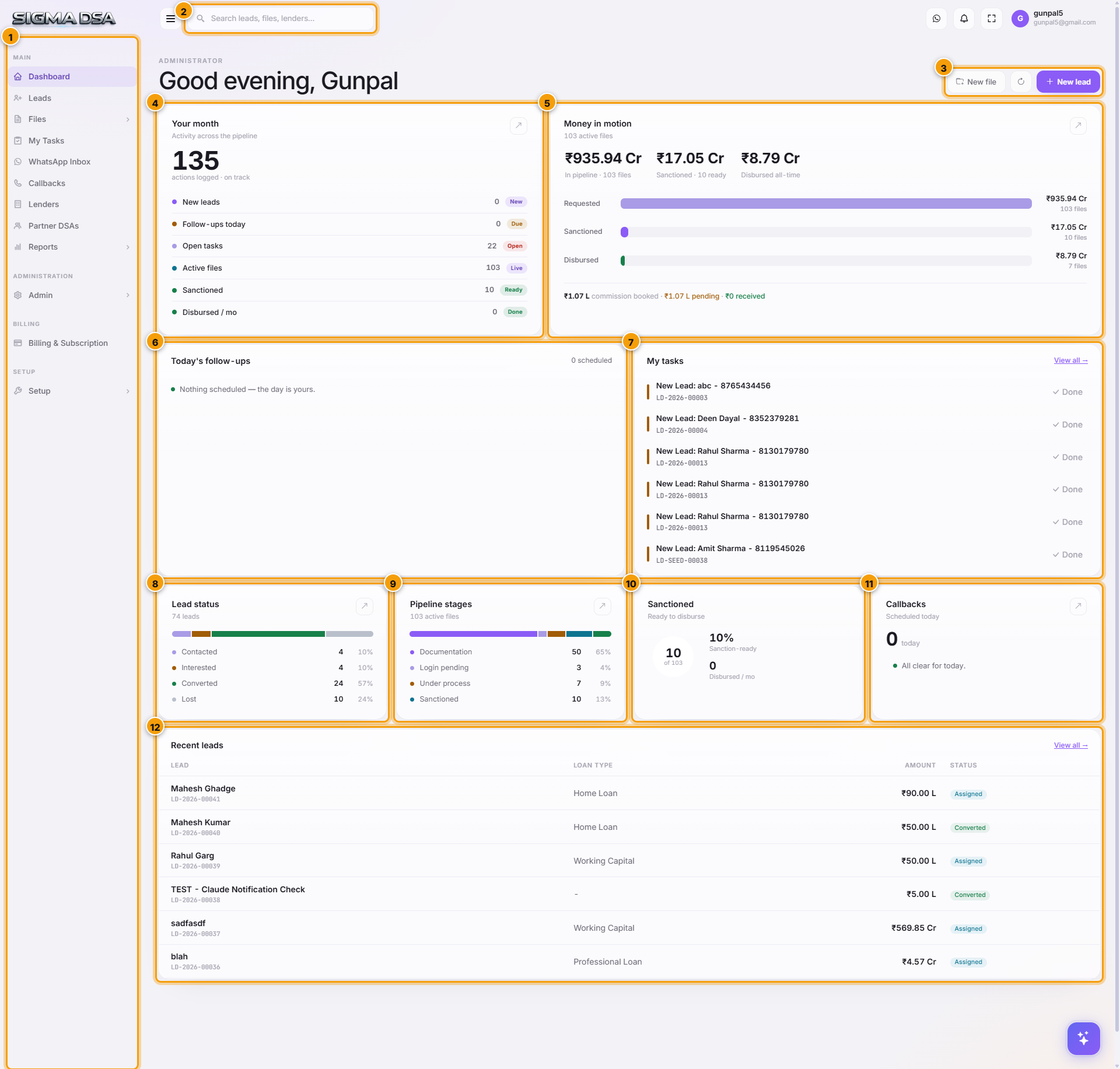
What's on screen
Main navigation
The left sidebar holds every section of the app — Leads, Files, My Tasks, WhatsApp Inbox, Callbacks, Lenders, Partner DSAs, Reports, plus Admin, Billing and Setup for tenant owners. The Dashboard link at the top brings you back to this home screen any time.
Global search
Type a name, phone number, file number or lender into the search box in the header to jump straight to any lead, file or lender without leaving the page you are on.
Quick actions
New file and + New lead sit at the top-right of every dashboard so you can capture a prospect or open a loan file the moment a call ends. The refresh icon between them reloads all the numbers below.
Your month
A running tally of everything your team has done this month — actions logged, plus the live counts that matter right now: New leads, Follow-ups today, Open tasks, Active files, Sanctioned files and Disbursed this month. Each row links to the matching list.
Money in motion
The ₹ pipeline in one card: Requested (everything in the pipeline), Sanctioned (approved but not yet paid out) and Disbursed (all-time), with file counts for each. The gap between Sanctioned and Disbursed is your float. The footer rolls up commission booked, pending and received — click through to Billing & Subscription → Commission Invoices for the line-by-line breakdown.
Today's follow-ups
Every callback scheduled for today, pulled from both Leads and Files. Each row marks the callback resolved with one click and pops the next-step status prompt.
My tasks
Your personal to-do list — auto-populated when a new lead is assigned to you, when a callback comes due, or when a file enters a stage that needs your action. Each row has a one-click Done; View all opens the full task board.
Lead status
Leads bucketed by status — Contacted, Interested, Converted, Lost — with counts and percentages. Click the arrow to drill into the filtered Leads list.
Pipeline stages
Active files by stage — Documentation, Login pending, Under process, Sanctioned. This is the visual answer to "where is everything stuck right now?"
Sanctioned
How many files are sanction-ready out of the active pipeline, the sanction-ready percentage, and disbursals this month — the "almost in the bank" view.
Callbacks
Callbacks scheduled for today across the whole team. When the count is zero the card tells you the day is clear.
Recent leads
The newest leads in your tenant with loan type, amount and status — click a row to open the lead, or View all to open the full Leads list.
Where to find each feature
Use the left sidebar to jump between sections:
| Section | What it does |
|---|---|
| Leads | Capture, qualify, and convert leads into loan files. |
| Files | Track every loan file from documentation to disbursal. |
| My Tasks | Your personal to-do list, auto-populated from new leads and follow-ups. |
| Callbacks | A unified queue of every callback scheduled across leads and files. |
| Lenders | The directory of banks, NBFCs, HFCs, and fintechs in your panel. |
| Partner DSAs | Manage sub-DSAs and connectors who source leads through you. |
| Reports | Disbursal trends, source attribution, per-employee productivity. |
Next steps
AI Features
Tour of the SigmaDSA AI Employee — document upload triggers OCR + Bank Statement Analyzer + GST parser automatically; extracted fields land on each document with confidence scores, and a one-click Assign sends each value to the right applicant or co-applicant field.
Tour of the Leads dashboard
Walkthrough of the SigmaDSA Leads list — category tabs, filters, table columns, row actions, and the inline status pill.