AI Features
Tour of the SigmaDSA AI Employee — document upload triggers OCR + Bank Statement Analyzer + GST parser automatically; extracted fields land on each document with confidence scores, and a one-click Assign sends each value to the right applicant or co-applicant field.
The SigmaDSA AI Employee has two faces:
- Document intelligence — every uploaded document is automatically OCR'd, bank statements run through the Bank Statement Analyzer (BSA), GST returns are parsed, ITRs are read. Extracted fields appear on the file with confidence scores and one-click Assign to map values to applicant or co-applicant slots.
- CRM Assistant chatbot — a floating chat button (bottom-right of every page) that lets you ask anything about your data in natural language — "this week's leads", "pending files", "my tasks today". The assistant respects your role-based permissions.
This article tours both.
CRM Assistant — the bottom-right chat icon
Every screen in SigmaDSA has a purple AI button in the bottom-right corner. Click it to open the CRM Assistant chat panel.
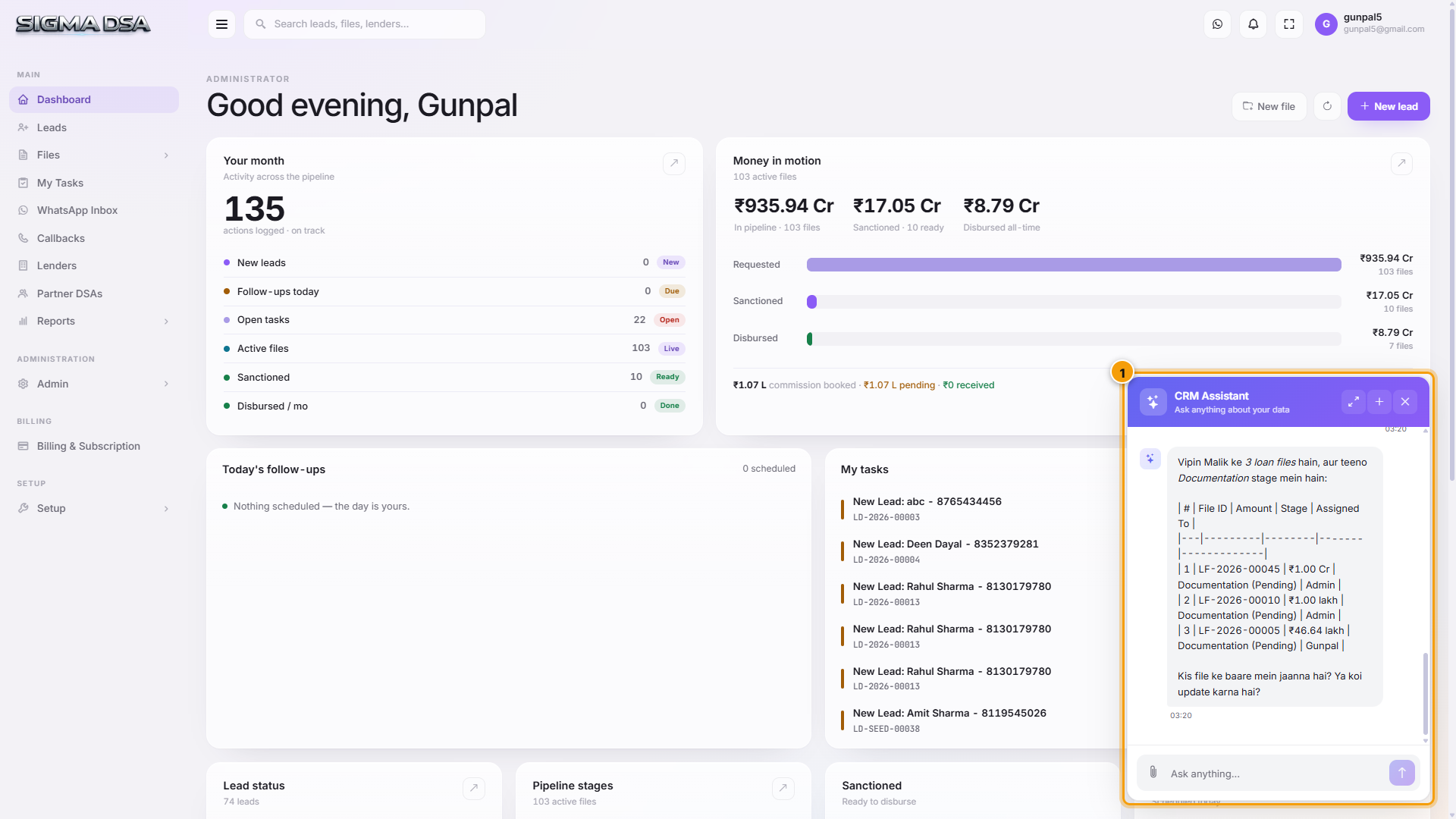
What the assistant can do
The assistant has access to your tenant's data and respects your permissions — a sales rep can only ask about their own leads/files; a manager sees the whole team.
| Type of question | Example | What the assistant does |
|---|---|---|
| Pipeline summaries | "How many leads converted this week?" | Aggregates leads in date range with status = Converted. |
| Lookup | "Show me Anand's file" | Searches leads + files by name, returns matches as clickable cards. |
| Filter + count | "How many files are stuck in Login Pending more than 7 days?" | Filters the file pipeline with aging rule. |
| Action | "Create a callback with Nitin for tomorrow 5pm" | Parses intent and opens the callback creation flow pre-filled. |
| Quick stats | "What's my disbursal volume this month?" | Pulls the metric from the Disbursals report. |
| Reports | "Top performing lenders" | Returns the same data as Reports → Dashboard, in plain text. |
Suggestion chips
The chat panel opens with three suggestion chips so users don't start from a blank slate:
- This week's leads — list of leads created in the last 7 days.
- Pending files — files in active stages (not Disbursed / Rejected).
- Today's tasks — your task queue for the day.
Tap a chip to run that query without typing.
When to use the assistant vs the UI
The assistant is fastest for lookups and quick aggregates. The full UI is better for multi-step workflows (filling out a long form, reviewing a sanction modal, browsing the pipeline). A common pattern — use the assistant to find a record, click through to open it, then use the UI to take action.
Same backend powers WhatsApp + Telegram bots
The CRM Assistant uses the same AI model that drives the WhatsApp bot and the Telegram bot. Conversation context isn't shared across channels — each channel is its own thread — but the capabilities are identical.
Document intelligence
The second face of the AI Employee — automatic extraction from every uploaded document.
How extraction is triggered
Extraction runs automatically the moment a document is uploaded. There's nothing to enable, no manual trigger needed.
| Upload point | What gets triggered |
|---|---|
| File detail → Documents tab → Upload | Per-document pipeline (OCR / BSA / GST / financials parser depending on detected type) |
| File detail → Credit Evaluation editor → Documents section | Same pipeline; results feed Credit Evaluation sections directly |
| Customer uploads via the share link or WhatsApp bot | Same pipeline, attribution flag flips to "customer-uploaded" |
For a 6-month bank statement, BSA finishes in 30–90 seconds; for OCR on KYC documents, ~5 seconds. The pipeline runs in the background — you can keep working.
Where the AI's output shows up
The output lands in three places, depending on the document type and use case:
1. AI Extracted Data (Raw) — File Details tab
Every document the AI has processed shows here with the structured fields it found and a per-row Assign button.
Each row shows:
| Column | What it shows |
|---|---|
| Field | The semantic name of the extracted item (e.g., "Full name of the person", "PAN", "Account Number"). |
| Value | What the AI read from the document. |
| Confidence | How sure the AI is — 95 %+ is reliable, 70–95 % is usable with verification, < 70 % needs human review. |
| Assign | Click to write the value into the file's structured fields. |
2. Credit Evaluation sections — Bank Statement, GST, ITRs
For documents that feed the credit decision, output also lands on the Credit Evaluation editor:
- Bank Statement uploads → output populates the Bank Statement section (inflows, outflows, salary detection, EMI detection, bounces).
- GST returns → populate the GST section (turnover, filing consistency).
- ITR / Form 16 → populate income inputs of the DSCR section.
- CIBIL PDF → populates the CIBIL Score section.
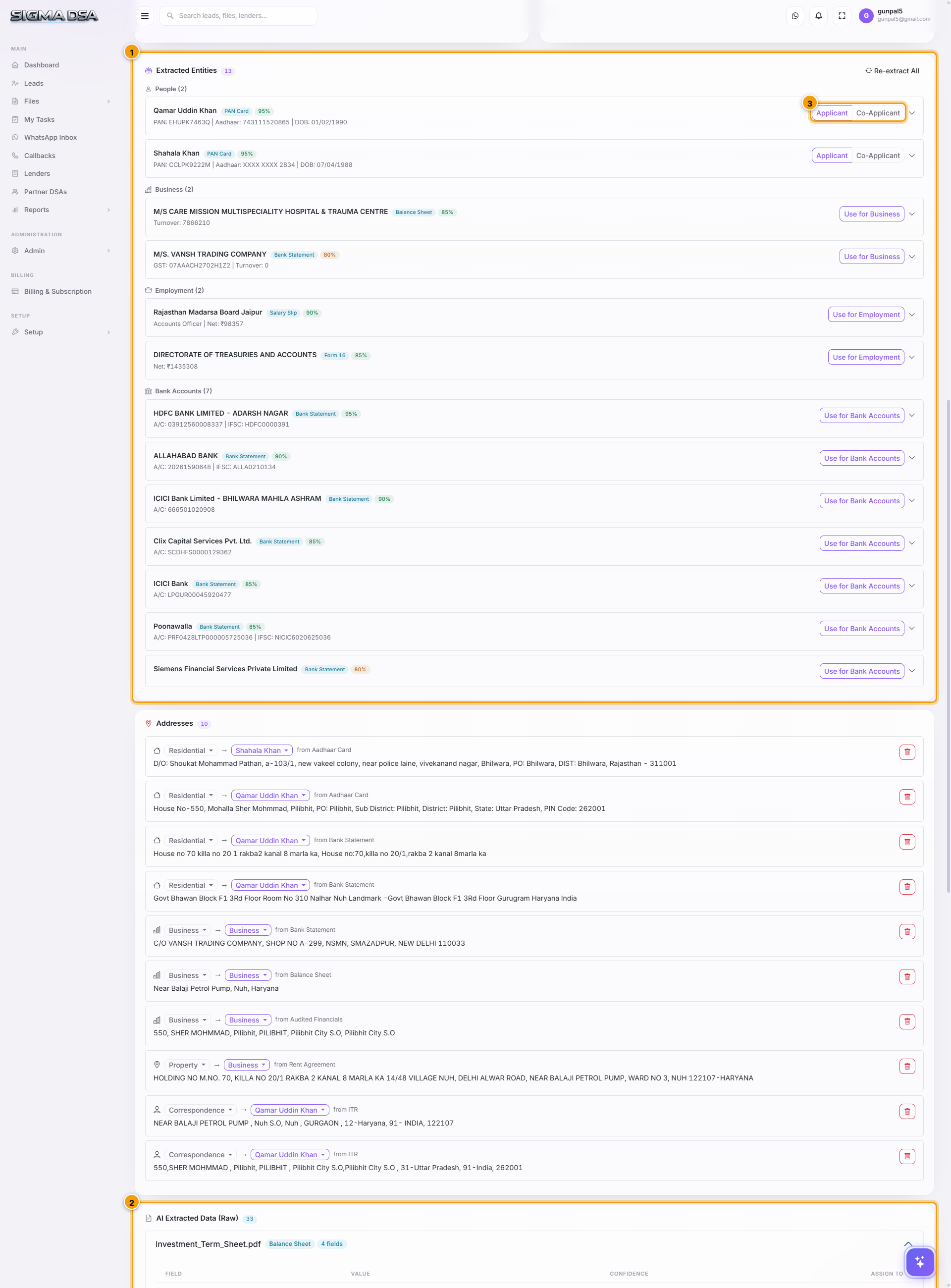
3. Extracted Entities card — consolidated entity view
A single card showing the entities the AI has identified across all documents — applicant, co-applicants, business entity, bank accounts. Each entity's fields are populated from the highest-confidence values across all extractions.
Click Re-extract All to re-run the pipeline if you've added new documents.
Assigning extracted values to file fields
This is the core action that saves typing.
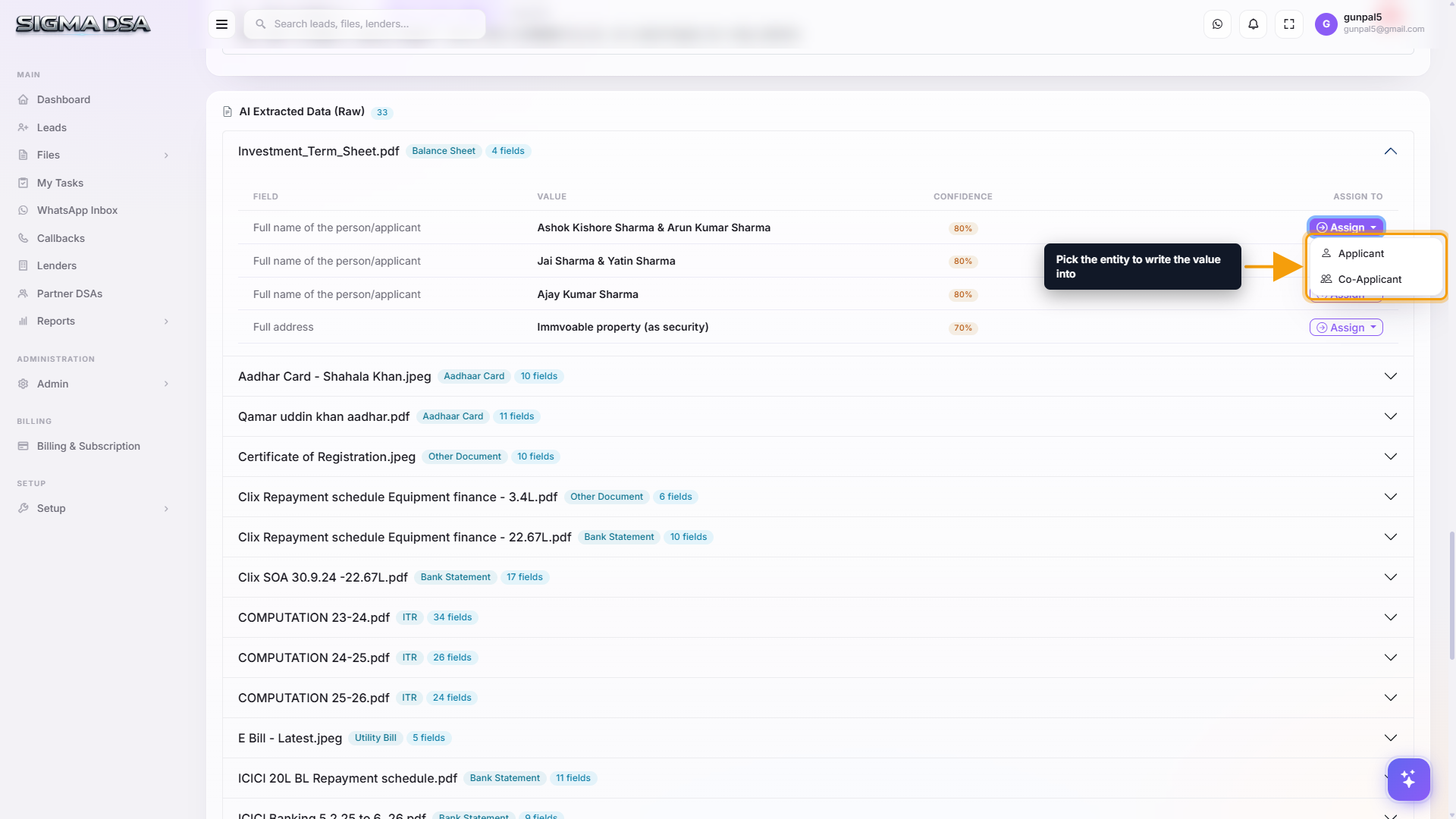
Review the extracted value + confidence
In the AI Extracted Data card, find the field you want to populate. Eyeball the value against the source document — for high-confidence values (≥ 95 %) you can trust it; for lower confidence, verify by clicking the document filename to open the source.
Click Assign
The Assign button opens a dropdown listing the entities the value can map to:
- Applicant — the primary borrower's structured fields.
- Co-Applicant — each co-applicant entry (if multiple, each shows separately).
- Business — if the file has a business entity, you can assign to its fields.
Pick the target.
SigmaDSA writes the value to the entity's field
The value lands on the relevant card on the File Details tab (Personal Details, Co-Applicants, Customer Bank Details, etc.). The corresponding field is updated, the file's other sections (Credit Evaluation, lender matching) refresh.
The original AI extraction stays in the raw log for audit — you can always see what the AI saw vs what you assigned.
What the AI extracts per document type
| Document Type | Fields the AI returns |
|---|---|
| PAN Card | PAN number, full name, father's name, DOB |
| Aadhaar Card | Aadhaar number, name, DOB, gender, address |
| Driving License / Voter ID | ID number, name, DOB, address |
| Salary Slip | Employer name, employee name, month/year, gross + net amounts, deductions |
| Form 16 | Employer, PAN of deductor, assessment year, annual gross + TDS |
| ITR / Computation | Assessment year, total income, total tax, refund/payable, PAN |
| Bank Statement | Account holder name, account number, IFSC, bank name, statement period, every transaction (date, narration, amount, type), monthly summary, salary credits, EMI debits, bounces |
| GSTR-1 / GSTR-3B | GSTIN, period, total taxable turnover, total tax paid, filing date |
| Property Sale Agreement | Seller, buyer, property type, area, purchase price, address |
| Audited Financials | Year, total turnover, PAT, total assets, total liabilities |
| Utility Bill | Consumer name, billing address, period, amount |
| Rent Agreement | Tenant, landlord, monthly rent, address, agreement period |
Bank Statement Analyzer (BSA) — the heaviest lifter
For bank statement PDFs, the AI doesn't just OCR — it understands every transaction.
Within 30–90 seconds of upload, BSA produces:
- Average monthly inflow (gross credits / months).
- Average monthly outflow (gross debits / months).
- Average closing balance.
- Salary credit detection — date, amount, source bank per credit.
- Existing EMI detection — auto-populates the Existing Loans section of Credit Evaluation.
- Bounce events — cheque/ECS/auto-debit failures (each one is a lender red flag).
- Salary Stability Score (1–10) for salaried applicants.
- Cash Flow Trend (improving / flat / declining).
- Suspicious Activity Flags — round-tripping, large cash deposits, etc.
This output is what drives the FOIR / DSCR computations and saves the most underwriting effort.
→ Full guide: Bank Statement section (Credit Eval)
Workflow shortcuts using extracted data
- Upload a folder of customer documents → AI categorises them by type (PAN, Aadhaar, Bank Statement, etc.) → review the raw-extracted card → Assign each value to the applicant. Typical workflow: 5 minutes for a complete file vs 20 minutes of manual typing.
- Self-employed file — upload ITRs + GST returns + Bank Statements → BSA + GST parser + ITR parser run in parallel → the entire DSCR section auto-populates within 2 minutes → Credit Summary auto-generates.
- Co-applicant onboarding — upload PAN + Aadhaar for each co-applicant → AI detects multiple entities → Assign dropdown lets you map each set of fields to the right co-applicant slot.
What to do when confidence is low
- 70–95 % — verify visually against the source document (click filename to open). Edit the value if needed, then Assign.
- Below 70 % — usually a scan quality problem. Either re-scan the document at higher quality and re-upload, or enter the value manually on the File Details card.
- AI didn't detect a field at all — fall back to manual entry. The most common cause is non-standard document layouts (small regional banks, hand-written income statements).
Re-extraction
To re-run the AI pipeline on existing documents (e.g., after the AI engine is upgraded):
- For all documents — Extracted Entities card → Re-extract All.
- For one document — click its row → Re-extract OCR in the actions menu.
Useful when you've corrected the document type or when the AI engine releases an improvement.
Permission gating
- Upload + Extract — anyone with File Update permission can upload and trigger extraction.
- Assign extracted values — same permission.
- Re-extract All — admins / managers by default; configurable per tenant.
Next steps
Quick WhatsApp + Telegram setup
Connect WhatsApp Business via Meta Embedded Signup, create a Telegram bot with BotFather, link your personal Telegram, and customize the auto-sent notification templates. Roughly 30 minutes end-to-end.
Sign in and tour the dashboard
A two-minute walkthrough of the SigmaDSA home screen — KPIs, charts, and where to find every feature.