WhatsApp Setup
Connect your WhatsApp Business Account to SigmaDSA via Meta's Embedded Signup — no manual developer portal work. Once connected, customers can start loan inquiries via WhatsApp and your team can interact with the CRM through natural-language chat.
The WhatsApp Setup page (/settings/whatsapp-setup) connects your WhatsApp Business Account to SigmaDSA so the AI Employee can talk to customers, accept lead inquiries, and send notifications. The whole flow is handled by Meta's Embedded Signup — no developer portal work, no manual webhook wiring.
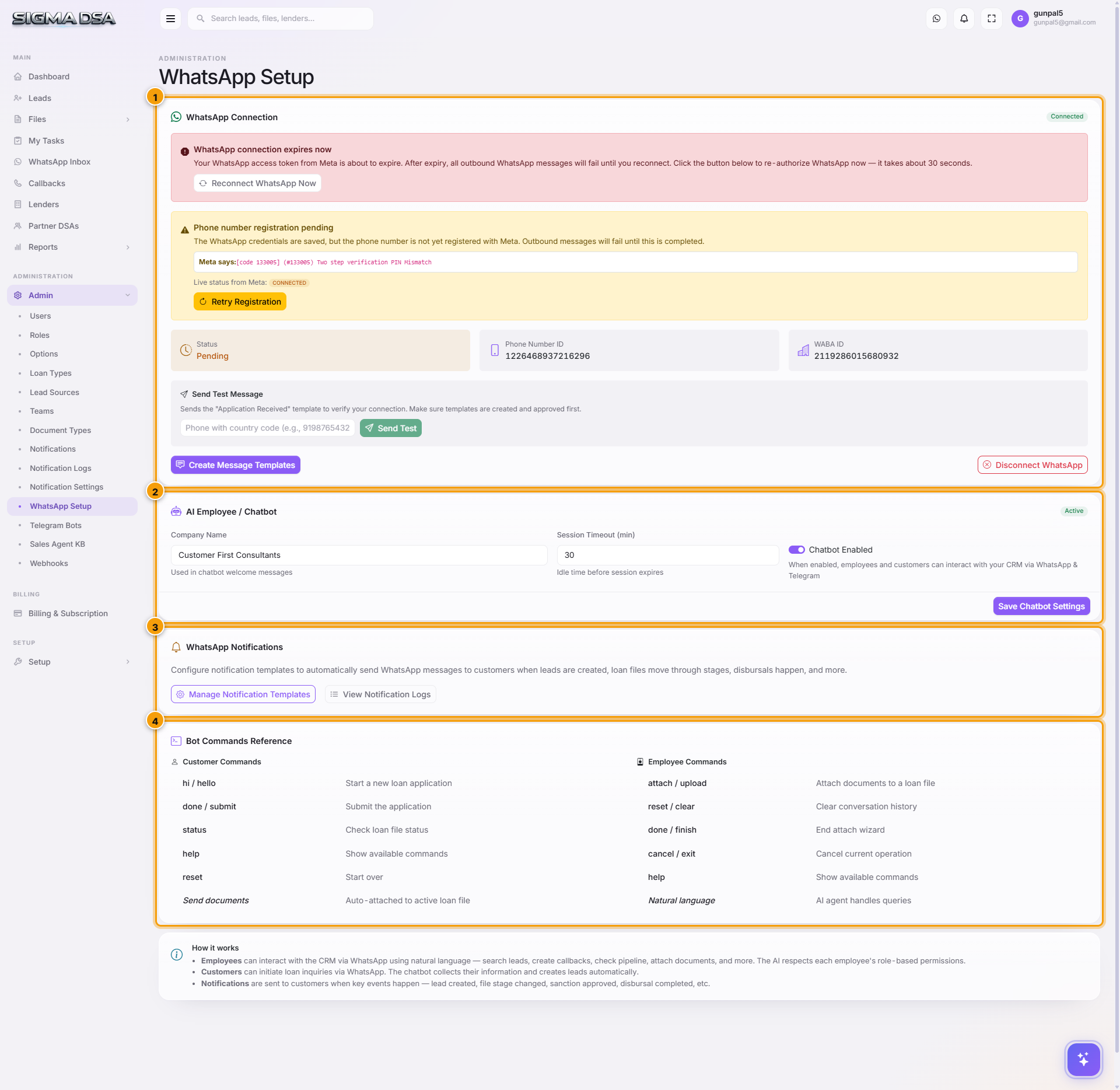
The connection flow (one paragraph summary)
Click Connect WhatsApp on this page. A pop-up opens hosted by Meta's Embedded Signup — log in with the Facebook account that owns (or will own) your WhatsApp Business Account, accept the SigmaDSA app permissions, pick or create the WhatsApp Business Account, pick or create the Business profile (legal name, address, vertical, website), pick the phone number you want to register, verify it via SMS or voice OTP, and review/accept the WhatsApp Business pricing terms. The pop-up closes and SigmaDSA stores the access token + phone-number ID automatically. You're connected — the status on this page flips to Connected with the phone number listed.
Detailed Meta onboarding (what each pop-up step asks for)
The Embedded Signup walks you through ~6 screens. Here's what each one wants and what to enter:
Step 1 — Facebook login
If you're not already logged in, Meta asks for the Facebook account credentials of the person who will be the business administrator for this WhatsApp Business Account. Use a personal Facebook account (it's standard — Meta requires a personal account to "own" business assets). The account should belong to a director / authorised signatory of your firm.
Step 2 — Allow SigmaDSA permissions
Meta lists the permissions SigmaDSA requests:
whatsapp_business_management— needed to configure the WhatsApp account, register phone numbers, manage templates.whatsapp_business_messaging— needed to actually send and receive messages.business_management— needed to attach to your Meta Business Manager.
Click Continue. These are the standard permissions every WhatsApp Cloud API app uses.
Step 3 — Pick or create the WhatsApp Business Account (WABA)
If your firm already has a Meta Business Manager + WABA, pick it from the dropdown. If not, click Create new WhatsApp Business Account and enter:
- Business display name — what shows in customer chats (e.g., "ABC Loans").
- Time zone — typically Asia/Kolkata.
- Currency — INR for India operations.
Step 4 — Business profile
This is what customers see when they tap your business name in a chat:
- Legal business name — must match your incorporation documents.
- Business address — registered office address.
- Business email — public-facing support email.
- Business website —
https://yourdsa.com. - Business category — Financial Services > Loan Agency.
- Business description — short blurb (1–2 sentences).
Step 5 — Phone number registration
The most important step.
- Choose phone number — either a number you've already linked to this WABA, or click Add phone number to register a fresh one.
- If adding new: enter the phone number with country code (+91 for India).
- The number must not be currently active on regular WhatsApp or WhatsApp Business app. If it is, you'll need to delete it from those apps first (Settings → Account → Delete my account) before Meta will accept it.
- Verify — Meta sends a 6-digit OTP via SMS or voice call. Enter it on the next screen.
Step 6 — Display name and review
- Display name — what shows above the message thread on the customer's phone. Meta requires it to match (or relate to) your verified business name. Approval typically takes 1–3 hours.
- Review the summary and click Finish.
The pop-up closes and SigmaDSA receives the access token + phone-number ID. The Setup page now shows Connected.
After connecting
The status card flips to Connected with:
- Phone number registered.
- WABA ID.
- Verified business display name.
- Conversation quality rating (initially "Not enough info" — improves as customers receive messages).
How it works (per the page's How it works section)
- Employees can chat with the CRM — every team member can talk to the WhatsApp bot in natural language: "search lead Anand", "show my pending tasks", "create a callback with Nitin for tomorrow 5pm". The AI respects each employee's role-based permissions, so a sales rep can't accidentally see another team's files.
- Customers can initiate loan inquiries — the bot greets, captures their name, mobile, loan type, and amount, and creates a Lead automatically. The lead lands on the assignee's My Tasks board.
- Automated notifications — when key events fire (lead created, file stage changed, sanction approved, disbursal completed), the customer + relevant team members get a WhatsApp message. Templates are configurable under Admin → Notifications.
Business verification (separate, recommended)
To unlock unlimited messaging tiers and the "Verified Business" green tick, complete Meta Business Verification in Meta Business Manager:
- Settings → Business Info → Start verification.
- Upload incorporation certificate, GST registration, address proof, and a recent utility bill.
- Verification typically takes 1–14 days. Most legitimate DSAs are approved without follow-up.
Until verified, your phone number is on the Tier 1 sending limit (250 unique conversations per 24 hours). After verification, the tier auto-upgrades as your messaging volume increases (Tier 2 = 1,000, Tier 3 = 10,000, Tier 4 = unlimited).
Common issues
- "Phone number already registered" — the number is on regular WhatsApp/WhatsApp Business app. Delete it there first.
- OTP not arriving — Meta sometimes routes to voice call. Wait 60 seconds and try the call option.
- Display name pending — normal. Display name approval takes a few hours. You can still send messages with the unverified name in the meantime.
- Connection lost after working initially — the access token expired (rare). Click Disconnect then Connect WhatsApp again to re-run the embedded signup.
Disconnect
If you ever need to disconnect WhatsApp from SigmaDSA, click Disconnect on the Setup page. The connection drops, no further notifications are sent. Your WABA stays intact on Meta's side — you can reconnect later without re-doing the onboarding.
Permission gating
Requires the admin role. The Connect / Disconnect actions are gated by LoanCRM.WhatsApp.Manage.
Next steps
Notification Logs
Audit trail of every notification SigmaDSA has tried to send — date, channel, recipient, trigger event, the referenced record, status (Sent / Delivered / Read / Failed), and failure reason where applicable.
Telegram Bots
Set up a Telegram bot for your tenant — create the bot with BotFather, add the token to SigmaDSA, then each team member links their personal Telegram account so the bot acts on their behalf with their permissions.