Notifications
Manage email, WhatsApp, and SMS notification templates in SigmaDSA — define when messages fire, who receives them, what the body says, and which variables are interpolated. WhatsApp templates sync to Meta for approval.
The Notifications page (/settings/notification-templates) is your tenant's message-template library — every automated email, WhatsApp, and SMS the system sends. Templates tie to system events (Auto-Trigger), pick a Recipient class (Customer / Employee / Admin), and interpolate variables from the underlying record.
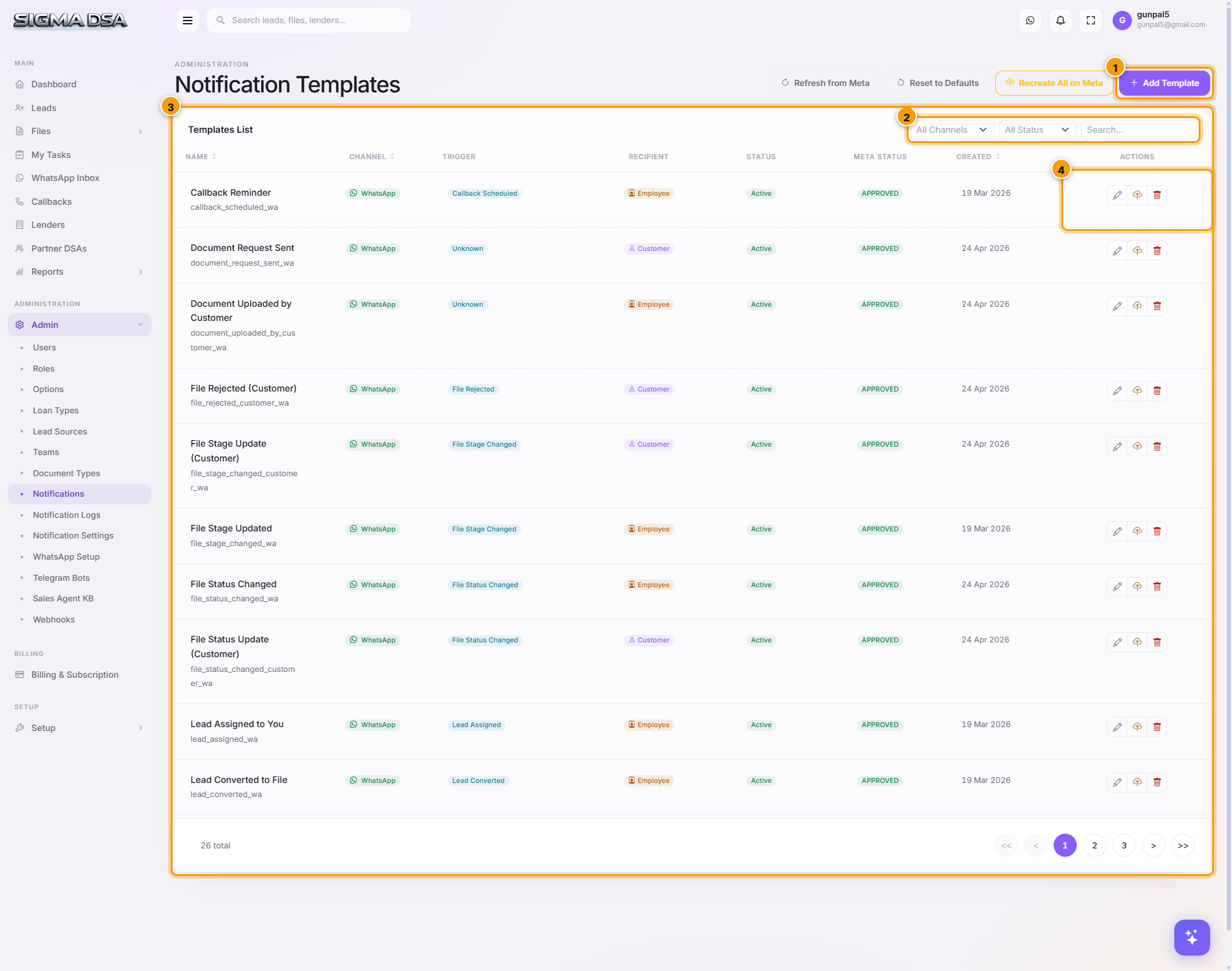
What's on the page
Top action buttons
| Button | What it does |
|---|---|
| Refresh from Meta | Re-pulls approval status for every WhatsApp template from Meta. Run after submitting new templates so the Meta Status column updates. |
| Reset to Defaults | Restores the seed catalogue of 25 templates that ships with every tenant. Wipes your edits — use cautiously. |
| Recreate All on Meta | Forces every WhatsApp template to re-submit to Meta. Use if templates somehow get out of sync. |
| Add Template | Open the modal to create a new template. |
Filters
- Channel — All / Email / WhatsApp / SMS.
- Status — Active / Inactive (controls whether the template fires).
Table columns
| Column | What it shows |
|---|---|
| Name | Friendly display name. |
| Template Key | System identifier (lowercase, underscores). For WhatsApp, this is the Meta template name. |
| Channel | WhatsApp / Email / SMS. |
| Trigger | The auto-fire event (Lead Assigned, File Stage Changed, etc.) or "Unknown" if manual-only. |
| Recipient | Customer / Employee / Admin. |
| Status | Active / Inactive. |
| Meta Status | For WhatsApp: APPROVED / PENDING / REJECTED. |
| Created | When the template was added. |
| Actions | Edit / Delete / Preview / Re-submit to Meta. |
Add a template
Click Add Template
A centred modal opens.
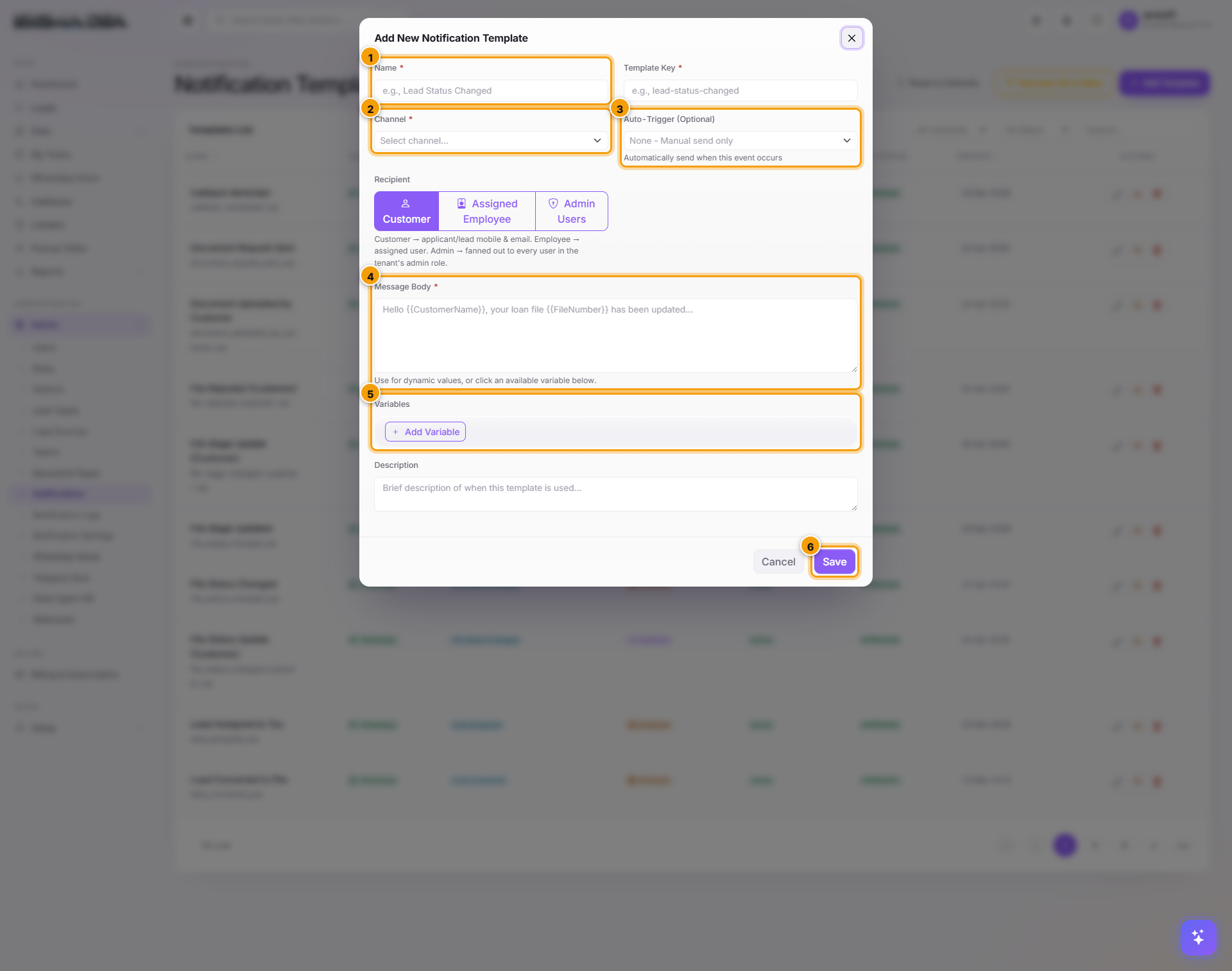
Identity
- Name — friendly display name (e.g., "Lead Assigned to You").
- Template Key — lowercase identifier with underscores, ends with channel suffix (
_wafor WhatsApp,_emailfor email,_smsfor SMS). E.g.,lead_assigned_wa. This must be unique and, for WhatsApp, becomes the Meta template name.
Channel + Auto-Trigger
- Channel — WhatsApp / Email / SMS. Drives whether the template syncs to Meta.
- Auto-Trigger — pick the system event that fires this template:
| Trigger | Fires when |
|---|---|
| Lead Created | A new lead is saved. |
| Lead Assigned | A lead is assigned (or reassigned) to a user. |
| Lead Converted | A lead is converted to a file. |
| Callback Scheduled | A new callback is created. |
| Callback Reminder | 30 mins before a callback's scheduled time. |
| File Created | A new file is created. |
| File Stage Changed | A file moves between stages. |
| File Status Changed | A file's within-stage status changes. |
| File Rejected | A file is marked Rejected. |
| Document Request Sent | The team requests documents from a customer. |
| Document Uploaded by Customer | A customer uploads via the share-link. |
| Bank Login Created | A bank login row is added. |
| Sanction Approved / Received | A sanction is recorded. |
| Disbursal Recorded | A disbursal is logged. |
Leave Auto-Trigger empty for manual-only templates (used by Actions → Send Message).
Recipients
Check one or more:
- Customer — message goes to the applicant's mobile/email.
- Assigned Employee — message goes to the file/lead's current owner.
- Admin Users — message goes to every user in the admin role (use for revenue events like Disbursal).
Message Body
Free-text body with variable placeholders. Variables use the format {{variable_name}}.
For WhatsApp, the body must follow Meta's template guidelines:
- Marketing language requires Marketing category submission.
- No URLs that aren't allowed.
- No emoji-heavy spam.
- Variables must be sequential —
{{1}},{{2}},{{3}}(SigmaDSA maps your named variables to numbers automatically).
For Email, basic HTML is supported.
For SMS, plain text only, 160-character segments.
Variables
The Variables card lists the placeholders available for the chosen trigger. For example, Lead Assigned exposes:
{{lead_id}}, {{lead_name}}, {{lead_mobile}}, {{lead_loan_type}}, {{lead_amount}}, {{assignee_name}}, {{tenant_name}}.
Copy the placeholder text into your Message Body. SigmaDSA substitutes them at send time.
Description (optional)
Internal note explaining when this template is used. Helps the next admin understand why it exists.
Click Save
The template lands on the list with Status=Active. If Channel=WhatsApp, SigmaDSA automatically submits it to Meta — the Meta Status column starts as PENDING and updates to APPROVED typically within an hour.
WhatsApp template lifecycle
WhatsApp templates have a stricter lifecycle because Meta moderates content:
| State | What it means | Can it send? |
|---|---|---|
| PENDING | Submitted to Meta, awaiting review. | No (queued). |
| APPROVED | Meta approved. | Yes. |
| REJECTED | Meta rejected with a reason. | No. Edit + resubmit. |
| PAUSED | Too many user complaints reported it as spam. | No (auto-paused). |
| DISABLED | Manually disabled by admin or auto-disabled due to repeated rejections. | No. |
To re-submit a rejected template: open Edit → fix the issue per Meta's reason → Save → SigmaDSA resubmits.
Common flows
- Onboard a new lender alert — Add Template → name "HDFC Sanction Received" → Channel WhatsApp → Auto-Trigger Sanction Approved → Recipient Customer + Admin Users → write body using
{{file_id}},{{lender_name}},{{sanctioned_amount}}→ Save → wait for Meta APPROVAL. - Fix a typo — Edit the template → save. For WhatsApp, this does not auto-resubmit — Meta re-approves only on full re-creation. Use Recreate All on Meta to force re-submission if needed.
- Temporarily silence a noisy alert — Edit → set Status=Inactive → save. Template is preserved; no sends until reactivated.
- Audit what's firing — go to Notification Logs.
Permission gating
LoanCRM.NotificationTemplates.* permissions. Default granted to admin role.
Next steps
Document Types
Configure the file checklist in SigmaDSA — PAN, Aadhaar, Bank Statement, ITR, Salary Slip, etc. Mark which types need a date range (last N months) and which need AI analysis (Bank Statement Analyzer, OCR).
Notification settings
Choose who receives each kind of SigmaDSA notification — callback reminders, lead notifications and loan file notifications can go to the assigned user, an admin, or both.