Telegram Bots
Set up a Telegram bot for your tenant — create the bot with BotFather, add the token to SigmaDSA, then each team member links their personal Telegram account so the bot acts on their behalf with their permissions.
The Telegram Bots page (/settings/telegram-setup) connects Telegram bot tokens to your tenant. Setup is a three-step flow: create the bot with BotFather → add the token in SigmaDSA → each user links their own Telegram account via the user menu.
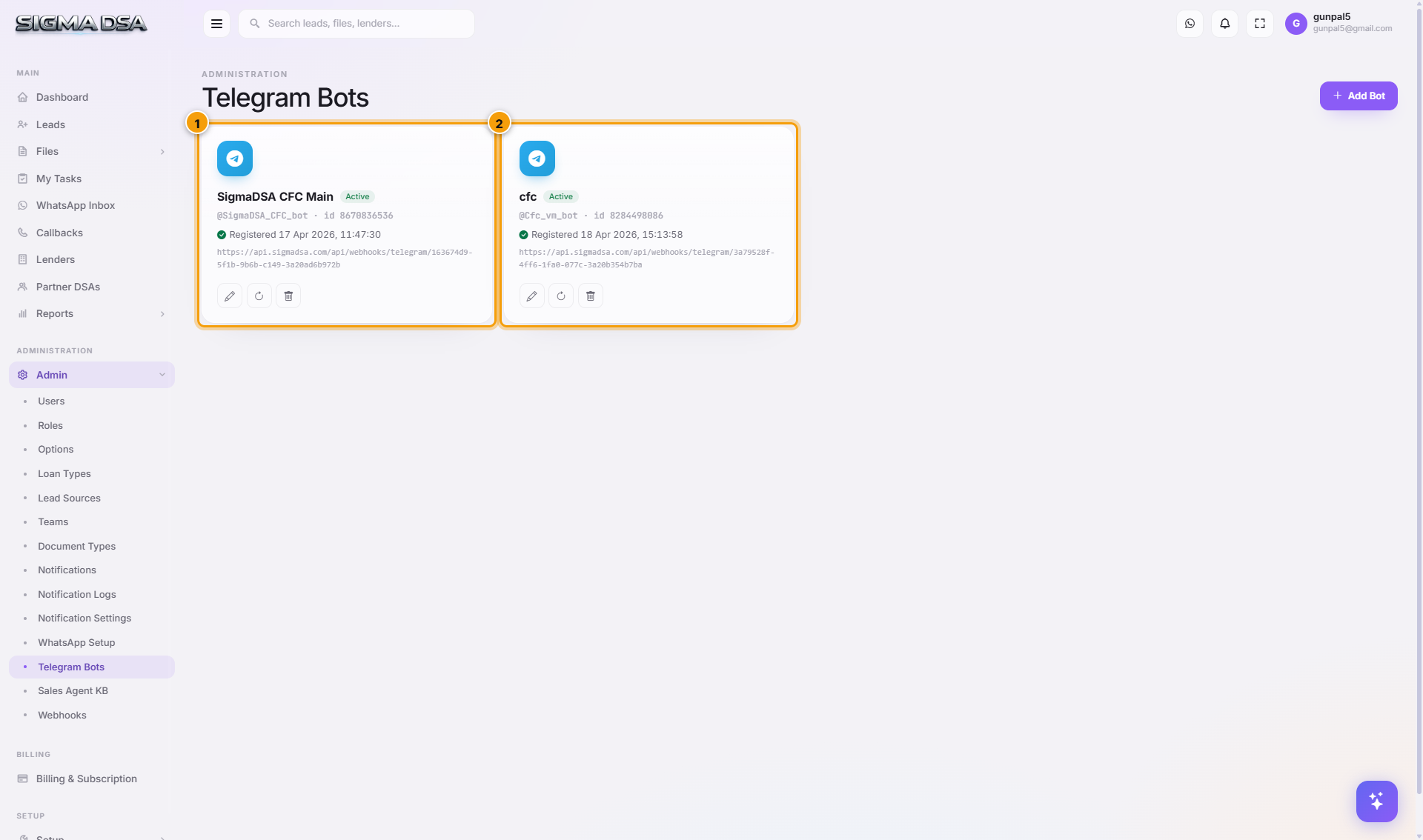
Step 1 — Create the bot with BotFather
BotFather is Telegram's official bot for creating other bots. Do this from any Telegram app (mobile or desktop).
Open Telegram and search for @BotFather
In the Telegram app's search bar, type @BotFather. Open the chat with the official verified BotFather (blue checkmark, username @BotFather).
Send /newbot
Send the command /newbot. BotFather replies asking for a friendly name.
Pick a friendly name
Type the display name for your bot (e.g., ABC Loans Helper). Spaces allowed.
Pick a username ending in bot
BotFather asks for the bot's username. It must end with bot — e.g., abc_loans_helper_bot or AbcLoansBot. It must be unique across Telegram.
If the name's taken, BotFather will ask you to try another.
Copy the token BotFather returns
BotFather replies with a message like:
Done! Congratulations on your new bot. You will find it at t.me/abc_loans_helper_bot.

Use this token to access the HTTP API:
1234567890:ABCdefGHIjklMNOpqrSTUvwxYZ-12345abcdef

Keep your token secure...
Copy that token string (the 1234567890:ABCdef... part) — that's what SigmaDSA needs in step 2.
Step 2 — Add the token in SigmaDSA
Open Telegram Bots and click Add Bot
/settings/telegram-setup → Add Bot. A modal opens.
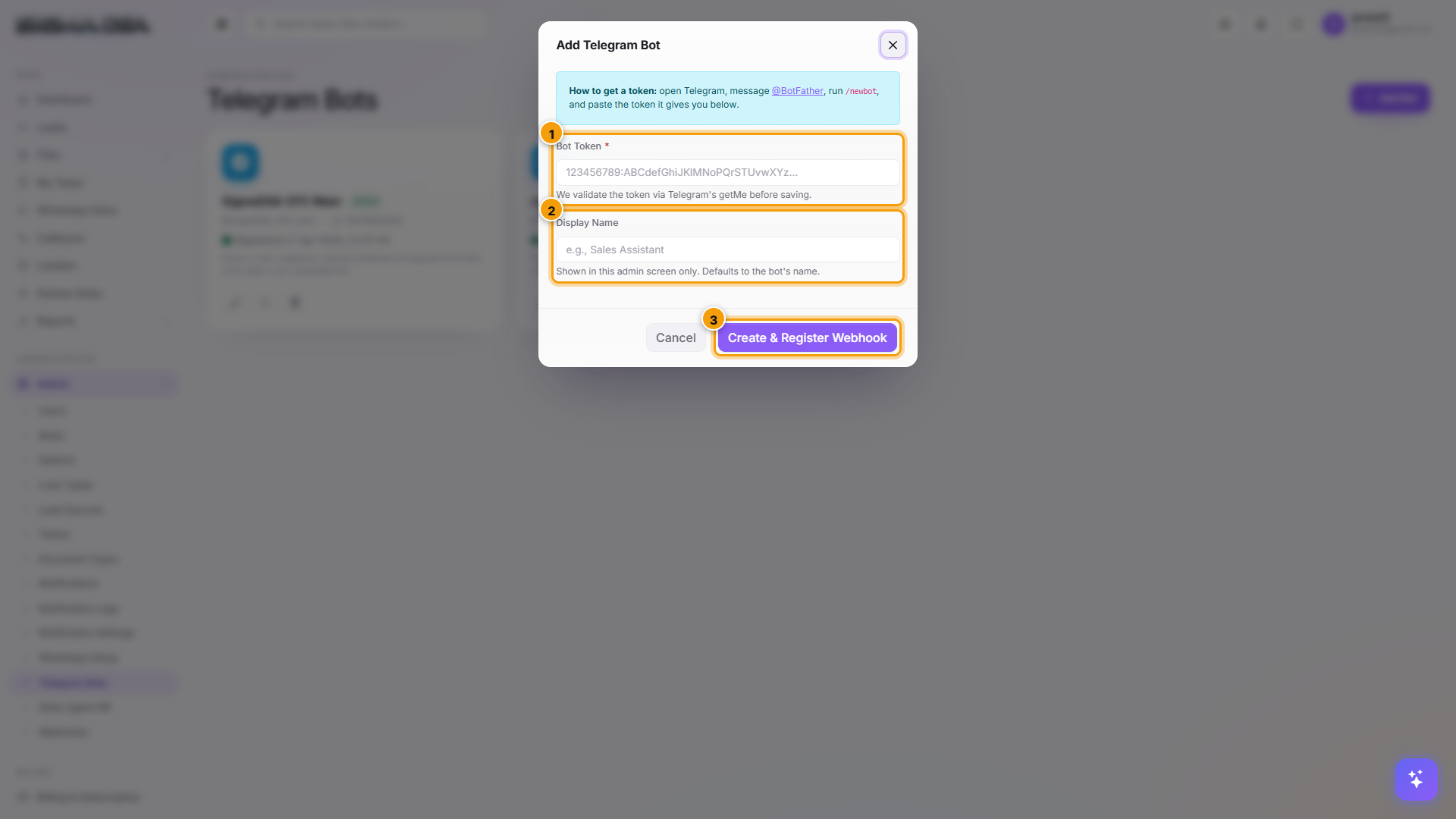
Paste the Bot Token and Save
- Bot Token — paste the token BotFather gave you.
- Display Name — friendly name shown in the bots list (e.g.,
Main Bot).
Click Save. SigmaDSA validates the token with Telegram's API, registers the bot's webhook to https://api.sigmadsa.com/api/webhooks/telegram/<bot-id>, and the bot lands on the table with status Active + a fresh Registered timestamp.
Step 3 — Each user links their personal Telegram via the user menu
After the bot is configured at the tenant level, every team member who wants to use the bot must link their personal Telegram account. The CRM trusts only linked accounts.
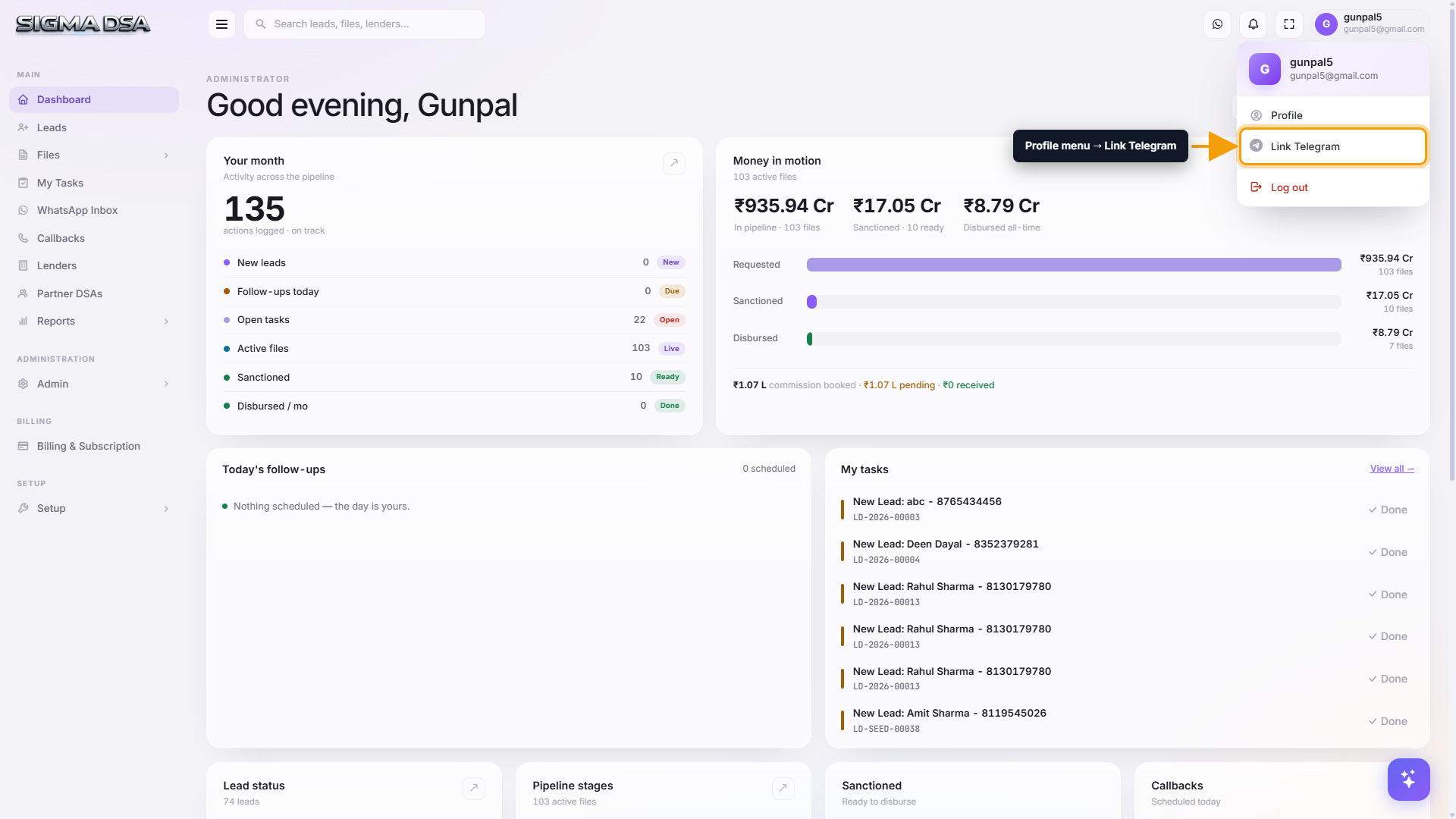
Open the user menu and click Link Telegram
Click the avatar in the top-right header of SigmaDSA. The dropdown opens with Profile / Settings / Link Telegram / Log Out.
Generate a one-time link code
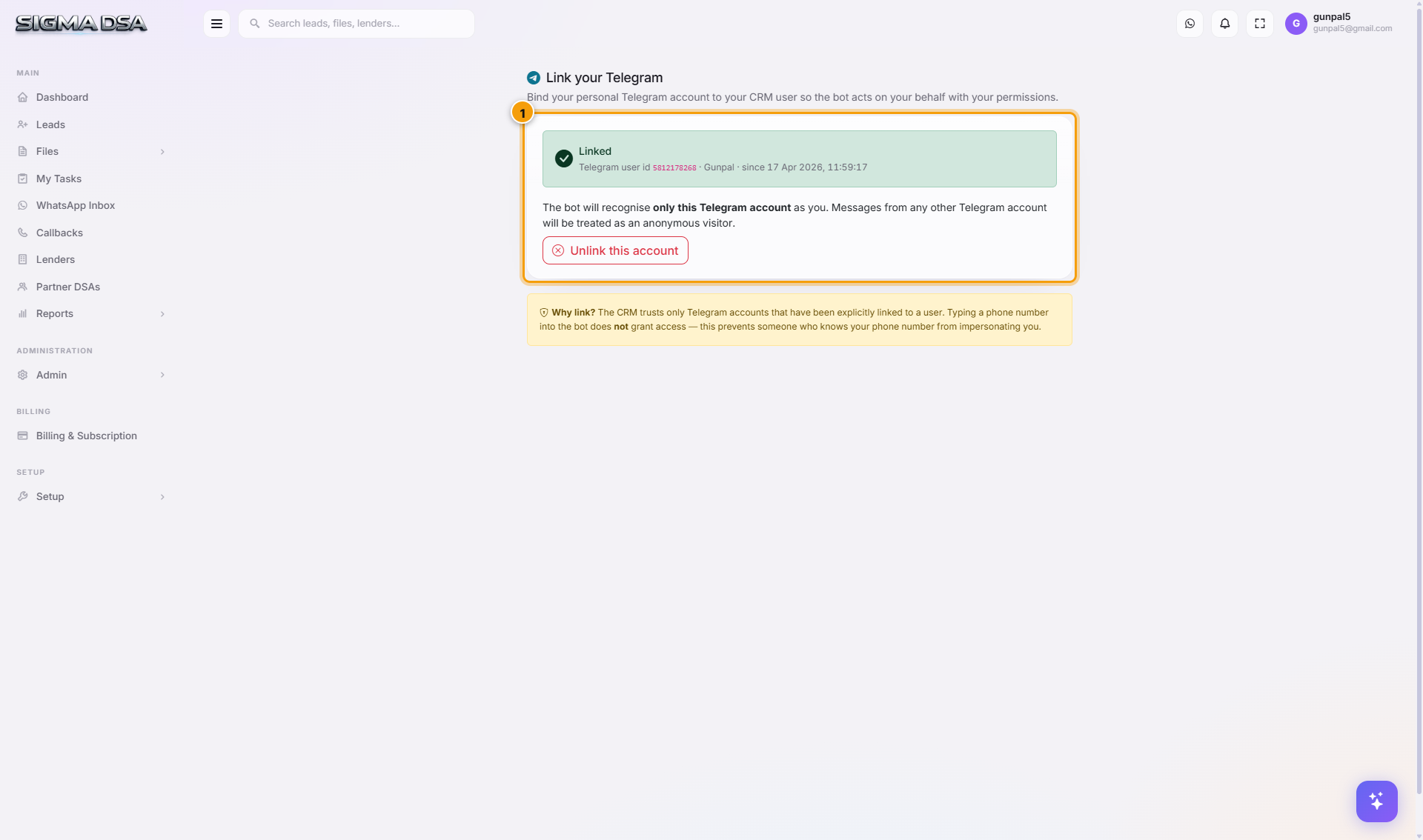
The Link Telegram page opens at /settings/my-telegram. Click Generate link code — a 6-digit code appears (valid for 10 minutes).
Open the tenant's Telegram bot and send /link <code>
In the Telegram app, open the chat with your tenant's bot (e.g., @abc_loans_helper_bot). Send the command:
/link 123456(replace 123456 with the code shown on the page).
The bot replies confirming the link. Your CRM user is now bound to your Telegram account. The bot will act on your behalf with your permissions when you talk to it.
What users can do after linking
| Command (typed to the bot) | What happens |
|---|---|
/start | Greeting + main menu. |
/help | List available commands. |
/search Anand | Searches leads and files for the term, returns matches as buttons. |
/tasks | Lists your pending tasks. |
/callbacks | Lists your upcoming callbacks for the day. |
/file LF-2026-00001 | Opens file detail summary. |
/lead LD-2026-00021 | Opens lead detail summary. |
| (natural-language) "Add a callback with Nitin for 5pm tomorrow" | Bot parses the intent and creates the callback. |
Notifications also arrive in this chat — when a lead is assigned, a callback is due, a sanction lands, etc.
Manage existing bots
From the bots-list row's Actions:
| Action | When to use |
|---|---|
| Edit | Update display name. |
| Re-register webhook | If notifications stop, re-register to refresh the webhook URL. |
| Delete | Removes the bot from the tenant. Existing users stay linked but the bot stops responding. |
Multiple bots per tenant
Common setups:
- One bot for everyone — simplest, works for small teams.
- One bot per department — sales bot vs ops bot, so notifications stay relevant.
- Public-facing bot + internal bot — a public bot for customer inquiries (separate from the team bot) so customer messages don't pollute the team's chat.
Each bot has its own token from BotFather; configure each via Add Bot.
Common issues
- Bot doesn't reply after linking — check the bots-list status is Active and webhook URL is shown. If status is Failed, re-register.
- "Code expired" error — codes are valid 10 minutes. Generate a new one.
- Linked but bot says "Not authorised" — the CRM user lacks the permission for the action requested. Check the user's role under Admin → Users.
- Notifications stopped working — the tenant changed domains or the webhook URL became invalid. Re-register the bot.
Permission gating
- Adding/editing bots requires
LoanCRM.Telegram.Manage— admin role by default. - Link Telegram is available to every user — they only link their own account.
Next steps
WhatsApp Setup
Connect your WhatsApp Business Account to SigmaDSA via Meta's Embedded Signup — no manual developer portal work. Once connected, customers can start loan inquiries via WhatsApp and your team can interact with the CRM through natural-language chat.
Sales Agent knowledge base
The knowledge base your SigmaDSA AI Employee answers from — products, rates, eligibility and process, in your own words, with an AI generator to draft the first version.