Notification Logs
Audit trail of every notification SigmaDSA has tried to send — date, channel, recipient, trigger event, the referenced record, status (Sent / Delivered / Read / Failed), and failure reason where applicable.
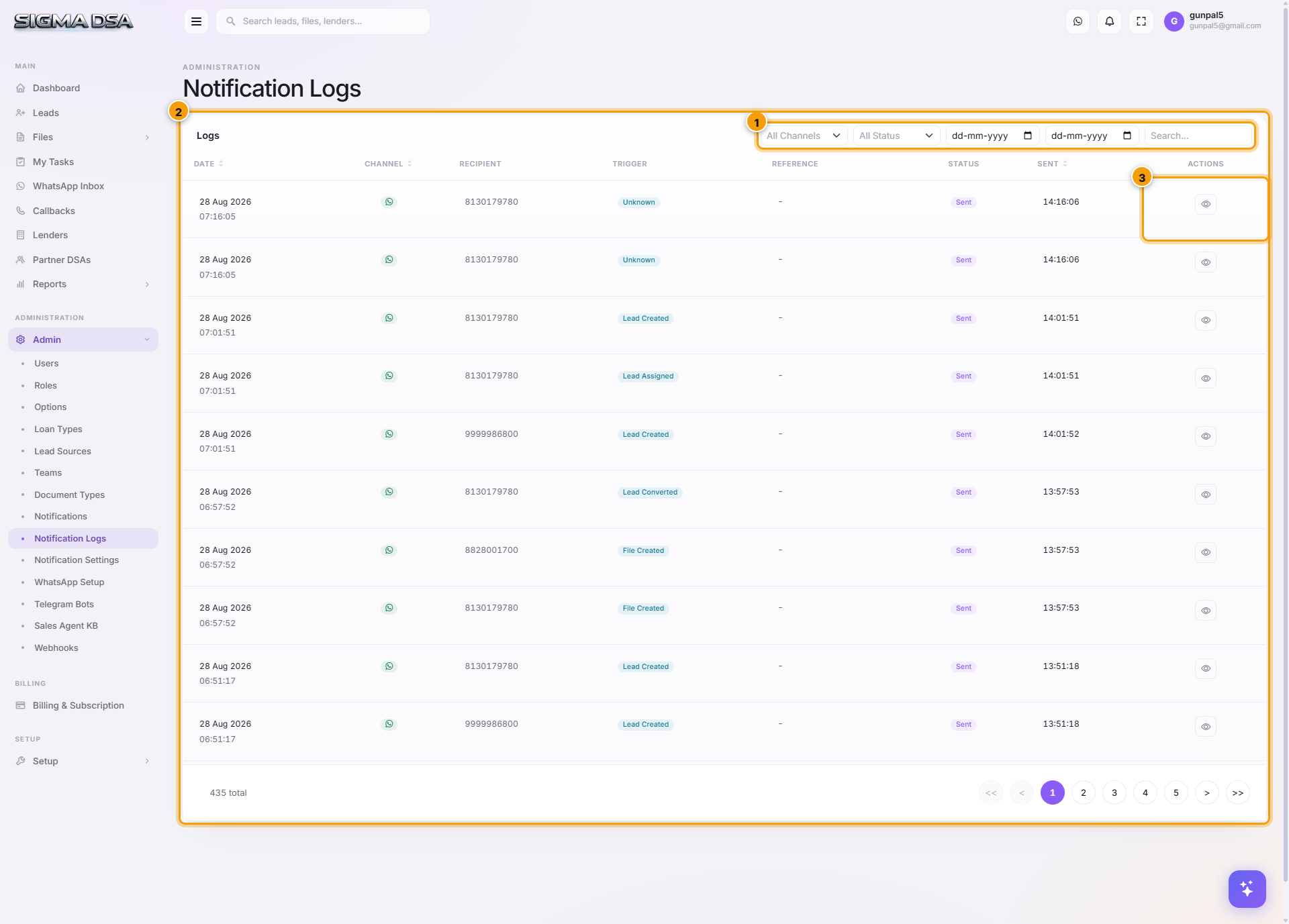
The Notification Logs page (/settings/notification-logs) is the audit trail of every message SigmaDSA has attempted to send. Each row captures the date, channel, recipient, trigger event, the referenced record, and the delivery status — useful for diagnosing why a customer didn't receive an expected alert, or proving to a compliance auditor that a notification was sent.
What's on the page
Filter row
- Channel — All / Email / WhatsApp / SMS.
- Status — All / Pending / Queued / Sent / Delivered / Failed / Read.
Combine filters to find specifically what you need — e.g., "Failed WhatsApps in the last 24 hours."
Table columns
| Column | What it shows |
|---|---|
| Date | Date + time of the send attempt. |
| Channel | WhatsApp / Email / SMS (icon). |
| Recipient | Phone number or email. |
| Trigger | The event that fired the send (Lead Created, File Sanctioned, etc.) or "Unknown" if manual / unmapped. |
| Reference | The lead/file/callback ID this notification is about. Click to open the record. |
| Status | Latest known delivery state — see the table below. |
| Sent | Timestamp the provider acknowledged the send. |
| Actions | Open detail (full provider response, body content, retry diagnostics). |
Status definitions
| Status | Stage | What it means |
|---|---|---|
| Pending | Internal | SigmaDSA queued it but hasn't handed it to the provider yet. Usually fewer than 60 seconds. |
| Queued | Provider acknowledged | Handed to Meta / SendGrid / SMS gateway. Awaiting confirmation. |
| Sent | Provider sent | Provider confirmed it was dispatched to the recipient's network. |
| Delivered | Recipient received | Phone or inbox confirmed receipt (WhatsApp delivery tick, SMS DLR, email open pixel). |
| Read | Recipient opened | WhatsApp blue ticks, email opens. Not all channels report this. |
| Failed | Provider error | Provider rejected the send. Reason is in the row's detail panel. |
Common failure reasons + fixes
| Reason | Fix |
|---|---|
| Phone number is invalid | Edit the lead/file → fix the phone number → re-trigger the event. |
| Recipient hasn't messaged the bot in 24 hours (WhatsApp) | The 24-hour customer service window expired. Send an approved template to reopen the window, or wait for the customer to message first. |
| Template not approved (WhatsApp) | Open Notifications → check the template's Meta Status → wait for APPROVED, or fix + resubmit. |
| Quota exceeded (WhatsApp) | You hit your daily tier limit. Verify your business in Meta Business Manager to upgrade. |
| Email bounced | Recipient inbox doesn't exist or rejected the send. Verify the address. |
| SMS gateway timeout | Carrier-side issue. Will auto-retry in 5 minutes. |
Common flows
- Customer says they didn't get the sanction alert — filter by Channel=WhatsApp + Recipient phone → find the row → check Status. If Failed, the reason explains why (template paused, customer outside 24-hr window, etc.). If Sent/Delivered but customer didn't see, it landed but maybe got buried.
- Compliance audit — filter by date range + Reference (file number). Export to Excel via the row Actions → archive for evidence.
- Delivery rate trend — view the dashboard's Notifications widget for daily aggregate Sent vs Failed; deep-dive into Failed bucket from there.
- Investigate a sudden spike in failures — sort by Date desc → group by failure reason. Often a single root cause (expired token, blocked template) explains a batch.
Detail panel (per-row)
Click any row to expand a side panel showing:
- Recipient details — full phone or email with the underlying lead/file/user reference.
- Body content — the actual rendered message (variables substituted).
- Provider request/response — raw payload sent to Meta/SendGrid/SMS gateway and their response.
- Timeline — Pending → Queued → Sent → Delivered → Read with each timestamp.
- Cost — for WhatsApp/SMS, the per-message cost (₹0.65 typical for India service conversations).
Permission gating
LoanCRM.NotificationLogs.View — admin role by default. Operations managers can also be granted view-only access to diagnose customer issues without seeing other Admin pages.
Next steps
Notification settings
Choose who receives each kind of SigmaDSA notification — callback reminders, lead notifications and loan file notifications can go to the assigned user, an admin, or both.
WhatsApp Setup
Connect your WhatsApp Business Account to SigmaDSA via Meta's Embedded Signup — no manual developer portal work. Once connected, customers can start loan inquiries via WhatsApp and your team can interact with the CRM through natural-language chat.