Lead Sources
Configure the channels leads come into SigmaDSA from — Walk-in, Referral, Phone Call, Web Form, WhatsApp, partner names, etc. Drives the Source filter on the Leads board and the per-source ROI reports.
The Lead Sources page (/settings/lead-sources) is your channel catalogue — every place leads come into your DSA from. Tracked per-lead so the Leads Report can show conversion-by-source and you can compute marketing ROI.
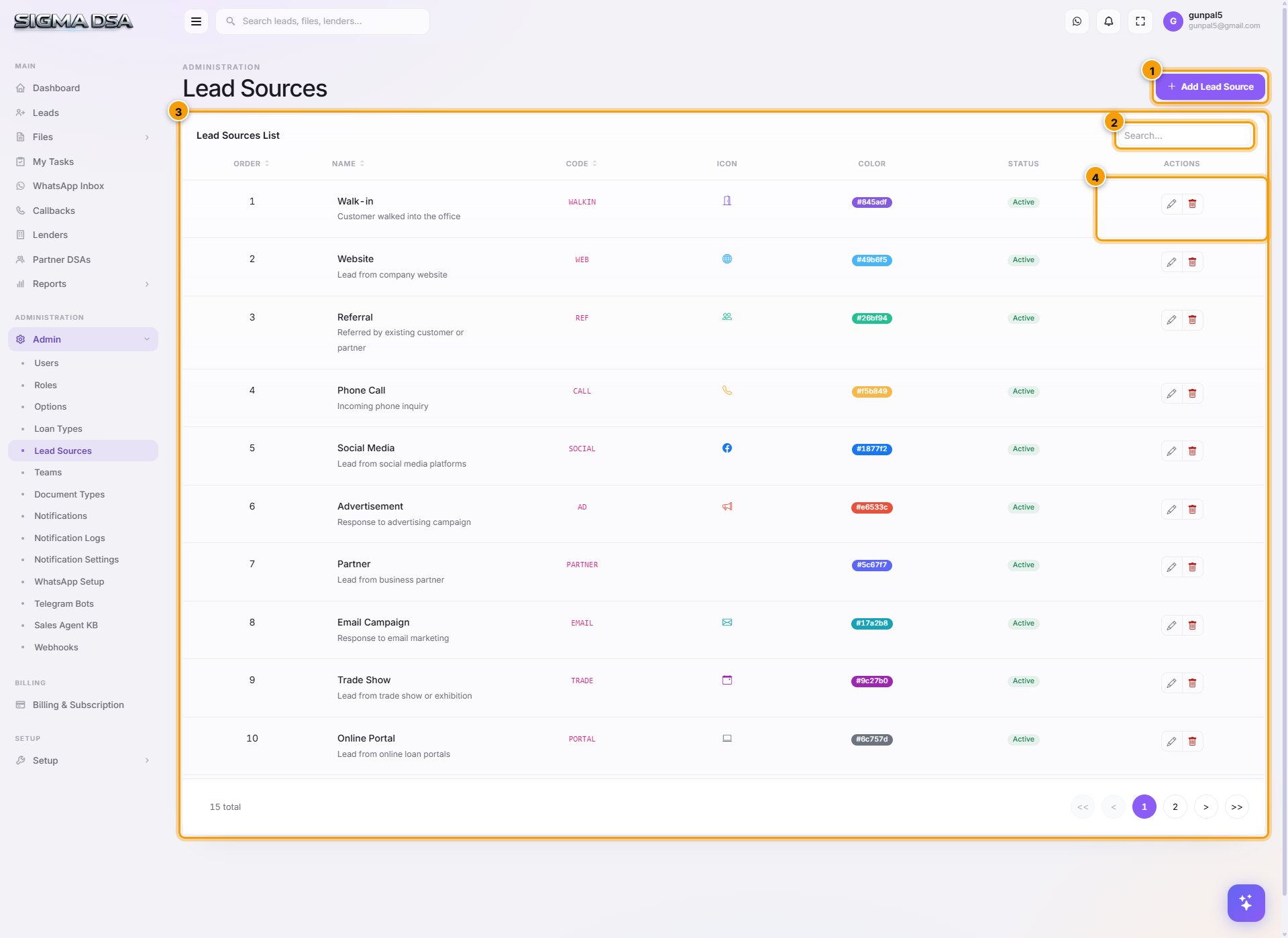
Add a lead source
Click Add Lead Source
Top-right. A modal opens with the source fields.
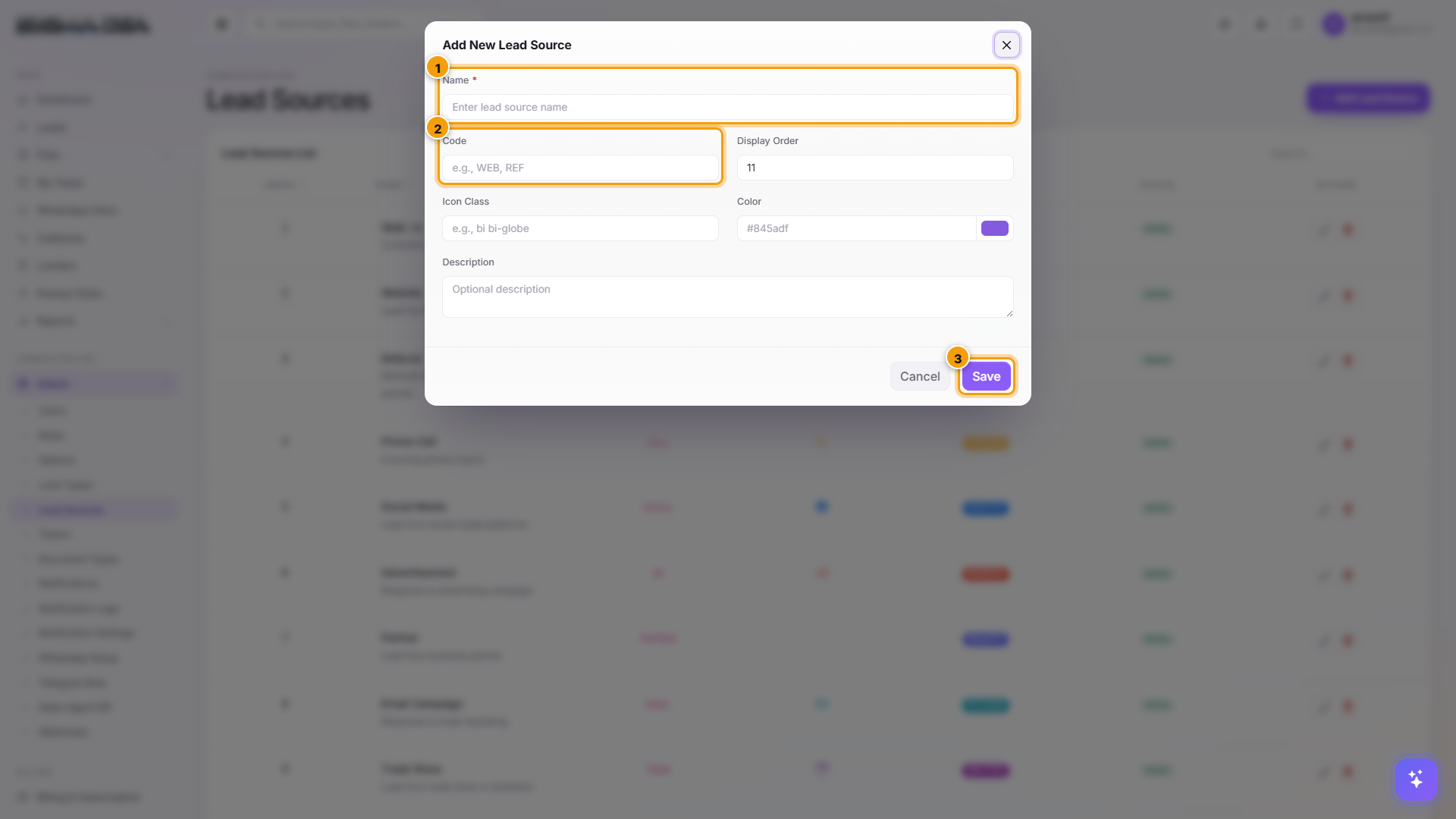
Fill the fields
| Field | What to enter |
|---|---|
| Name | Display name. Required. Be specific — "Facebook Ad – Home Loan Jan 2026" > "Facebook". |
| Code | Short identifier (e.g., WALKIN, REF, FB-HL-JAN26). Required. |
| Display Order | Lower = appears first in the Source dropdown when creating a lead. |
| Icon Class | Bootstrap Icons class (e.g., bi-people, bi-telephone, bi-whatsapp). |
| Color | Hex color for the source badge on lead rows. |
| Description | Context for what this source represents. |
Click Save
The source appears in the Source dropdown immediately when you create a new lead. It also surfaces as a filter chip on the Leads dashboard and a slice in the Leads Report's source-breakdown chart.
Suggested taxonomy
Pick a level of granularity and stick to it. Mixing macro and micro tags makes reports messy.
| Macro (default) | Micro (recommended) |
|---|---|
| Walk-in | Walk-in (no further split needed) |
| Referral | Referral – Existing Customer / Referral – Partner |
| Phone Call | Inbound Call / Outbound Cold Call |
| Web | Web – Sigmadsa.com / Web – Magicbricks / Web – BankBazaar |
| WhatsApp Inbound / WhatsApp Broadcast Campaign | |
| Connector / DSA | (use Partner DSAs instead — see Partner DSAs) |
| Marketing | Facebook Ad – {campaign} / Google Ad – {campaign} / SMS Campaign – {month} |
Edit / Deactivate
From the row's Actions menu:
- Edit — adjust name, code, color, display order.
- Deactivate — hides from new-lead dropdown without affecting historical leads.
- Delete — only if no leads reference the source.
How sources surface in the product
- New Lead modal → Lead Source dropdown (sorted by Display Order).
- Leads dashboard → source-filter chips above the table.
- Lead detail page → editable source field with the icon + color you configured.
- Leads Report → source-breakdown donut chart + per-source conversion table.
- Commissions Report → can group commission earned by source for ROI calc.
Permission gating
LoanCRM.LeadSources.* permissions. Default granted to admin role only.
Next steps
Loan Types
Manage the loan product catalogue in SigmaDSA — Personal Loan, Home Loan, Business Loan, LAP, etc. Each loan type has its own code, display order, icon, color, and category that drives the entire workflow.
Document Types
Configure the file checklist in SigmaDSA — PAN, Aadhaar, Bank Statement, ITR, Salary Slip, etc. Mark which types need a date range (last N months) and which need AI analysis (Bank Statement Analyzer, OCR).