Teams
Group users into teams in SigmaDSA and let auto case assignment route new leads to the right team instead of a single pool.
Teams group your users so that work can be routed to the right desk rather than a single undifferentiated pool. If everyone does everything, you don't need this page. Once you have a home-loan desk and a business-loan desk, you do.
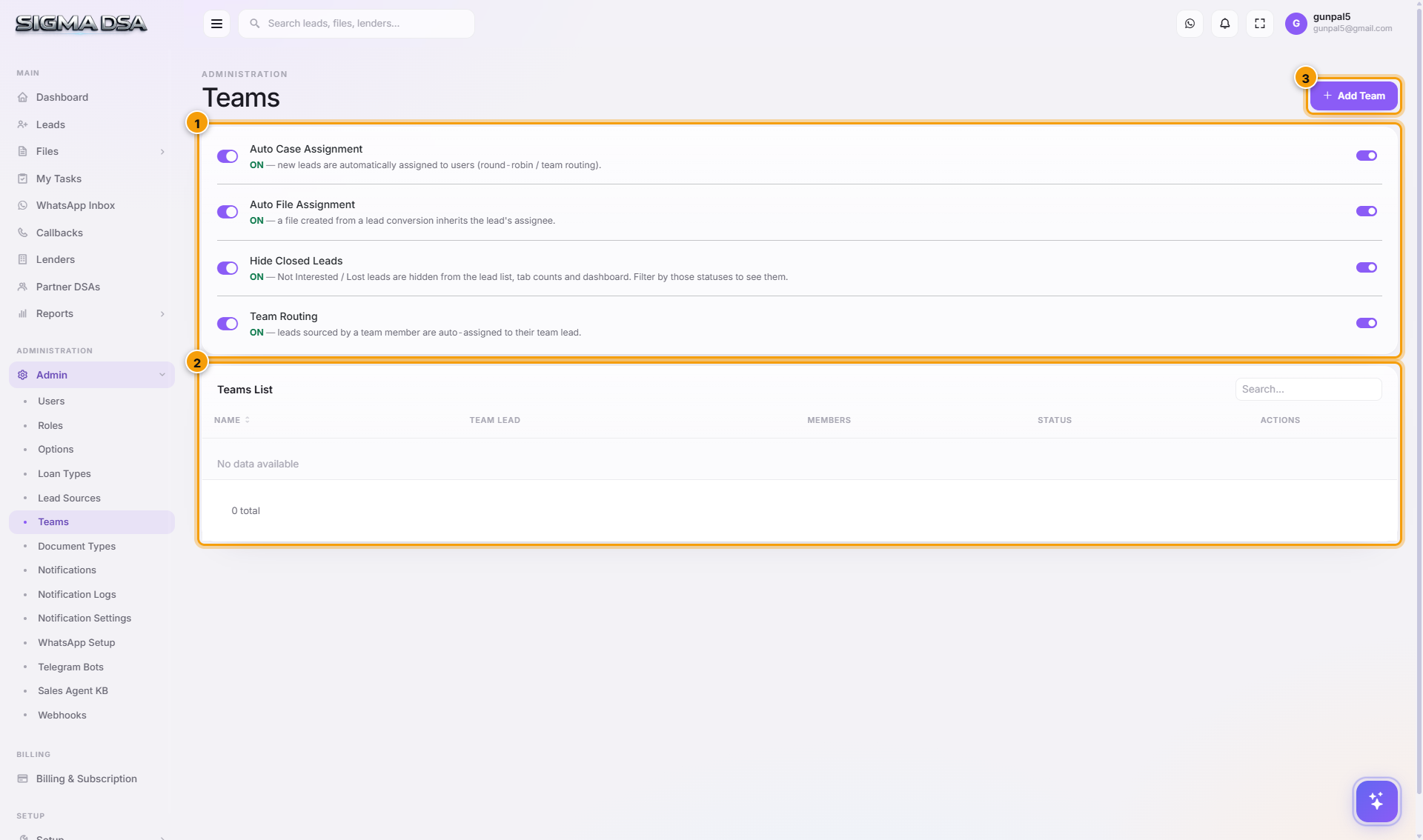
Auto Case Assignment
The card at the top says plainly whether it's on — "ON — new leads are assigned automatically". With it on, an incoming lead is routed to a team member instead of sitting unclaimed. With it off, leads wait for a manager to hand them out.
This works alongside the tenant-wide auto-assignment switch in Options.
Teams List and members
Add Team creates a team; each row opens its members. Adding and removing members is done per team, so one person can sit in several — useful for a senior rep who covers more than one desk.
Teams affect routing, not visibility. What a user can see is decided by their role's permissions. Putting someone in a team doesn't widen or narrow their access.
Next steps
Roles
Create reusable permission bundles in SigmaDSA — Sales, Operations, Manager, Admin. Set roles as Public so they appear in the user-assignment dropdown. Bulk-edit permissions at the role level instead of per-user.
Loan Types
Manage the loan product catalogue in SigmaDSA — Personal Loan, Home Loan, Business Loan, LAP, etc. Each loan type has its own code, display order, icon, color, and category that drives the entire workflow.