Users
Create and manage SigmaDSA user accounts — username, password, profile, role assignment, and per-user permission overrides. Permissions guide for lockout, deactivation, and role inheritance.
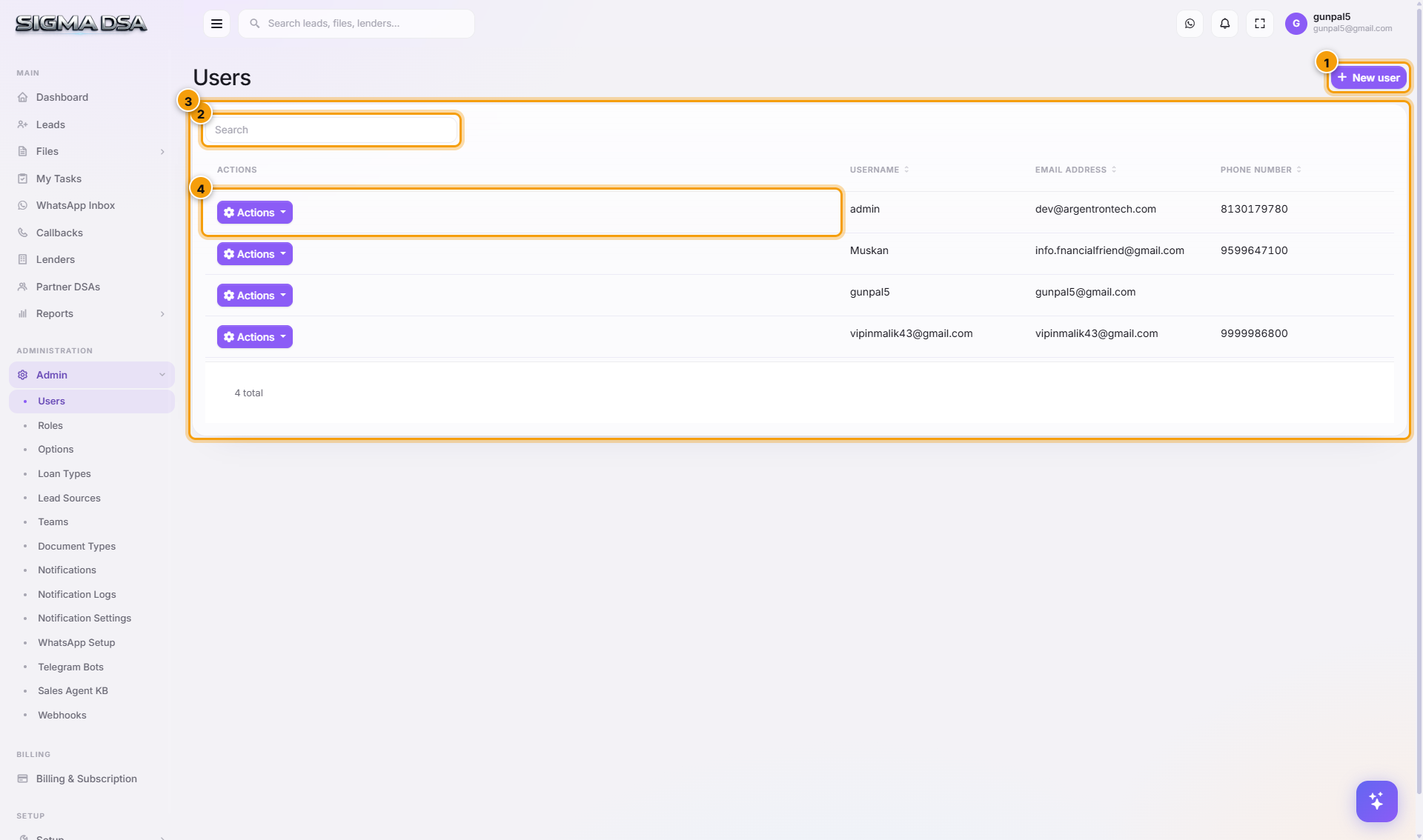
The Users page (/identity/users) lists every login account in your tenant. From here you create logins, assign roles, override permissions per-user, lock/unlock accounts, and deactivate departing team members.
Create a user
Click New user
Top-right of the page. The New User modal opens with two tabs — User Information and Roles.
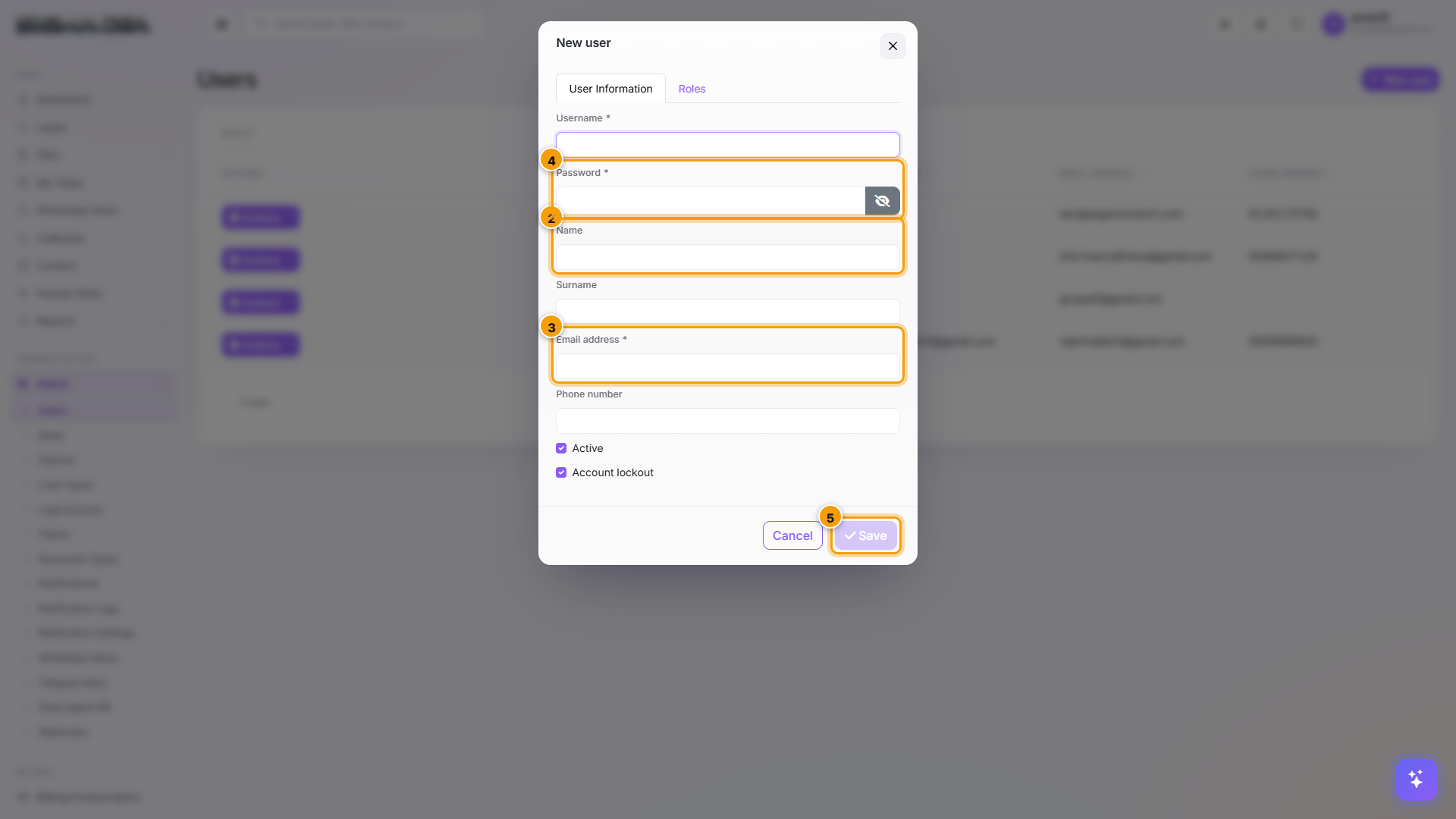
Fill User Information
| Field | What to enter |
|---|---|
| Username | Login handle. Lowercase, no spaces. Cannot be changed later. |
| Password | Initial password. Share securely; user can change after first login. |
| Name + Surname | Display name on the file header, activity log, and notifications. |
| Email address | Used for password resets, notifications, and OIDC if SSO is enabled. |
| Phone number | Used for SMS notifications and 2FA if enabled. |
| Active | On = user can log in. Off = blocked but record kept. |
| Account lockout | Off normally; on if ABP auto-locked after failed attempts. |
Switch to the Roles tab and assign
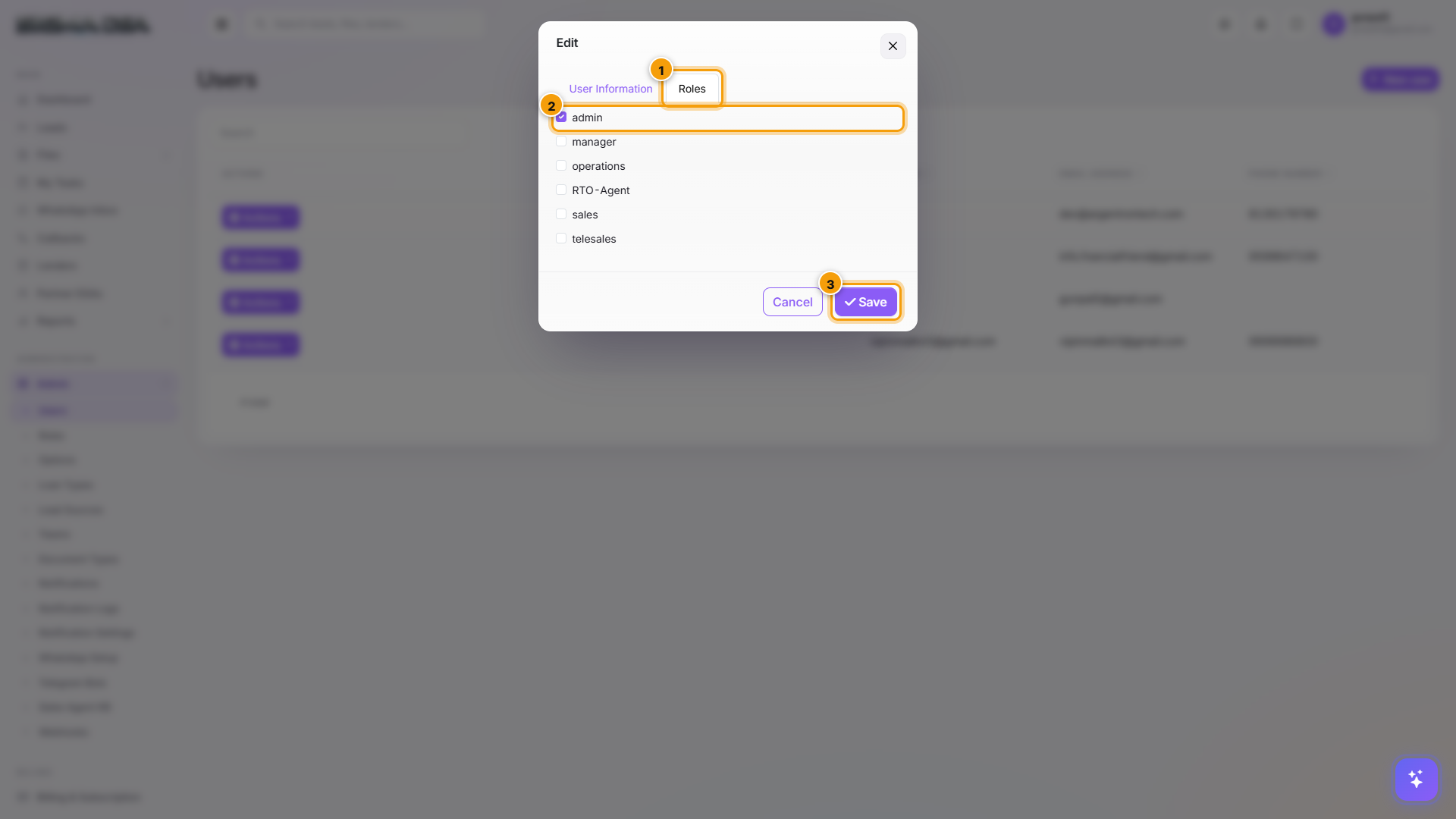
Pick one or more roles — Sales / Operations / Manager / Admin. The user inherits all permissions of every checked role. Use roles for permissions, not per-user assignments — it's drastically easier to maintain.
Click Save
The new user can log in immediately with the username + password you set. They'll receive an email if email notifications are configured.
Per-user permission overrides
If one user needs one specific permission that their role doesn't grant (rare), use Permissions from the row's Actions menu.
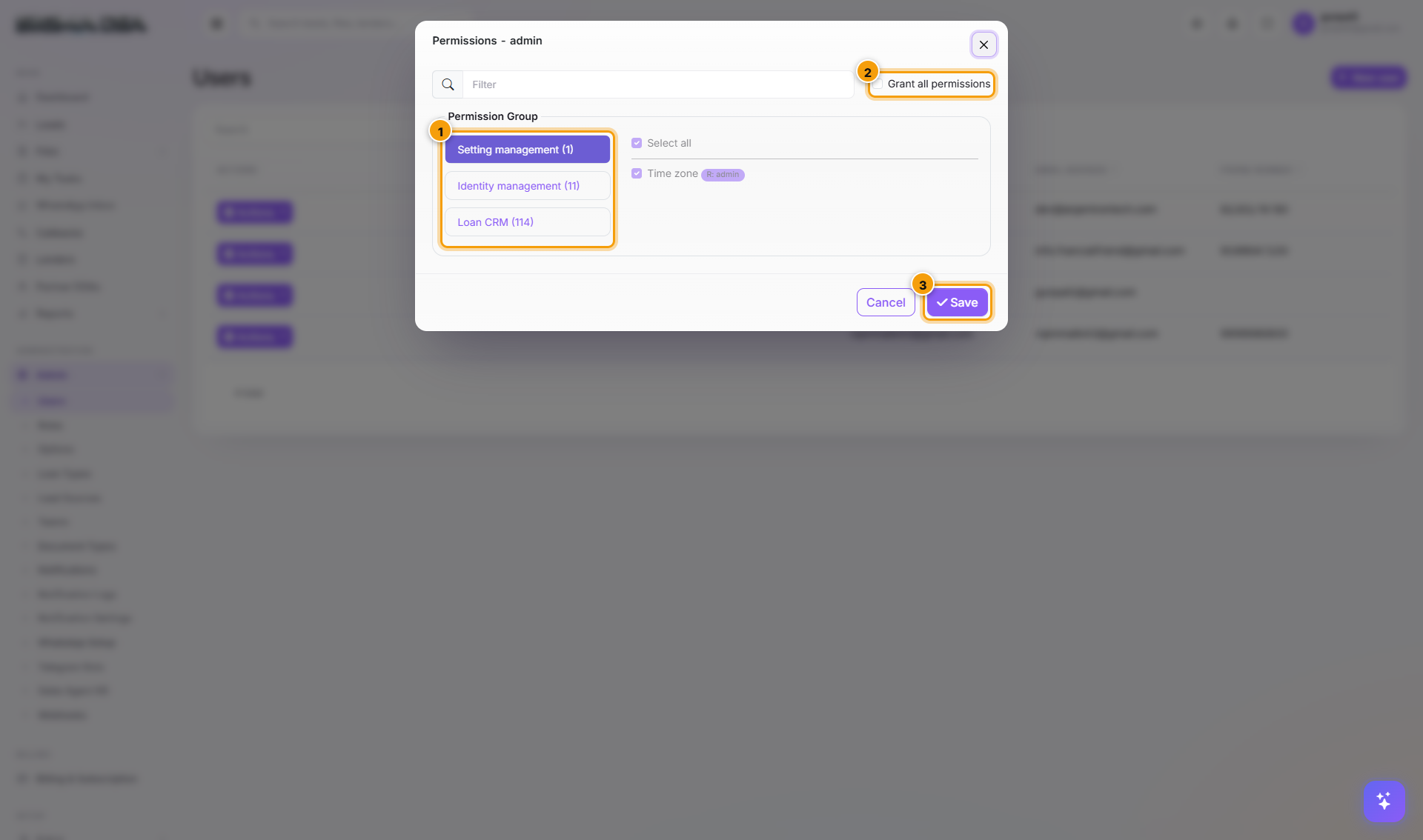
The modal has three tabs:
| Tab | What it grants |
|---|---|
| Setting management | Tenant-level settings access. |
| Identity management | Users, Roles, Permissions admin. |
| Loan CRM | The 98 product permissions — Leads, Files, Bank Logins, Sanctions, Disbursals, etc. |
Inside Loan CRM, permissions are grouped: Lead Management, File Management, Bank Login Management, Document Management, etc. Each group expands to per-action permissions (Create, Update, Delete, View, ViewAll, Assign, Export).
Best practice: don't override here unless absolutely necessary. Edit the role instead so other users in the same role get the same change.
Edit / Deactivate / Delete a user
From the row's Actions menu:
| Action | When to use |
|---|---|
| Edit | Update profile, change roles, toggle Active. |
| Permissions | Per-user overrides (see above). |
| Delete | Use sparingly — past assignments lose attribution. Prefer Deactivate. |
To Deactivate without deleting: Edit → uncheck Active → Save. The user can no longer log in but everything they touched stays attributed to them.
Common flows
- Onboard a new sales rep → New user → set username + password + email → Roles tab → check Sales → Save. Done.
- Department change (sales → ops) → Edit user → Roles tab → uncheck Sales → check Operations → Save.
- Employee leaves → Edit user → uncheck Active → Save. Reassign their files/leads on the Files and Leads boards.
- User locked out → Edit user → Account lockout off → Save.
- Specific user needs Export permission → use Permissions modal, but consider creating a new role (e.g., "Sales-with-Export") and assigning that instead.
Next steps
Admin
The SigmaDSA Admin section — Users, Roles, Loan Types, Lead Sources, Document Types, Notifications, WhatsApp Setup, Telegram Bots, Webhooks. Tenant-level configuration controlled by admin users.
Roles
Create reusable permission bundles in SigmaDSA — Sales, Operations, Manager, Admin. Set roles as Public so they appear in the user-assignment dropdown. Bulk-edit permissions at the role level instead of per-user.