Add a partner DSA
Step-by-step guide to onboarding a new sub-channel partner (connector) in SigmaDSA — identity, contact, default split, address, KYC, and bank account for payouts.
When you onboard a new sub-channel partner (connector / referral DSA), Add Partner DSA captures their identity, contact info, KYC, default commission split, and bank account so payouts can be tracked and disbursed cleanly.
How to add a partner
Open Partner DSAs and click Add Partner
From the left sidebar, click Partner DSAs, then Add Partner at the top-right. A right-side drawer slides in.
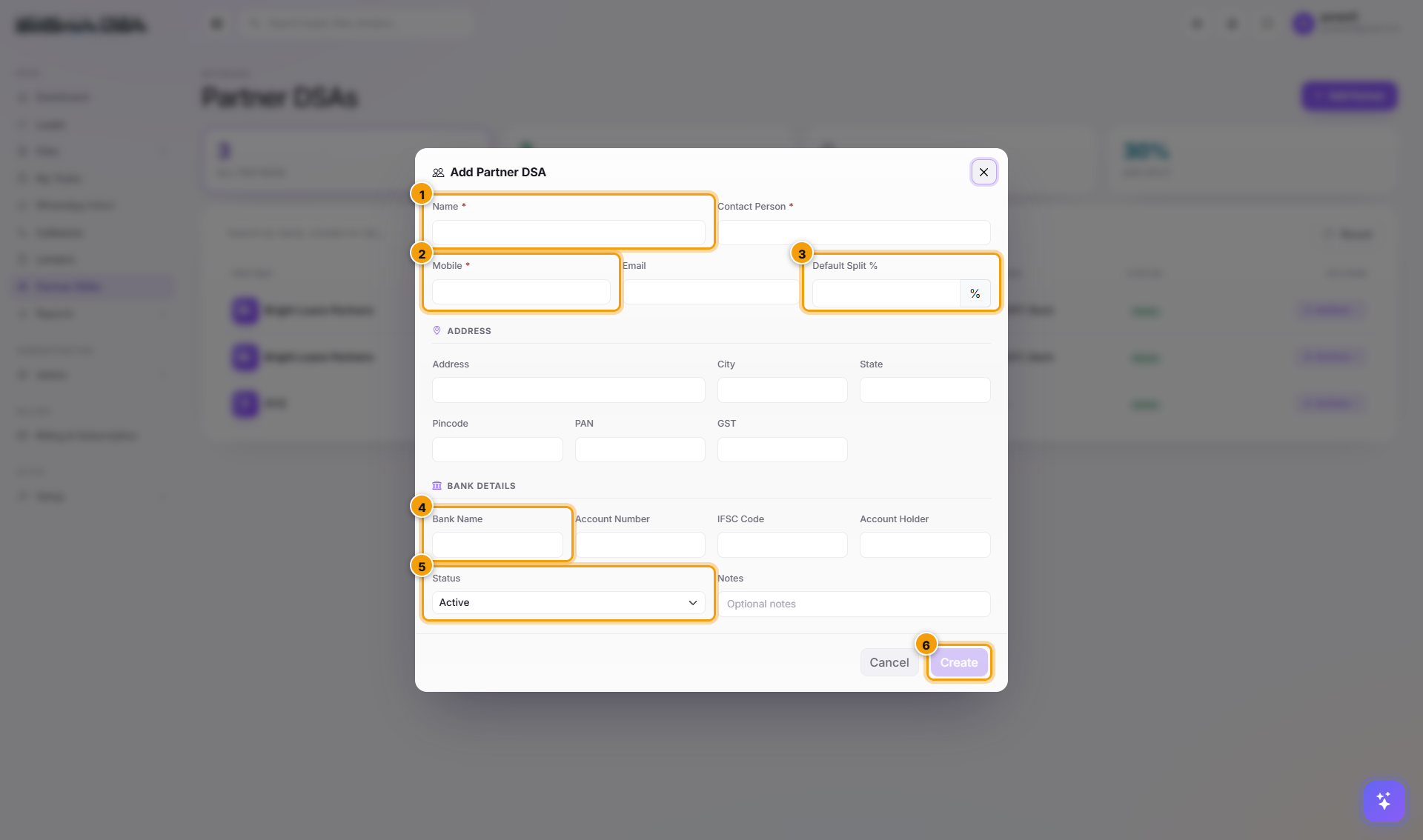
Identity
- Name — partner business / firm name (e.g., "ABC Connectors"). Required.
- Contact Person — primary contact at the partner. Required.
Contact + Default Split
- Mobile — click-to-call number. Required.
- Email — optional, used in payout email statements.
- Default Split % — connector's share of the commission. Applied automatically on the Disbursal modal when this partner is tagged on a file. Typical range 30–70% based on partner seniority + lead source.
Address + KYC
- Address — full postal address.
- City + State + Pincode.
- PAN — partner's PAN. KYC + statutory.
- GST — GSTIN if the partner is GST-registered. Used for tax-compliant payout invoices.
Bank Details
Used by the Payouts module to know where to wire the partner's share.
- Bank Name — e.g., HDFC Bank.
- Account Number — partner's account number.
- IFSC Code — 11-character branch code.
- Account Holder — name on the account (must match PAN for compliance).
Status + Notes
- Status — Active by default. Set to Inactive if you're staging the partner but not yet routing files to them.
- Notes — free-text. Capture tie-up date, special terms, parent firm, anything ops should know.
Click Create
The partner lands on the Partner DSAs list. They're immediately selectable in the Partner DSA dropdown on:
- Lead Quick Add modal
- Lead Detail (Internal section)
- File Detail (Sourcing section)
- Disbursal modal Partner DSA Payout block
After saving
- The partner shows on the Partner DSAs page with the Default Split % visible in the table.
- The Payouts module starts tracking expected payouts for any file tagged with this partner.
- Reports → Partner Performance picks up the new partner once the first file is sourced.
Common flows
- New connector signs on with 50/50 split → fill name + contact + mobile + Default Split 50% + bank details → save. Tag them on incoming leads as you source.
- High-volume partner with 70% split → same flow, Default Split 70%. The per-file override on Disbursal lets you reduce on one-off deals.
- Bulk-import partners from spreadsheet → currently manual one-by-one; for migrations, ask support to run a tenant-level import script.
Permissions
Adding/editing partners requires LoanCRM.PartnerDsas.Create / Update — admins by default. Sales staff have read-only access.
Next steps
Partner DSAs
Partner DSAs (connectors) in SigmaDSA — the sub-channel partners who source leads and files for your DSA. Capture contact info, KYC, bank details, default commission split, and track per-partner performance.
Reports Dashboard
The SigmaDSA Reports Dashboard — top-line KPIs, monthly trends, file pipeline, lender performance, commission breakdown, plus quick links to eight detailed reports.