Reports Dashboard
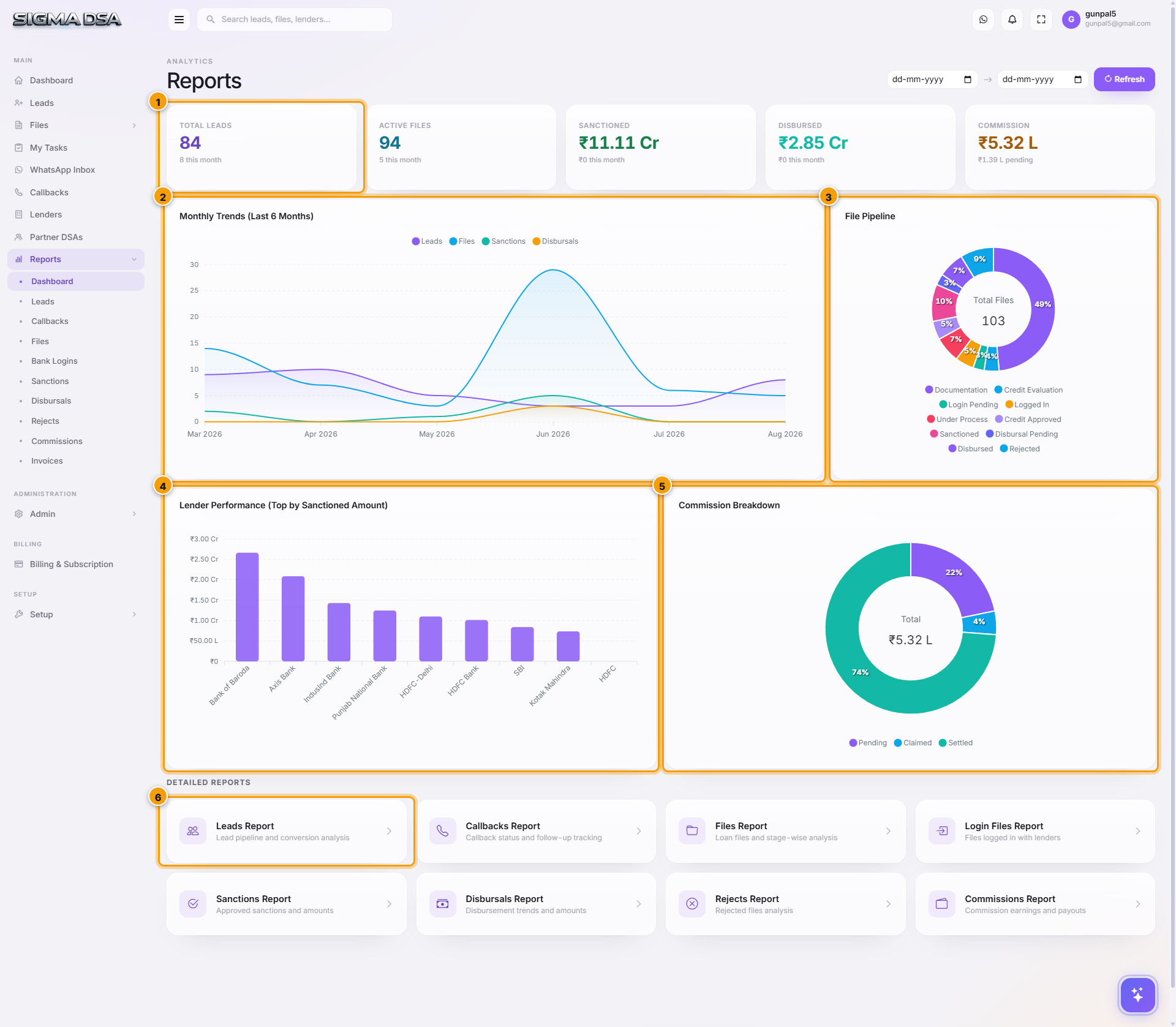
The SigmaDSA Reports Dashboard — top-line KPIs, monthly trends, file pipeline, lender performance, commission breakdown, plus quick links to eight detailed reports.
The Reports Dashboard is the executive view of your DSA operation — top-line KPIs, six-month trends, file pipeline distribution, lender performance, commission status, and one-click access to eight detailed reports. Open it from the sidebar's Reports group.
What's on the dashboard
1. KPI row (top)
Five cards summarising the business at a glance:
| KPI | What it shows |
|---|---|
| Total Leads | Lifetime lead count + this month's adds. |
| Active Files | Files still in motion (not Rejected or Disbursed). |
| Sanctioned Amount | Lifetime ₹ sanctioned + this month's adds. |
| Disbursed Amount | Lifetime ₹ disbursed + this month's adds. |
| Commission Earned | Lifetime commission + currently pending payout. |
2. Monthly Trends (Last 6 Months)
Line chart with four series — Leads, Files, Sanctions, Disbursals — month-over-month for the last 6 months. Spot seasonality, growth, or pipeline dips at a glance.
3. File Pipeline donut
Distribution of every active file across the workflow stages — Documentation, Credit Evaluation, Login Pending, Logged In, Under Process, Credit Approved, Sanctioned, Disbursal Pending, Disbursed, Rejected. Each slice's % shows where files are concentrated.
4. Lender Performance (Top by Sanctioned Amount)
Horizontal bar chart ranking your panel lenders by total sanctioned amount. The bigger your bar with Lender X, the more they contribute to your business — useful for negotiating panel terms and prioritising relationships.
5. Commission Breakdown donut
Pie of your commission ledger by status:
- Pending — disbursal recorded but commission not yet received.
- Claimed — invoice raised, awaiting payment.
- Settled — money received.
6. Detailed Reports tiles
Eight quick-access tiles for the detailed reports below.
The eight detailed reports
| Report | Use case |
|---|---|
| Leads Report | Pipeline conversion analysis, source effectiveness, drop-off points. |
| Callbacks Report | Pending, missed, and overdue callbacks by user and queue. |
| Files Report | Stage-wise file analysis, aging by stage, owner performance. |
| Login Files Report | Files logged in with lenders — submission volume, query-response time, stuck logins. |
| Sanctions Report | Approvals — average sanctioned amount, ROI, tenure, time-from-login. |
| Disbursals Report | Disbursement trends, monthly volume, top performing lenders/products. |
| Rejects Report | Why files die — category breakdown, reason-by-lender, salvage opportunities. |
| Commissions Report | What you've earned, aged pending payouts, per-lender + per-partner splits. |
Refresh + filters
- The Refresh button (top-right) re-pulls all KPIs and charts in real-time. Otherwise data is cached for ~60 seconds.
- Most detailed reports support date-range filters, status filters, and per-user filters. Apply them on the individual report pages.
Common flows
- Monthly business review — open the Dashboard → screenshot the KPI row + Monthly Trends → paste into your management deck.
- Lender negotiation prep — review Lender Performance to know who deserves better terms / what your concentration looks like.
- Stuck pipeline diagnostic — File Pipeline donut showing > 30% in Login Pending? Click Files Report to find which files are stuck and why.
Next steps
Add a partner DSA
Step-by-step guide to onboarding a new sub-channel partner (connector) in SigmaDSA — identity, contact, default split, address, KYC, and bank account for payouts.
Leads Report
Lead pipeline and conversion analysis — leads by source, status distribution, conversion funnel, and aging by stage.