Add a lender
Step-by-step guide to adding a new lender (bank, NBFC, HFC, fintech) to your SigmaDSA panel — basic identity, partnership details, RM contact, and branch.
When you sign a new tie-up with a bank, NBFC, HFC, or fintech, Add Lender registers them in SigmaDSA so files can be submitted to them. The form captures the basic identity, your partnership-specific terms, and the default RM contact that will pre-fill on Bank Login submissions.
How to add a lender
Open Lender Management and click Add Lender
From the left sidebar, click Lenders, then Add Lender at the top-right. A full-page form opens at /lenders/create.
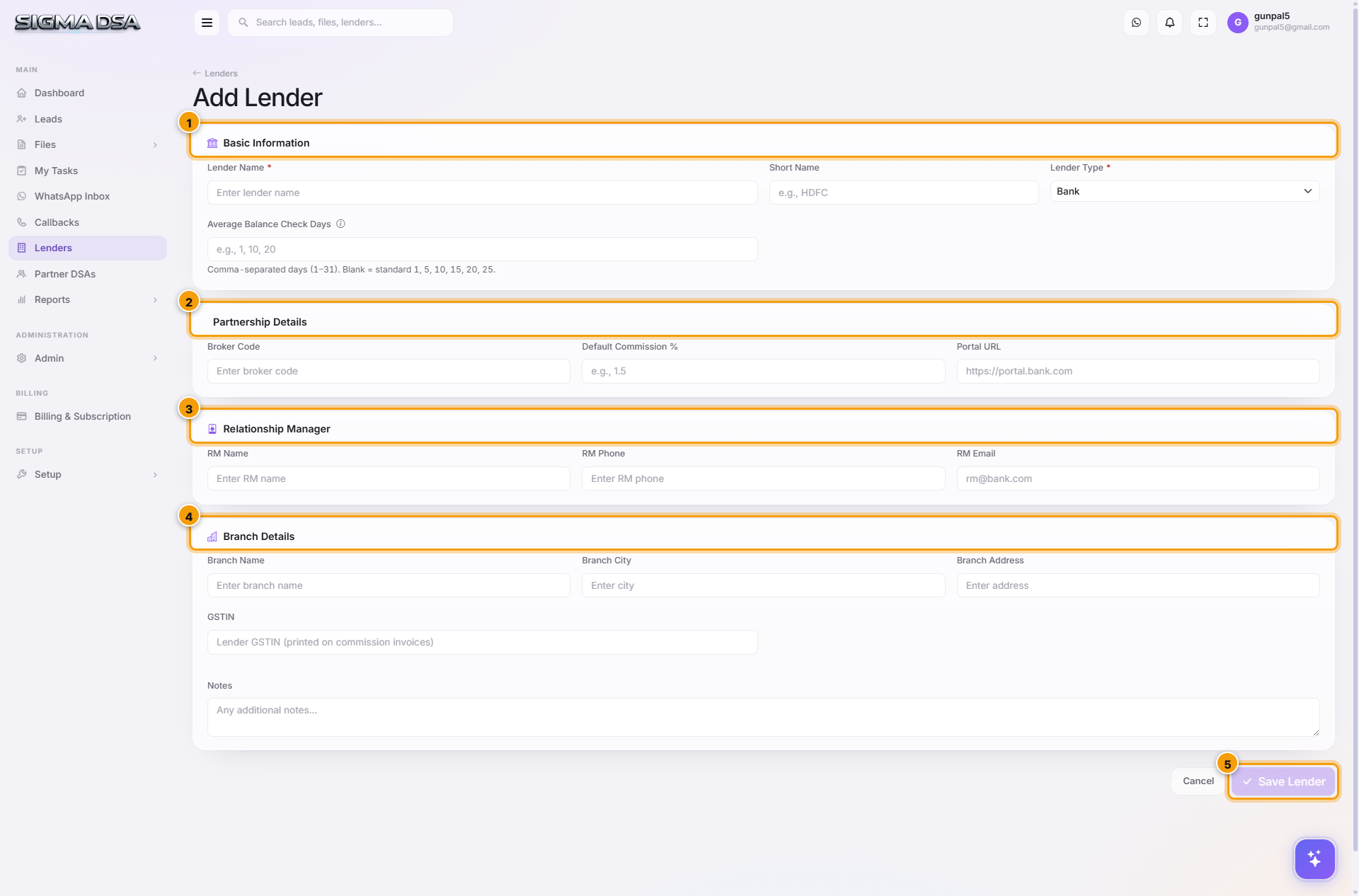
Identity (required)
- Lender Name — full official name (e.g., "HDFC Bank Limited"). Required.
- Short Name — what users see in dropdowns (e.g., "HDFC").
- Lender Type — Bank, NBFC, HFC, Fintech, Microfinance, Other. Drives the category filters in Add Bank Login. Required.
Partnership Details
Your tie-up specifics with this lender:
- Broker Code — DSA code assigned to your firm by the lender. Often appears on commission statements.
- Default Commission % — typical payout rate. Used as the default in Disbursal modals. You can override per file / per loan-product later.
- Portal URL — the lender's DSA portal URL (e.g., HDFC's DSA portal login). Stored for quick access — click-to-open from the Lender Management page.
Relationship Manager
The default RM contact for this lender. Pre-fills on Bank Login submissions; overridable per file.
- RM Name — primary contact person.
- RM Phone — click-to-call from the file detail page.
- RM Email — used in dispatch templates when emailing the application packet.
Branch Details
The default branch you submit files to. Used on lender correspondence and printed application forms.
- Branch Name — e.g., "Connaught Place".
- Branch City.
- Branch Address — full postal address.
Click Save Lender
The lender lands on the Lender Management list with status Active. It shows in the Add Bank Login dropdown and the lender-matching engine starts considering it on files.
After saving
- Add products — open the new lender row → Actions → Manage Products to add per-product commission slabs and eligibility rules. Without products, the lender shows in Add Bank Login but commission won't auto-compute.
- Test submission — create a test bank login on a sandbox file to confirm the RM email + branch info flow through correctly.
Common flows
- New large bank (HDFC, ICICI, Axis) → add core identity + RM + branch + Default Commission 0.40% → save → Manage Products → add Home Loan, Personal Loan, LAP, etc.
- NBFC tie-up → Type=NBFC + higher Default Commission (1.0–1.5% typical) → save → add Personal Loan, Business Loan products with eligibility rules tuned for sub-prime.
- Re-register an old lender → instead of adding new, find the inactive row → Activate. Preserves historical files + commission slab history.
Permissions
Adding/editing lenders requires the LoanCRM.Lenders.Create / LoanCRM.Lenders.Update permission — by default granted to admins. Operations staff have read-only access.
Next steps
Lenders
Lender Management in SigmaDSA — the master list of banks, NBFCs, HFCs, and fintechs you submit files to. Configure products, commission slabs, RM contacts, and per-lender eligibility rules.
Partner DSAs
Partner DSAs (connectors) in SigmaDSA — the sub-channel partners who source leads and files for your DSA. Capture contact info, KYC, bank details, default commission split, and track per-partner performance.