Branding
Upload your firm's logos to brand the SigmaDSA CRM — expanded sidebar logo, collapsed icon, favicon. Replaces the default SigmaDSA branding for your team's view.
The Branding page (/settings/branding) lets you replace the default SigmaDSA logos in the CRM with your firm's identity. Affects the in-app sidebar, the collapsed-sidebar icon, and the browser tab favicon. The public website logo is configured separately under Website.
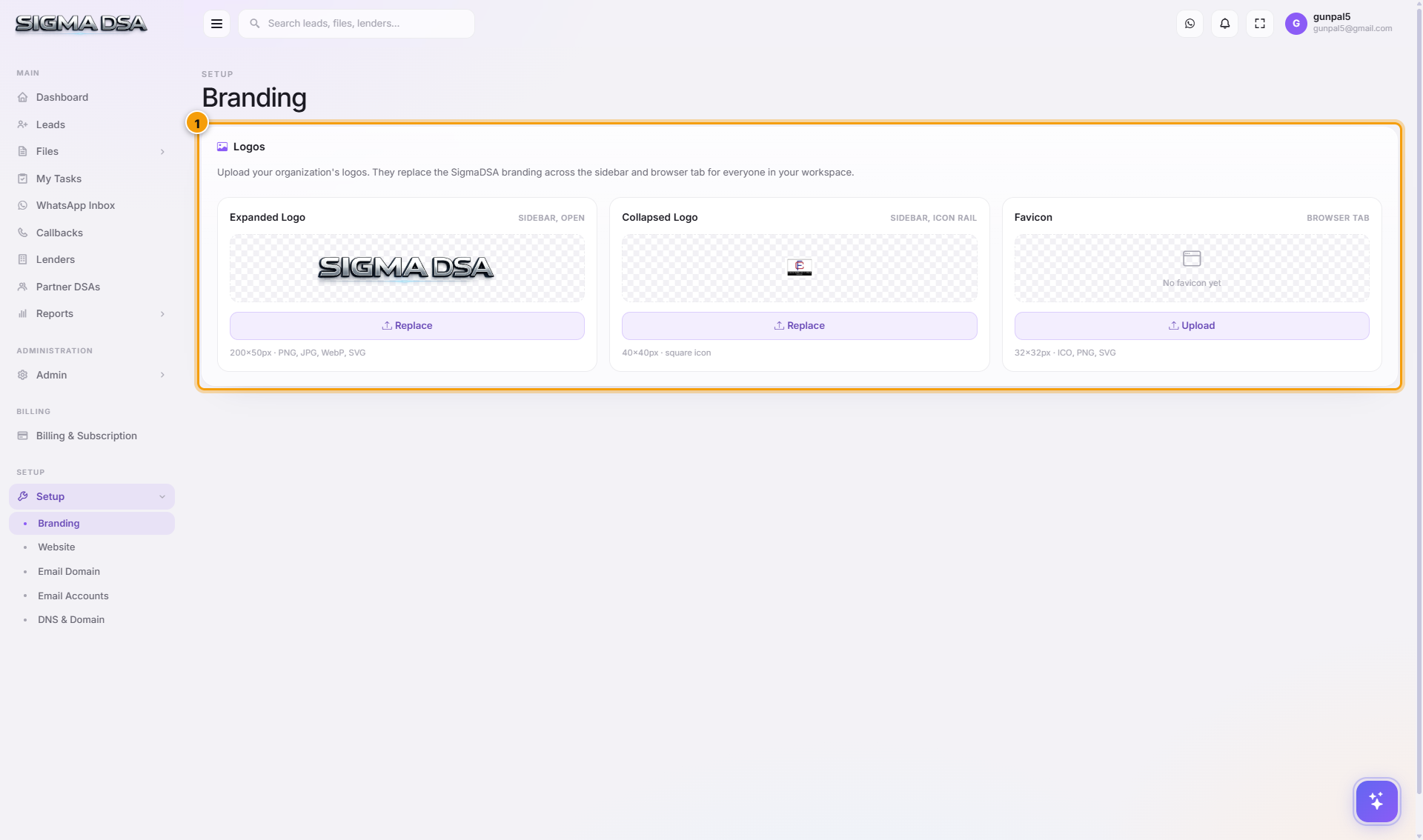
What's on the page
The Logos card has three upload slots:
| Slot | Recommended size | Format | Where it shows |
|---|---|---|---|
| Expanded Sidebar Logo | 200×50 px | PNG / JPG / WebP / SVG | The left sidebar when expanded (full nav visible). |
| Collapsed Sidebar Logo | 40×40 px (icon/square) | PNG / JPG / WebP / SVG | The left sidebar when collapsed (icons only). |
| Favicon | 32×32 px or 16×16 px | ICO / PNG / SVG | Browser tab icon + bookmark icon. |
How to upload
Prepare your image at the recommended size
For best display, prepare each image at the recommended size:
- Expanded Sidebar Logo — horizontal layout, 200×50 px. A wordmark with optional symbol works well.
- Collapsed Sidebar Logo — square, 40×40 px. Use just your monogram or symbol; full wordmarks get squashed.
- Favicon — square, 32×32 px (also accepts 16×16 px). Should be readable at very small sizes.
Click the upload slot
Each slot has a click-to-upload area. Pick the file from your computer. SVG is preferred for crispness at any zoom; PNG with transparency is the next best choice.
Preview + Save
The slot updates immediately to show your uploaded logo. The page auto-saves on upload — refresh the CRM to see the new logos applied to the sidebar.
Tips
- Use SVG when you can — scales cleanly at every zoom level and is sharp on retina displays.
- PNG with transparency for non-vector logos.
- Avoid white backgrounds on logos — they'll show as solid blocks on the dark sidebar.
- Test both expanded and collapsed states — click the sidebar toggle to see how the collapsed logo looks.
- Favicon caching — browsers cache favicons aggressively. After uploading, you may need to clear cache or wait a few hours to see the new tab icon.
Permission gating
Requires admin role. The Branding page is part of the per-tenant Settings; only tenant admins can modify.
Next steps
Setup
The SigmaDSA Setup section — branding, public website, email domain, email accounts, DNS records. Configure your tenant's customer-facing presence and email infrastructure.
Website
Build and publish your DSA's public marketing site in three steps — generate content with AI, add your domain, publish from settings. Pick from 9 design templates, configure Home/About/Contact/EMI Calculator pages, manage SEO.