Email Domain
Configure a custom email domain in SigmaDSA so your team sends and receives at `user@yourdsa.com`. Powered by Stalwart Mail Server, with auto-generated DNS records you paste at your registrar.
The Email Domain page (/settings/email-domain) configures your custom email domain so the team sends and receives email at username@yourdsa.com instead of generic providers. Powered by Stalwart Mail Server, an open-source IMAP/SMTP server bundled into the SigmaDSA infrastructure.
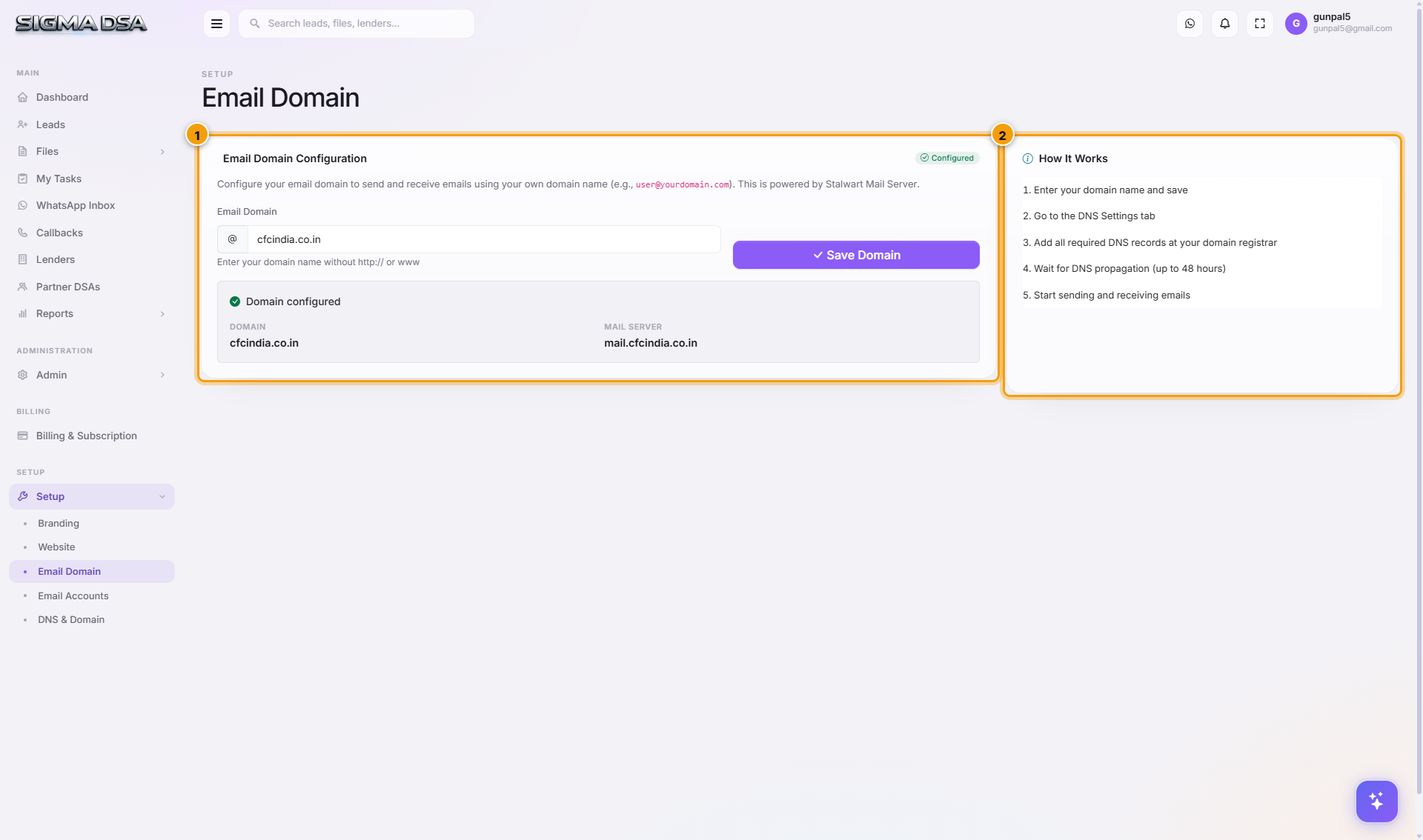
How to configure
Enter your domain and save
In the Email Domain Configuration card:
- Enter your domain name (e.g.,
yourdsa.com). Nohttp://, nowww. - Click Save Domain.
SigmaDSA provisions a mail-server configuration for your domain and shows:
- Domain — your domain.
- Mail Server — the hostname users will point Outlook / Gmail / Apple Mail at (e.g.,
mail.yourdsa.com).
The status flips to Configured.
Switch to the DNS Settings tab
Open DNS & Domain. The required DNS records auto-populate:
- MX — routes incoming email to
mail.yourdsa.com. - A record for
mail— points the mail subdomain at the mail server's IP. - CNAME for
autodiscover— Outlook auto-configuration. - SRV for
_autodiscover._tcp— fallback auto-config. - TXT for SPF — authorises the mail server to send on behalf of your domain.
- TXT for
_dmarc— DMARC anti-spoofing policy. - TXT for
default._domainkey— DKIM signing key.
Add the records at your domain registrar
Go to your domain registrar's DNS panel (GoDaddy / Cloudflare / Namecheap / Google Domains). Add each record exactly as shown.
Wait for DNS propagation
5–30 minutes typical, up to 48 hours worst case. Check propagation using dig mx yourdsa.com on a terminal, or use a web tool like whatsmydns.net.
Verify and start using email
On DNS & Domain, click Verify All. Each record's status flips to Verified once SigmaDSA confirms it resolves correctly.
Now you can:
- Create per-user mailboxes under Email Accounts.
- Send notifications via the configured domain from Admin → Notifications.
- Configure team members' Outlook / Gmail / Apple Mail using the IMAP/SMTP details shown on Email Accounts.
What works after setup
| Capability | After DNS verified |
|---|---|
Receive email at *@yourdsa.com | ✓ |
| Send email from per-user mailboxes via SigmaDSA webmail | ✓ |
| Connect Outlook / Gmail / Apple Mail via IMAP + SMTP | ✓ |
Send templated notifications from noreply@yourdsa.com instead of noreply@sigmadsa.com | ✓ |
| DKIM-signed outgoing email for high inbox deliverability | ✓ |
Common issues
- MX record verification fails — most common cause is the registrar set it as
mail.yourdsa.com.yourdsa.com(with the apex appended). Edit and set the value to exactly the hostname shown (sometimes registrars use@for apex). - DKIM TXT too long — the public key may exceed 255 characters. Some registrars require splitting into multiple quoted strings. Cloudflare / GoDaddy handle this automatically; others may need manual split.
- DMARC quarantining your own emails — if you tested with a relaxed policy first, change to
v=DMARC1; p=quarantine; rua=...only after SPF + DKIM are confirmed working.
Permission gating
Admin role only. The Email Domain page is gated by tenant-level permissions.
Next steps
Website
Build and publish your DSA's public marketing site in three steps — generate content with AI, add your domain, publish from settings. Pick from 9 design templates, configure Home/About/Contact/EMI Calculator pages, manage SEO.
Email Accounts
Create per-user mailboxes on your custom email domain (`user@yourdsa.com`). Includes IMAP/SMTP server details for connecting Outlook, Gmail, and Apple Mail.