Email Accounts
Create per-user mailboxes on your custom email domain (`user@yourdsa.com`). Includes IMAP/SMTP server details for connecting Outlook, Gmail, and Apple Mail.
The Email Accounts page (/settings/email-accounts) creates and manages per-user mailboxes on your custom domain. Prerequisite: Email Domain configured and DNS verified.
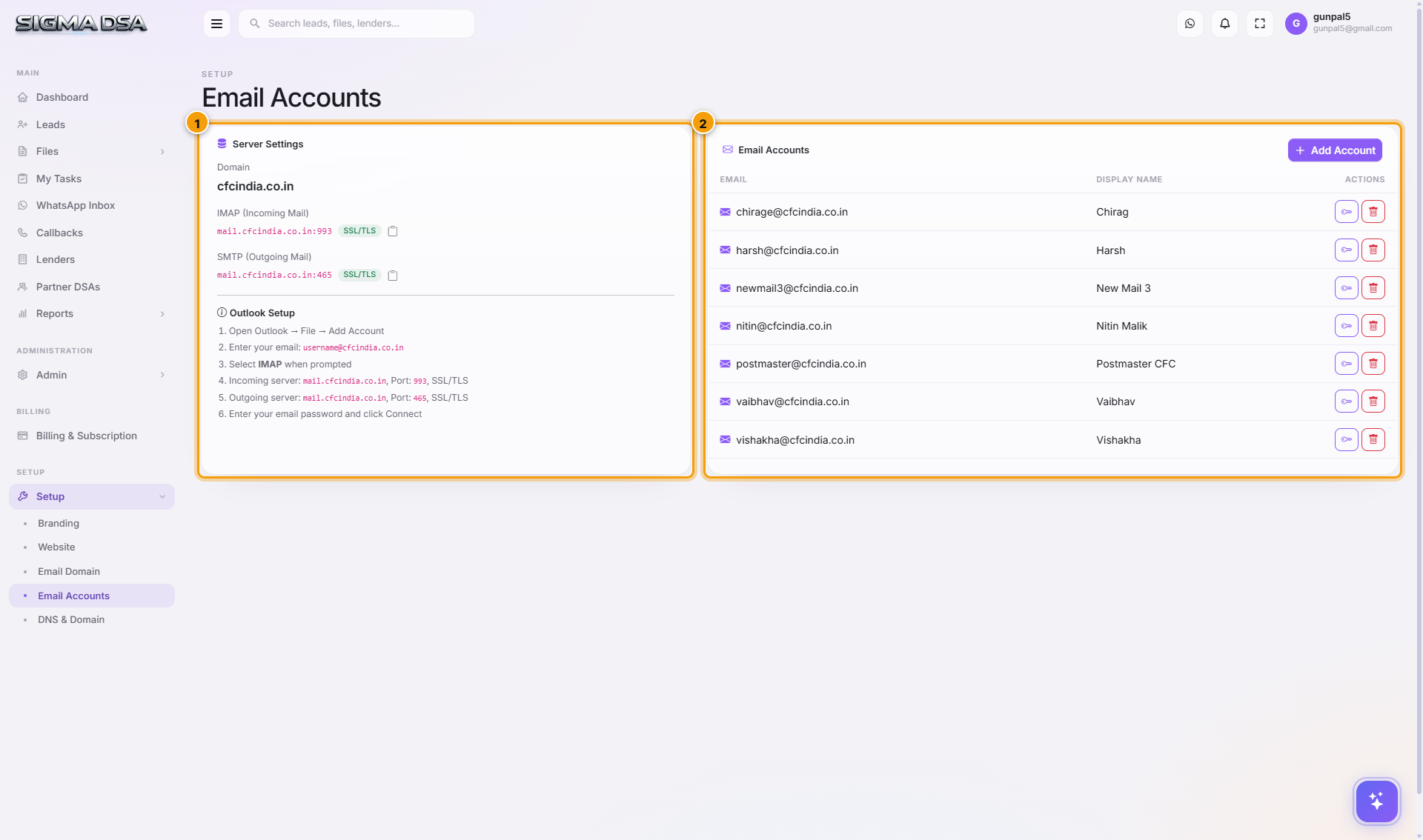
What's on the page
1. Server Settings card
Shows the IMAP + SMTP hostnames + ports for your domain. Share these with the team for configuring email clients:
| Setting | Value | Use |
|---|---|---|
| Domain | yourdsa.com | Just for reference. |
| IMAP (Incoming) | mail.yourdsa.com:993 SSL/TLS | Pulls email from server to client. |
| SMTP (Outgoing) | mail.yourdsa.com:465 SSL/TLS | Sends email from client through server. |
2. Outlook Setup card
Step-by-step instructions for adding an account in Outlook (the most common client). Same logic applies to Apple Mail, Gmail mobile, Thunderbird.
3. Email Accounts table
Lists every mailbox on your domain. Columns: Email, Display Name, Actions (Edit / Delete / Reset Password).
4. Add Account button
Creates a new mailbox.
Create a mailbox
Click Add Account
A modal opens with mailbox fields.
Fill the fields
| Field | What to enter |
|---|---|
The username before @ (e.g., nitin). Domain auto-appended. | |
| Display Name | What recipients see in the From field (e.g., Nitin Malik). |
| Password | Initial password (user can change after first login). |
| Storage quota | Default 5 GB. Raise per-plan if needed. |
| Aliases | Optional. Comma-separated list of additional addresses delivered to this inbox. |
| Forward to | Optional. External email to copy every message to. |
Click Save
The mailbox is provisioned on the mail server immediately. The user can start receiving email right away. Share the IMAP/SMTP details + password with the user.
Connect Outlook (per the on-page steps)
Open Outlook → File → Add Account
In Outlook's classic UI, the menu is File → Add Account. In newer Outlook for Web/Mac, it's Settings → Mail → Sync email → Add Account.
Enter the email address
Type the full address (e.g., nitin@yourdsa.com). Outlook attempts auto-discovery — the SRV + CNAME DNS records you added under DNS & Domain make this work automatically.
Select IMAP when prompted
If auto-discovery doesn't fully complete, Outlook prompts for the account type. Choose IMAP.
Enter server details
- Incoming server —
mail.yourdsa.com, Port993, EncryptionSSL/TLS. - Outgoing server —
mail.yourdsa.com, Port465, EncryptionSSL/TLS.
Enter password and click Connect
Outlook validates credentials, downloads recent mail, and the account is ready.
Connect Apple Mail (macOS / iOS)
System Settings → Internet Accounts → Other Mail Account → enter email + password. Apple Mail auto-discovers via the SRV record.
Connect Gmail mobile / Outlook mobile
Settings → Add account → Other (IMAP) → enter address + password + IMAP/SMTP details above. Most mobile clients handle auto-discovery via SRV records, but be ready to enter ports manually if it doesn't.
Webmail
For users who don't want a client, the bundled webmail is at https://mail.yourdsa.com/webmail. Login with full email + password.
Common flows
- Onboard a new team member — Add Account → set initial password → share IMAP/SMTP card.
- Shared sales inbox — Add Account with username
sales→ add aliases likeinfo,enquiries→ multiple team members configure the same mailbox in Outlook with their personal credentials (mailbox-level auth). - Reset a password — Edit account → set new password → user re-enters in their email client.
- Departing employee — keep the mailbox active and forward to their replacement, or set up an auto-responder explaining the change.
Permission gating
Admin role. Each mailbox creation is gated by tenant-level email-management permissions.
Next steps
Email Domain
Configure a custom email domain in SigmaDSA so your team sends and receives at `user@yourdsa.com`. Powered by Stalwart Mail Server, with auto-generated DNS records you paste at your registrar.
DNS & Domain
The DNS records you need to add at your domain registrar (GoDaddy, Cloudflare, Namecheap, etc.) to wire up your public website and custom email domain. Click Verify All once the records are live.