Website
Build and publish your DSA's public marketing site in three steps — generate content with AI, add your domain, publish from settings. Pick from 9 design templates, configure Home/About/Contact/EMI Calculator pages, manage SEO.
The Website page (/settings/website) builds and publishes your DSA's public-facing marketing site — the one customers land on when they search for your firm or click links in WhatsApp/SMS campaigns. The flow is three steps: generate content with AI → add your domain → publish from settings.
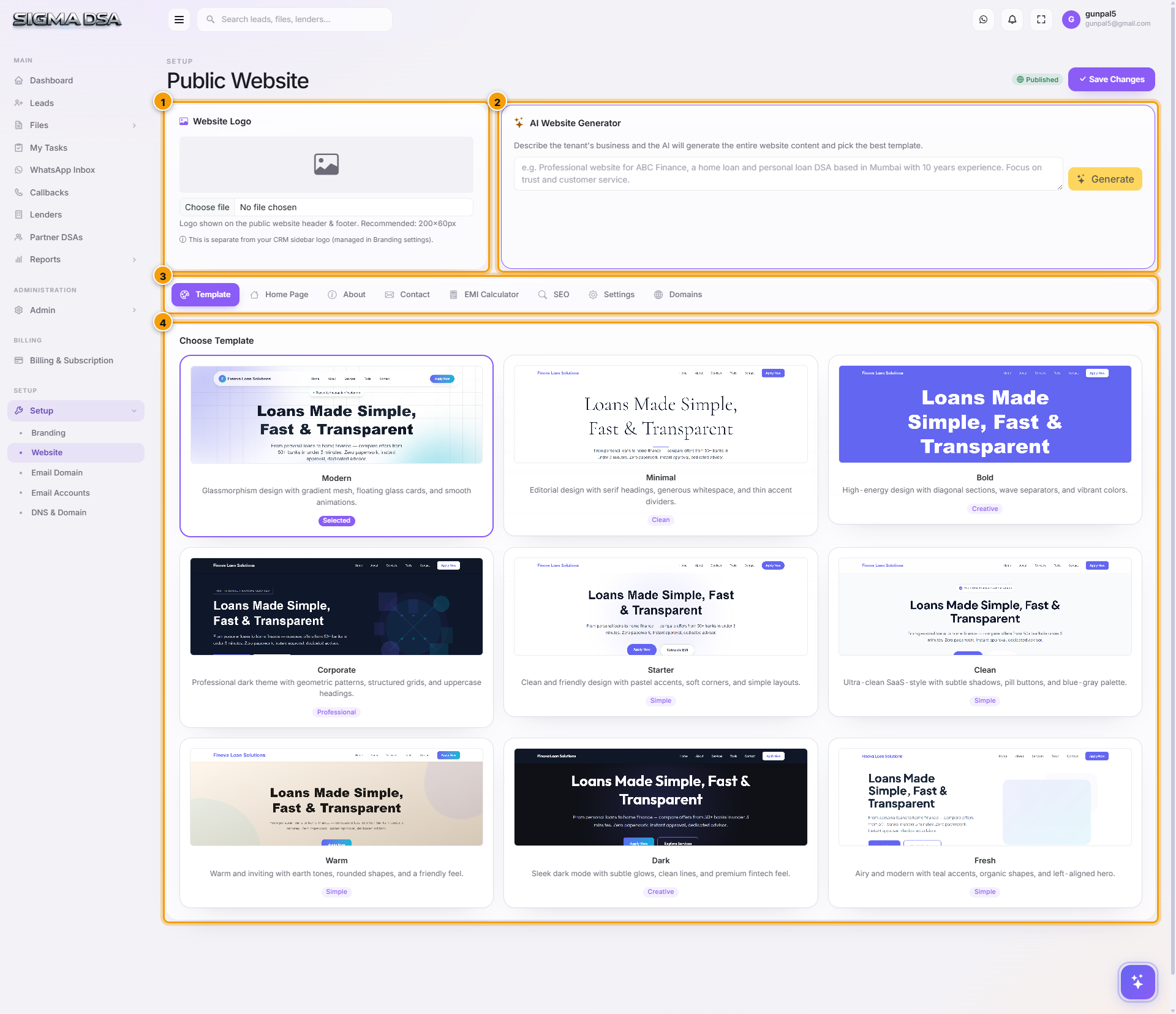
The three-step workflow
1. Generate content with the AI
The AI Website Generator card lets you describe your business in natural language, and the AI generates the entire website content + picks the best template.
How to use it:
- Click Generate in the AI Website Generator card.
- A prompt asks for a description — e.g., "DSA partnered with HDFC, ICICI, Bajaj. Specialise in home loans and LAP for self-employed customers in Delhi NCR. Established 2018, 200+ disbursals last year."
- The AI generates:
- Hero headline + subheading.
- About section (your story).
- Services section (auto-uses your active Loan Types).
- Trust elements (years in business, lender count, disbursal count).
- FAQ entries.
- Contact section.
- It also picks the best template from the 9 designs based on your tone (corporate vs creative vs minimal).
You can edit any section afterwards via the page tabs (Home / About / Contact / EMI Calculator / SEO Settings).
2. Add your domain
Switch to the Domains tab inside the Website page.
- Enter your domain (e.g.,
yourdsa.com) — apex domain preferred, nohttp://orwww.. - The page shows the required A records for the domain to point at the SigmaDSA web server. Same records also appear on the DNS & Domain page.
- Add the A records at your domain registrar (GoDaddy, Cloudflare, Namecheap, etc.).
- DNS propagation can take up to 48 hours. The status switches to Verified once the records resolve.
3. Publish from settings
On the Public Website Settings card (top of the page):
- Toggle Published to On.
- Click Save Changes.
- The site goes live at your verified domain (or at the staging URL
<tenant>.sigmadsa.comuntil your custom domain is verified).
Until Published is On, the site is in draft — visitors see a "coming soon" placeholder.
Page tabs (after generation)
Once content is generated, the page exposes 6 tabs for editing:
| Tab | What you edit |
|---|---|
| Home Page | Hero headline, subheading, primary CTA, trust strip (lender logos), services grid, testimonials. |
| About | Founder story, team photos, mission, vision, years-in-business badge. |
| Contact | Office address, phone, email, business hours, embedded map, contact form configuration. |
| EMI Calculator | Toggle the EMI calculator widget on/off. Pick loan products to show, default tenure/ROI ranges, branding. |
| SEO Settings | Page titles, meta descriptions, OG image, sitemap toggle, Google Site Verification code, GA4 measurement ID, Google Search Console verification. |
| Domains | Domain entries, DNS records to add, verification status. |
Choose Template (9 designs)
The Choose Template card shows 9 design variants — the AI picks the best one, but you can switch any time. Each preview shows the look-and-feel:
| Template | Vibe | Best for |
|---|---|---|
| Modern | Glassmorphism, gradient mesh, floating cards | Premium / fintech feel |
| Minimal | Serif headings, whitespace, thin dividers | Boutique / advisory |
| Bold | Diagonal sections, wave separators, vibrant colors | Creative agencies |
| Corporate | Dark professional, geometric grids | Established firms |
| Starter | Pastel accents, soft corners | Friendly, family-firm |
| Simple Clean | SaaS-style, blue-gray, pill buttons | Tech-forward |
| Simple Warm | Earth tones, rounded | Personal-relationship focus |
| Simple Dark | Sleek dark mode, premium fintech feel | Premium clients |
| Creative Fresh | Teal accents, organic shapes, left-aligned hero | Modern challenger brands |
Click any tile to switch — the live site updates within 30 seconds.
Website Logo
The Website Logo card uploads the logo shown on your public site (header + footer). Separate from the CRM sidebar logo managed under Branding. Recommended 200×60 px, PNG/SVG.
Common flows
- Initial launch — Generate AI content → review/tweak → add domain in Domains tab → wait for DNS verify → toggle Published → done. Typical time: 30–45 minutes including DNS wait.
- Refresh content — re-run the AI generator with an updated business description. AI replaces existing content; review before saving.
- Add a new service — add it under Admin → Loan Types. The Services section on the Home tab auto-syncs.
- Track website conversion — add the GA4 measurement ID under SEO Settings; lead-capture form submissions show in the Leads board tagged with source
Web.
Permission gating
Requires admin role for the Settings + Domains + Published toggle. The AI Website Generator is gated by AI credits in the tenant's billing plan.
Next steps
Branding
Upload your firm's logos to brand the SigmaDSA CRM — expanded sidebar logo, collapsed icon, favicon. Replaces the default SigmaDSA branding for your team's view.
Email Domain
Configure a custom email domain in SigmaDSA so your team sends and receives at `user@yourdsa.com`. Powered by Stalwart Mail Server, with auto-generated DNS records you paste at your registrar.