WhatsApp Inbox
The WhatsApp Inbox in SigmaDSA — read every conversation your AI Employee is having with customers, take over a chat when a human is needed, and start a new conversation with an approved template.
The WhatsApp Inbox is where every conversation between your AI Employee and your customers lands. Most of the time you will not need to touch it — the bot qualifies enquiries, captures applicant details, chases documents and answers product questions on its own. The inbox is for the exceptions: the customer who asks for a human, the question the bot will not answer confidently, and the chat you want to start yourself.
The inbox needs the WhatsAppBot feature on your plan and the WhatsApp Inbox permission on your role. If you can't see it in the sidebar, ask your tenant admin. Connecting the number itself is covered in WhatsApp setup.
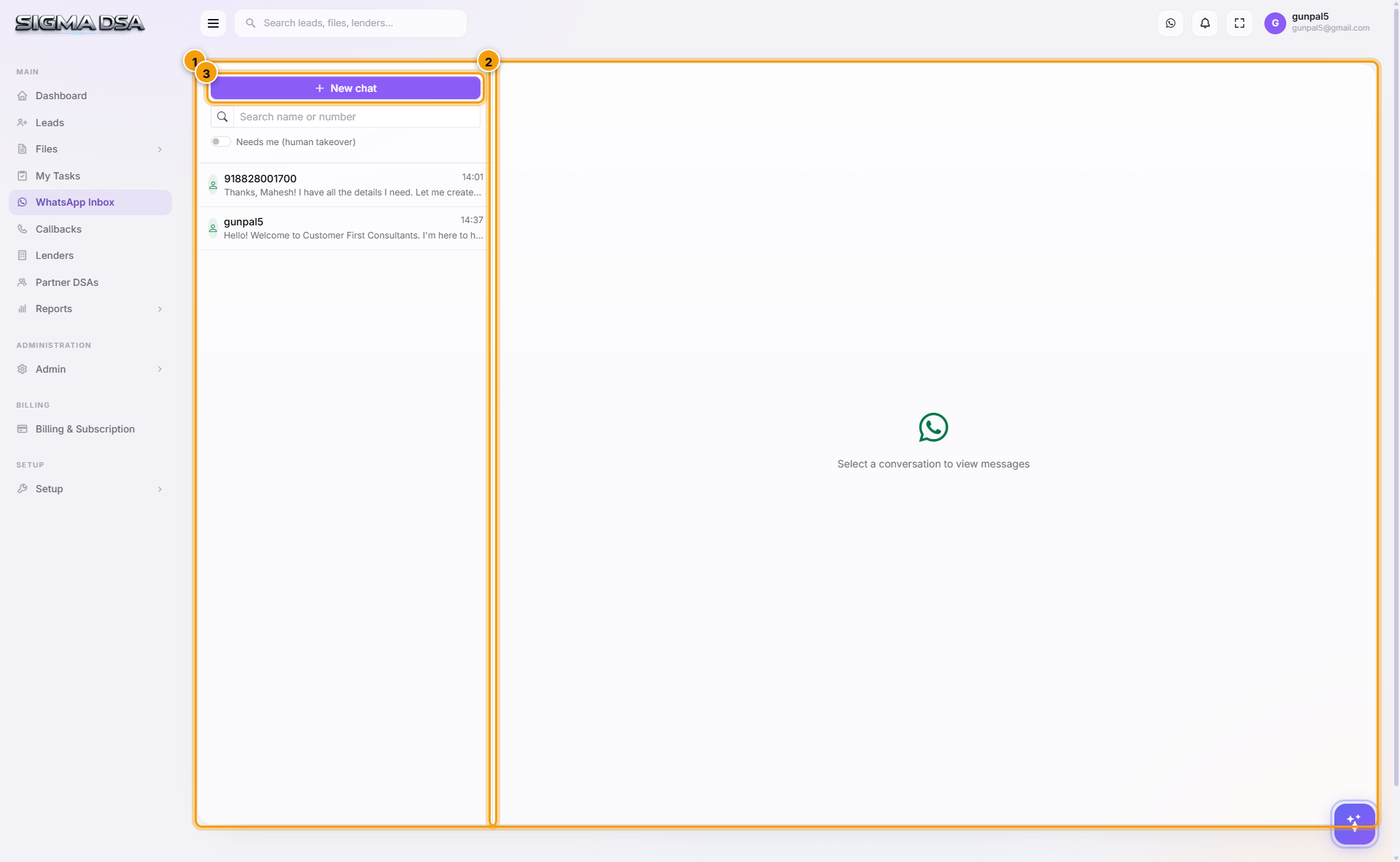
What's on the page
- Conversation list — every chat, newest activity first, with the contact's number or name and a preview of the last message. The Needs me (human takeover) filter narrows it to the conversations actually waiting on a person.
- Message thread — the full history for the selected conversation, customer messages and AI replies together, so you can see exactly what was promised before you type.
- New chat — start a conversation with a number that hasn't messaged you yet. Template-only; see below.
Taking over a conversation
When a chat needs a person, take it over from the thread. From that moment the AI Employee stops replying on that conversation — you and the bot never talk over each other — and anything you type goes out under your business number.
Hand the conversation back when you're done and the AI Employee resumes where it left off. The whole exchange, yours and the bot's, stays on the customer's record.
Starting a new conversation
WhatsApp does not let a business message a number out of the blue. New chat therefore sends one of your approved message templates — the same templates you manage under Notifications. Once the customer replies, the 24-hour service window opens and you can type freely until it closes again.
If a template you need doesn't exist yet, add it as a WhatsApp-channel template first and get it approved by Meta.
How it connects to the rest of the CRM
- Conversations are matched to the lead or file for that phone number, so the chat sits alongside the applicant's other activity.
- Documents the customer sends over WhatsApp are filed against the loan file — see Upload documents.
- Numbers allowed to act on a file are listed on the file's Authorized Phones tab.
- Replies are live: new messages appear without a refresh.
Next steps
- WhatsApp setup — connect the number and switch the AI Employee on
- Quick WhatsApp + Telegram setup
- Notification templates — the templates New chat can send
Add a callback
Step-by-step guide to scheduling a new callback in SigmaDSA — pick the linked lead or file, set date/time, capture customer details, priority, and remarks.
Lenders
Lender Management in SigmaDSA — the master list of banks, NBFCs, HFCs, and fintechs you submit files to. Configure products, commission slabs, RM contacts, and per-lender eligibility rules.